Every payment link that your team, your AI agents or your journeys create is recorded with who created it and what happened next. This article shows you where to follow payments and how to check changes to your payment settings.
When a payment is received, HueChat sends a Payment received notification to the bell and as a push to the phone. It goes to the person who sent the link. For links from AI agents and journeys, it goes to the conversation's assignee, or to the administrators when nobody is assigned. Choose it to open the conversation or the deal. Email is optional: turn on A payment is received under Email Notifications in Profile.
¶ The Payments report
Open Reports and choose Payments. Only administrators can see this report.
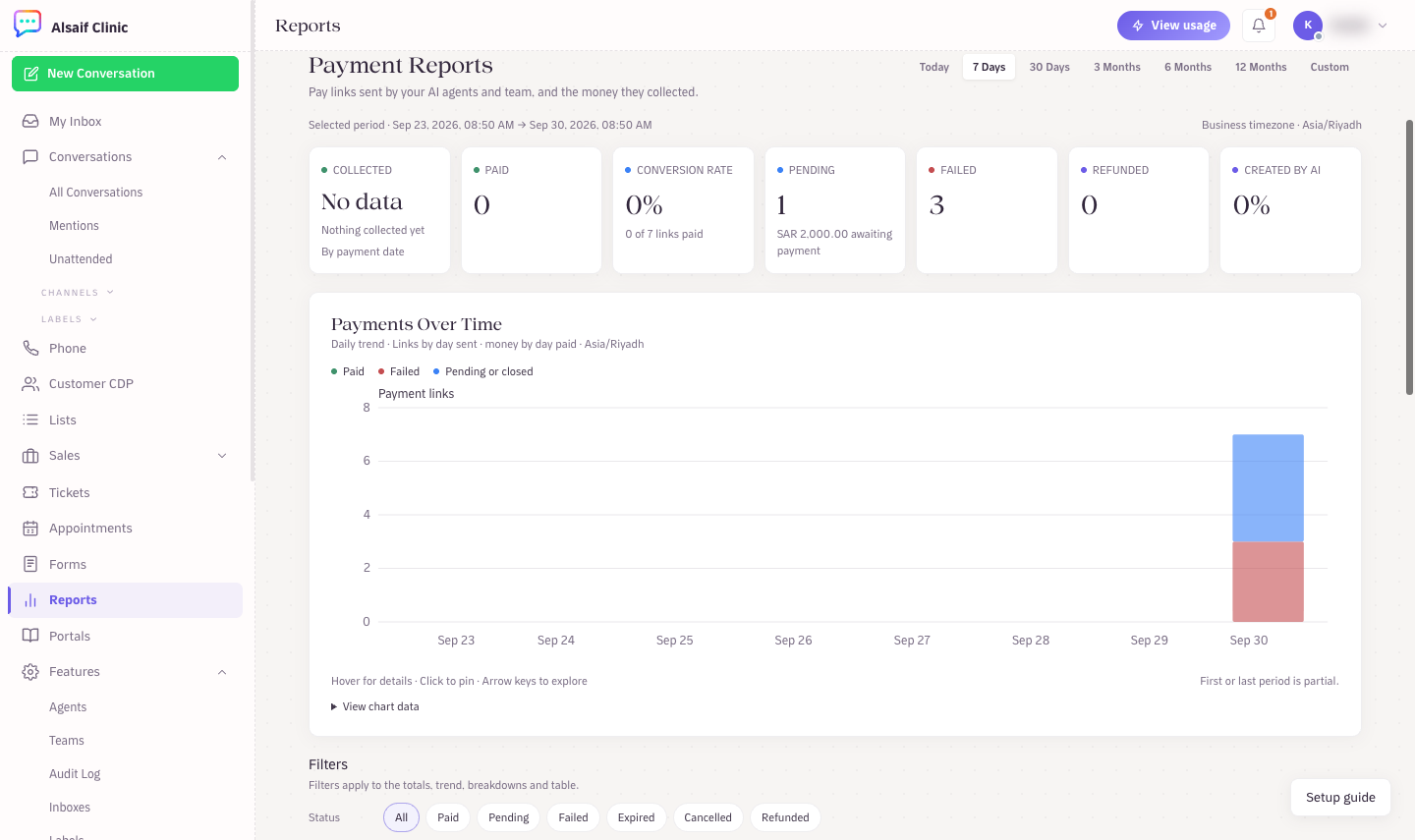
The Payments report with totals, trend and breakdowns
- Pick a period at the top: Today, 7 Days, 30 Days, 3 Months, 6 Months, 12 Months or Custom.
- The totals show Collected, Paid, Conversion rate, Pending, Failed, Refunded and Created by AI. Collected money is counted by payment date.
- Payments Over Time shows links sent and money collected per day, week or month.
- Filters narrow everything by Status, Provider, Source and Purpose (product, appointment or manual link).
- Where payments come from breaks results down By provider, By channel and By source, with the Failure rate and the Median time to pay.
- The Payments table lists each link, newest first. Search by order number, payment reference or customer.
Payments made with test keys carry a Test badge and are not counted in the money collected.
An unpaid link that has passed its expiry shows Expired and is not counted as Pending. A payment the customer has already started is never closed early, and a payment that arrives late is still recorded as Paid.
To work with the data elsewhere, choose Export CSV. One export holds up to 10,000 payments, so narrow the dates or add a filter for larger sets.
¶ Payment details and history
In the table, choose View on a payment. The detail shows the amount, Payment method, Purpose, Sent by, Channel, the conversation, when the link expires, Fulfillment, the items, the delivery address and the appointment.
History lists every step and names who acted: HueChat, a team member, an AI agent, the payment provider or the customer. You see, for example, when the link was created and sent, when the status was checked with the provider, when the payment was confirmed, and when the deal closed as won. HueChat re-checks every provider notification with the provider before it marks a payment as paid, and the history shows those checks.
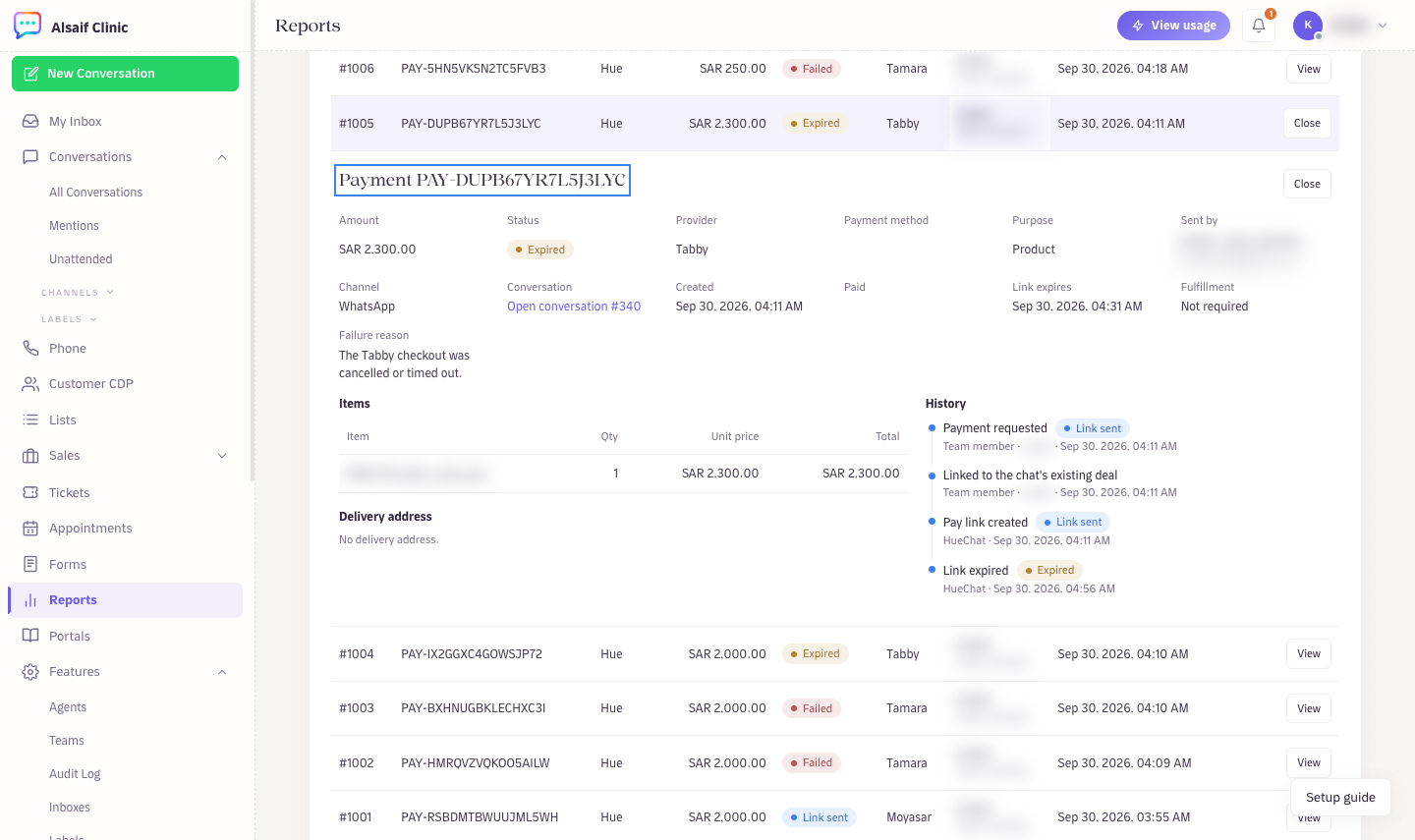
A payment's detail and history
¶ On the deal
Open the deal in Sales → Deals and choose the Quotes & payments tab. Each payment shows its status and amount, the provider and payment method, the order number, the provider's reference, the paid time and any refunds.
A payment joins the chat's existing open deal instead of creating a second one, and a confirmed payment closes the deal as won.
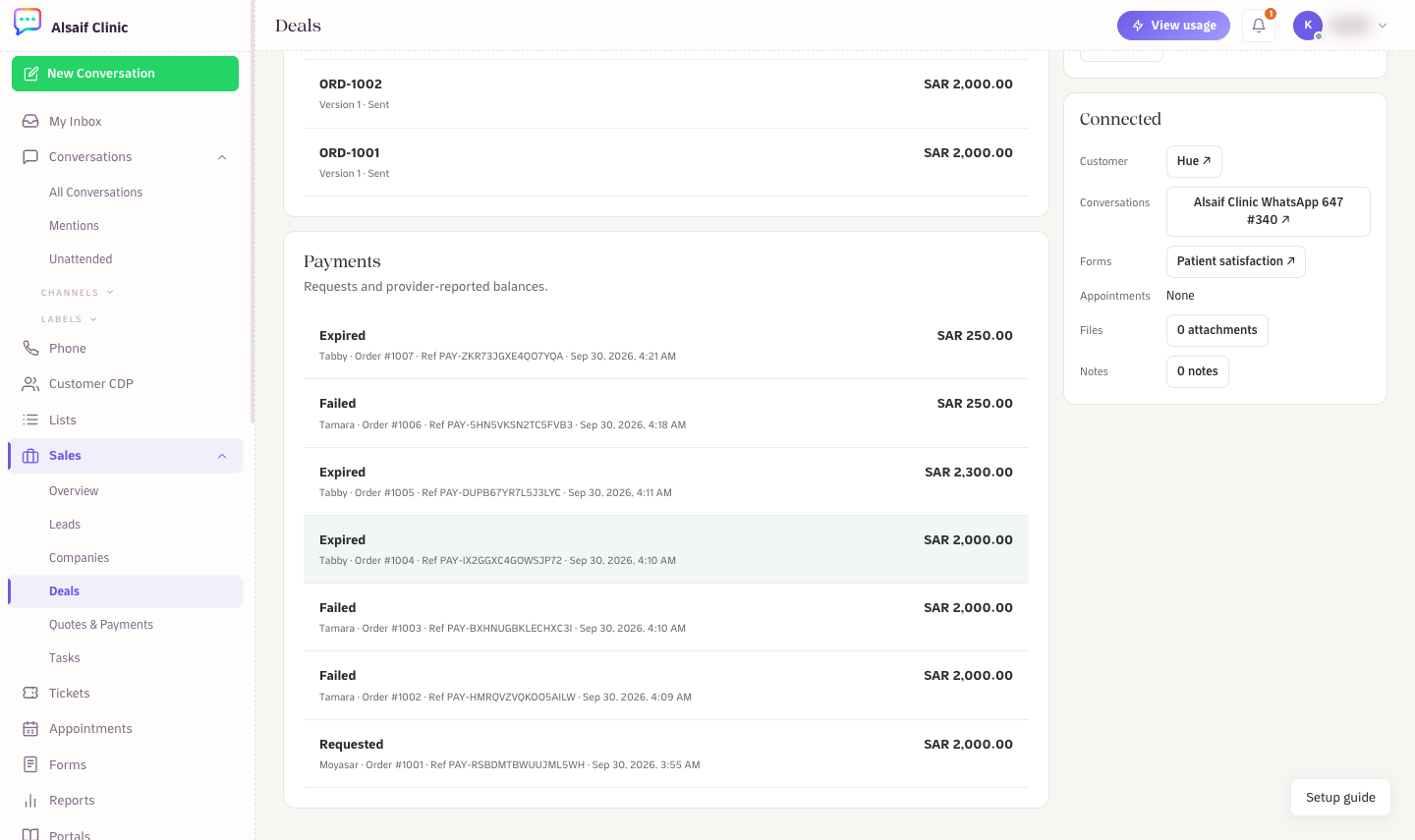
Payments on the deal's Quotes & payments tab
¶ On the customer profile
The customer's Activity timeline shows payment events: Payment link created, Payment received, Payment failed, Payment link expired, Payment cancelled and Payment refunded. Each event shows the amount, the order number and the provider. The link itself is never shown there.
¶ Payment changes in the Audit Log
Open Settings → Audit Log to see who changed payment settings and when. Entries include:
- Payment provider connected, Payment provider updated (new keys) and Payment provider connection failed
- Payment provider checked and Default payment provider changed
- Payment provider disconnected
- Payment settings changed, for example the appointment hold time
- Pay link created, for every link a team member creates
Each entry records the person, the time and the IP address. Keys and payment links are never written to the Audit Log.
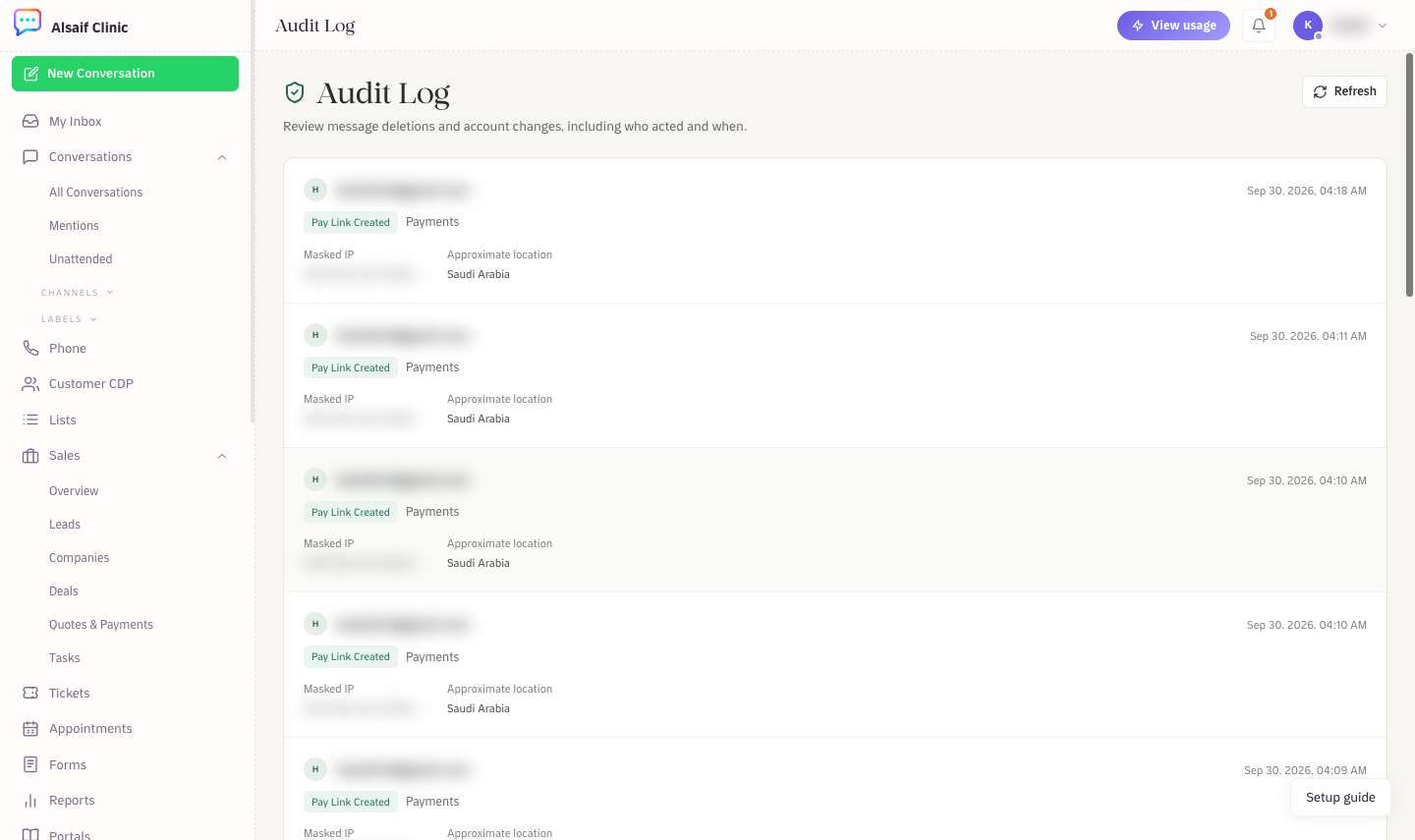
Payment entries in the Audit Log