Connect the payment providers you already use so your team and AI agents can send secure payment links. Customers pay on the provider's own page, and HueChat never sees card details. Only administrators can manage payment providers.
¶ The Payments page
Open Settings → Integrations and choose Payments. The page has three parts:
- Card payments: Moyasar, Stripe, PayTabs, Tap (Tap Payments) and HyperPay. The Default card provider handles Pay in full links from chats and all card links from AI agents.
- Pay in installments: Tabby and Tamara. There is no default: every connected one shows Offered to customers.
- Paid appointments: how long a time slot is held while the customer pays.
Each provider card shows its status (Not connected, Connected · Live, Connected · Test or Needs attention) and the countries where it works.
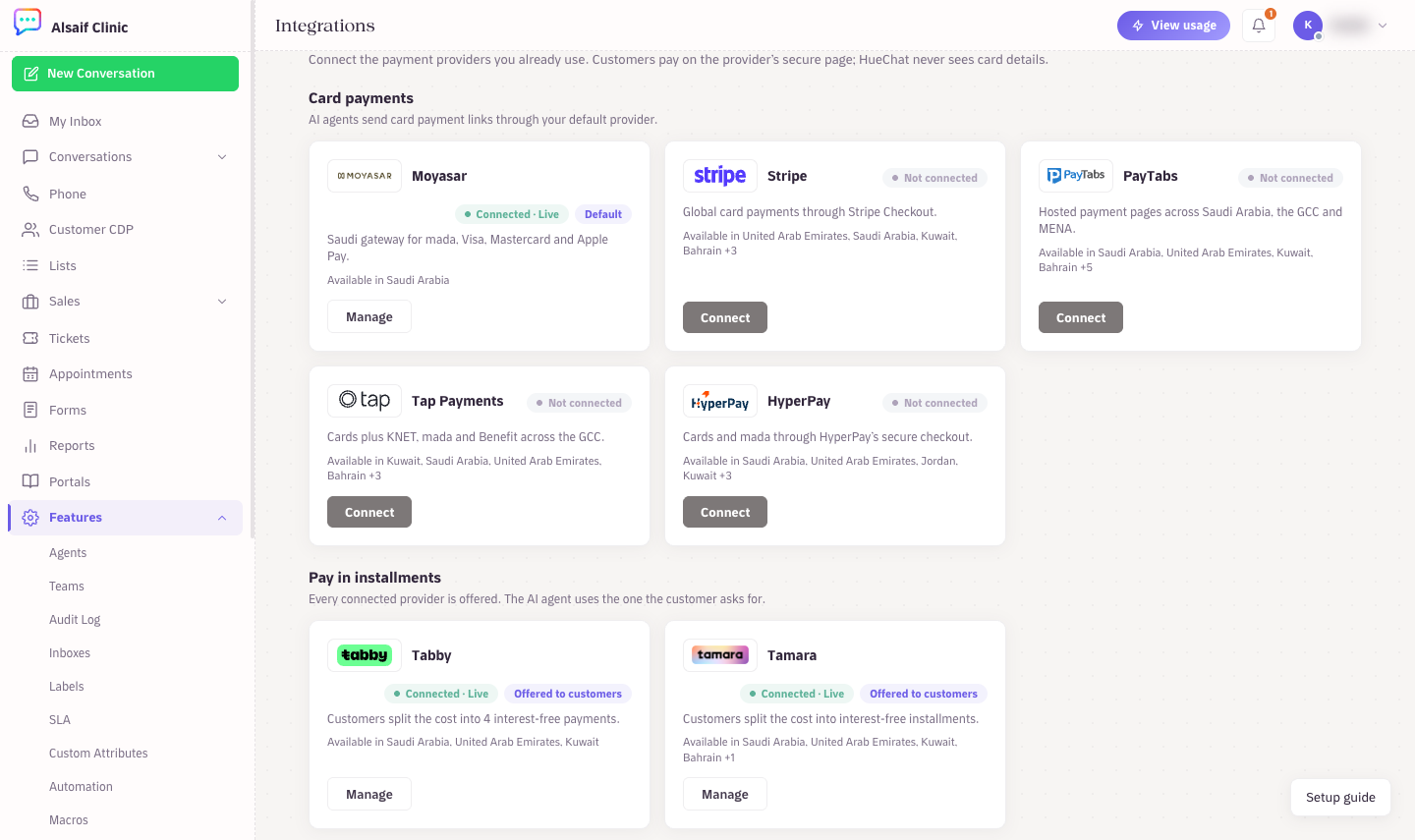
Card and installment providers on the Payments page
¶ Connect a card provider
- On the provider's card, choose Connect.
- Paste the keys from your provider dashboard, for example the Secret key for Moyasar, Stripe and Tap, the Profile ID and Server key for PayTabs, or the Access token and Entity ID for HyperPay. Where do I find this? shows where they are.
- Tick Use as default for AI agents to make it your one default card provider. The first card provider you connect becomes the default automatically.
- Choose Save & verify.
HueChat checks the keys with the provider, detects whether they are test or live keys, and registers payment notifications (webhooks) where the provider allows it. For PayTabs, leave Region on Detect automatically.
Keys are encrypted and never shown again. A saved key reads "Saved. Leave blank to keep it." Type a new key only to replace it.
Once connected, use Send a test link in the same window:
- Enter an Amount.
- Under Payment option, choose what to send: Pay in full, or Installments with Tabby or Installments with Tamara when they are connected. The note under the options shows which card provider Pay in full uses, or what the installment provider needs from the customer.
- For an installments link, enter the customer's details under Customer (optional).
- Choose Create test link, then Open link to see the page your customers see.
With a test key, no money moves.
To remove a provider, open it and choose Disconnect. AI agents and your team stop sending its links, and the saved keys are deleted from HueChat.
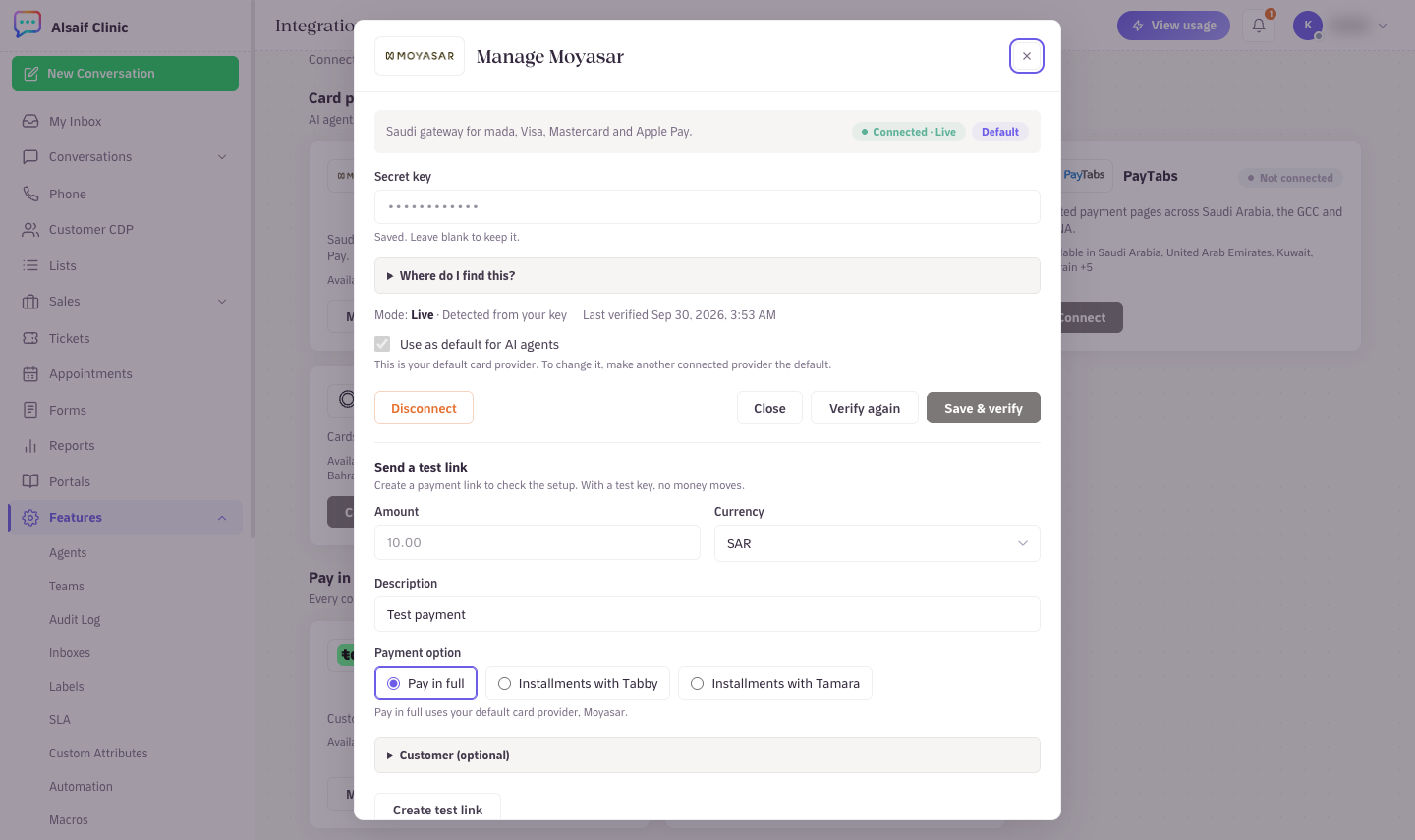
Connecting Moyasar: paste the key, then Save & verify
¶ Connect Tabby or Tamara
Tabby needs your Public key, Secret key and Merchant code. Tamara needs your API token and Notification key. Find them in the provider's merchant dashboard or ask your account manager there. Choose Connect, paste the keys and choose Save & verify.
Both need customer details for every order:
- Tabby: the customer's full name, phone and email.
- Tamara: the customer's first and last name and phone. Email is optional.
HueChat takes these details from the contact. A contact's name has a First name, a Middle name (optional) and a Last name, and Tamara receives the first and last name as saved. When a detail is missing, the message names the provider and the detail, for example "Tabby needs the customer's email."
Installments are offered only in currencies the provider supports: SAR, AED and KWD for Tabby, and SAR, AED, KWD, BHD and OMR for Tamara.
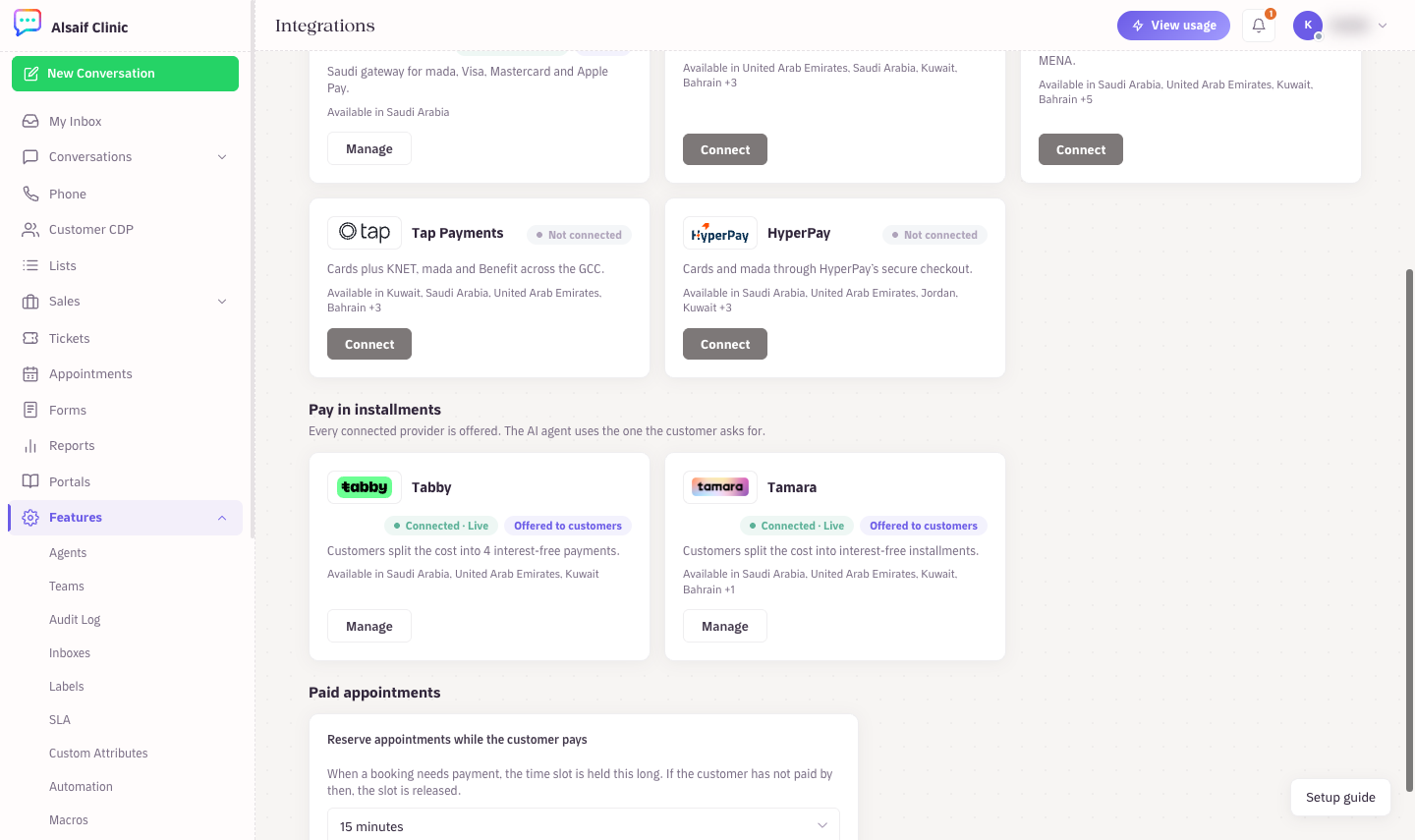
Tabby and Tamara under Pay in installments
¶ Hold paid appointments while the customer pays
Under Paid appointments, choose 10 minutes or 15 minutes (the default) for Reserve appointments while the customer pays. When an AI agent books a priced appointment that needs payment, the time slot is held this long. If the customer has not paid by then, it is released.
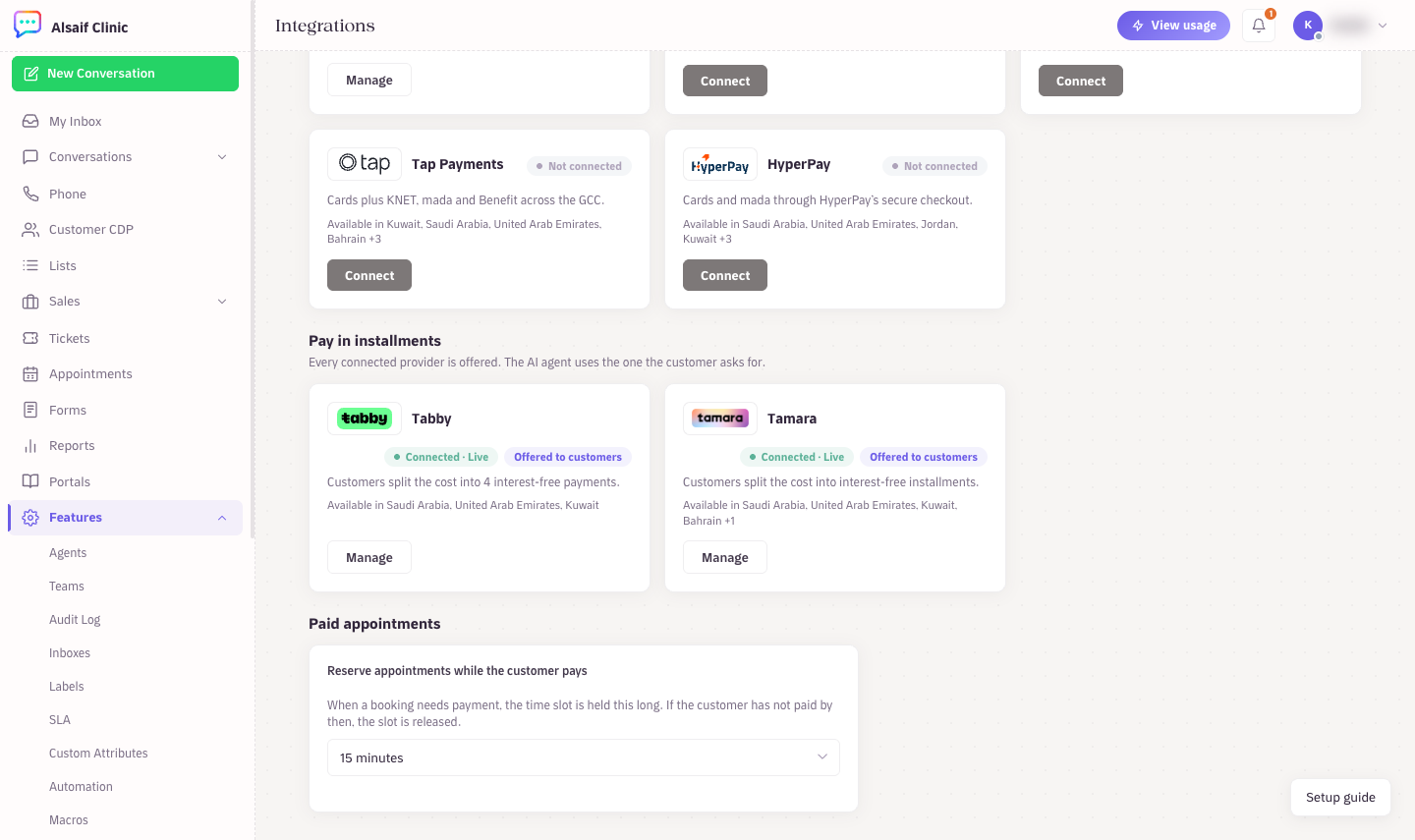
The hold time for paid appointments
¶ Test or live
HueChat detects the mode from your key. Test payments show a Test badge in the Payments report and are not counted in the money collected. To go live, paste a live key and choose Save & verify again. The provider must have activated live payments on your account.
¶ If HueChat cannot verify your keys
- Check that you copied the whole key, without spaces.
- If your provider account accepts requests only from approved IP addresses, HueChat shows the IP address to allow, with a Copy button. Add it in your provider dashboard, then choose Verify again. If no address is shown, contact support@huechat.ai.