You can ask a customer to pay without leaving the conversation. HueChat builds the order, creates a secure link with your payment provider and updates the status when the provider confirms the payment.
¶ Open the Payment dialog
Open the conversation. In the sidebar, under Quick Create, choose Payment. The button appears once an administrator has connected a payment provider.
The Request a payment dialog opens with the customer's name and phone from the contact. To change them, choose Edit contact. The contact's name has a First name, a Middle name (optional) and a Last name.
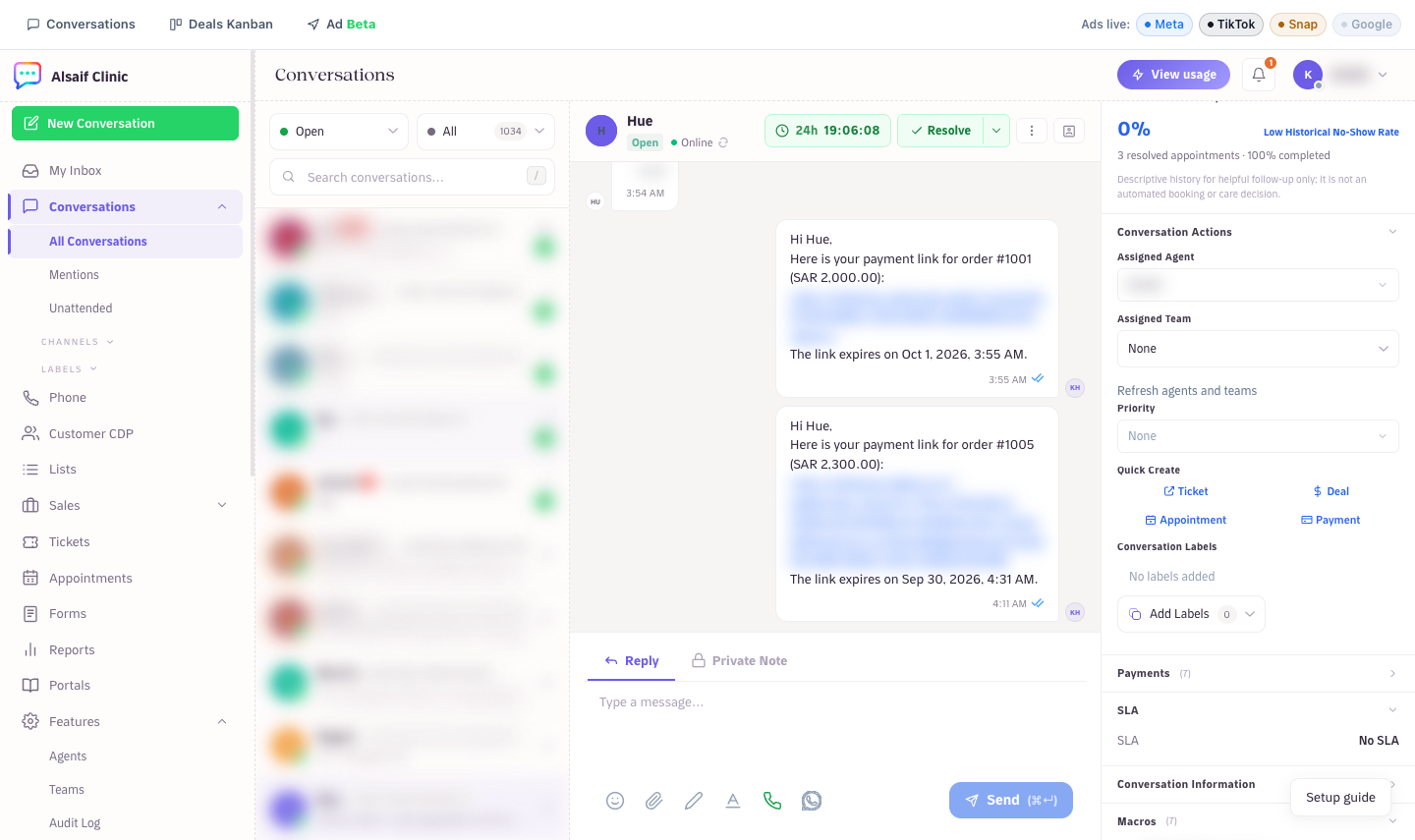
Payment under Quick Create in the conversation sidebar
¶ Add what the customer pays for
- Under Items, search your products and services. Each comes with its catalog price. For anything else, choose Add custom item and describe it.
- Set the Quantity and, if needed, the Unit price. A price you change is recorded in the payment history as a team member's change. Use catalog price puts the original price back.
- For physical products, enter the Delivery address. Street address, Country / region and City are required. The address is saved on the order and on the customer profile.
The delivery country can differ from where the customer lives: a customer with a Saudi number can receive an order in another country. A new address starts with the customer's country of residence. City searches the cities of the delivery country in English and Arabic, so typing "jed" finds Jeddah. The city is saved by its English name.
An order can have up to 20 items, all in one currency.
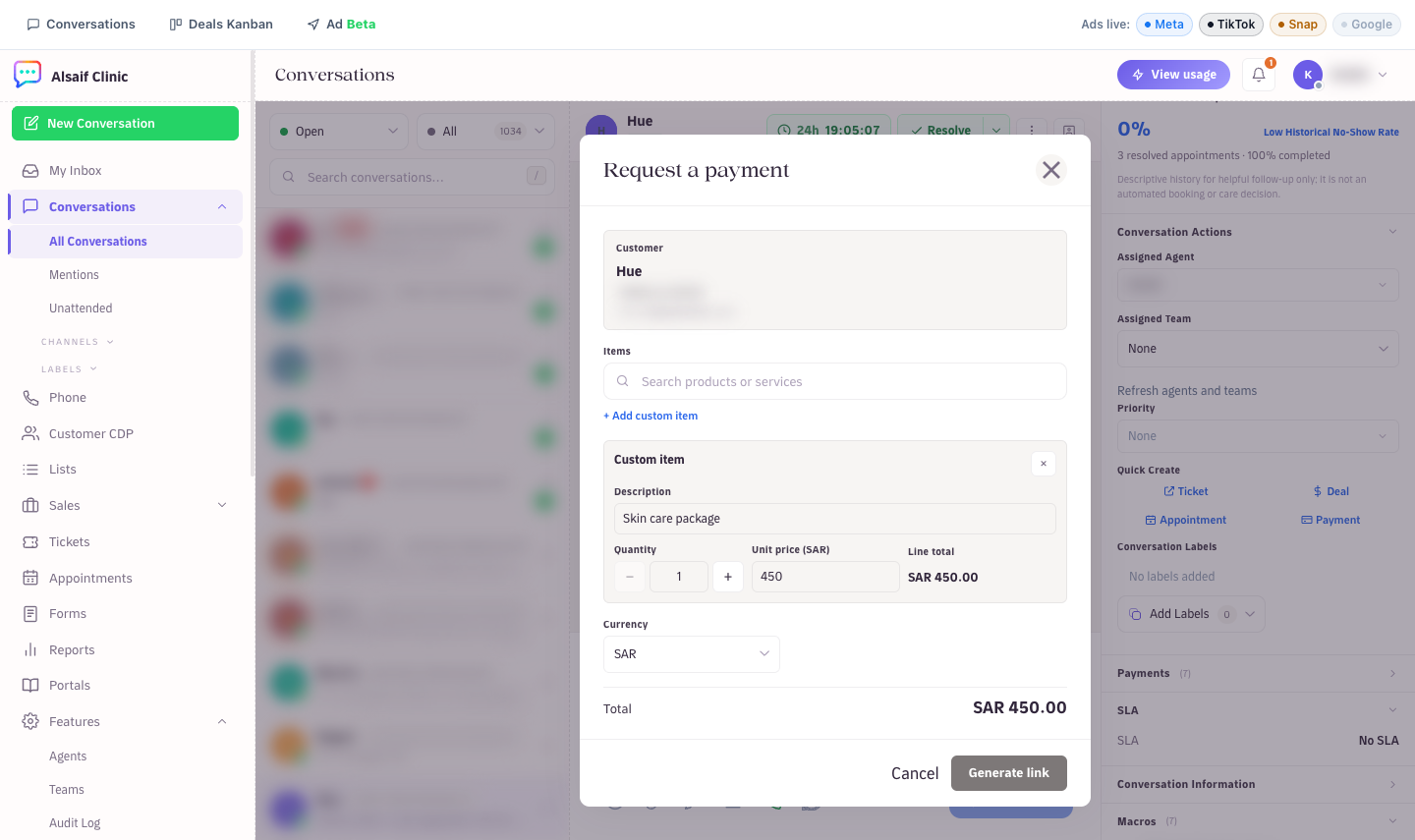
The Request a payment dialog with items and the total
¶ Choose how the customer pays
Under Payment option, choose:
- Pay in full: the customer pays by card through your default card provider.
- Tabby or Tamara: the customer pays in installments. Each connected installment provider appears here when it supports the order's currency.
Installment providers need customer details, and the dialog says what the chosen one needs. Tabby needs the full name, phone and email. Tamara needs the first and last name and phone. When something is missing, the dialog asks for it: the Email for Tabby, the First name and Last name for Tamara. What you add is saved to the contact when you choose Generate link, and the name is saved as its separate parts. If the provider still refuses, the message names the provider and the missing detail, for example "Tamara needs the customer's first and last name."
If the provider declines installments for this order or customer, choose Switch to pay in full.
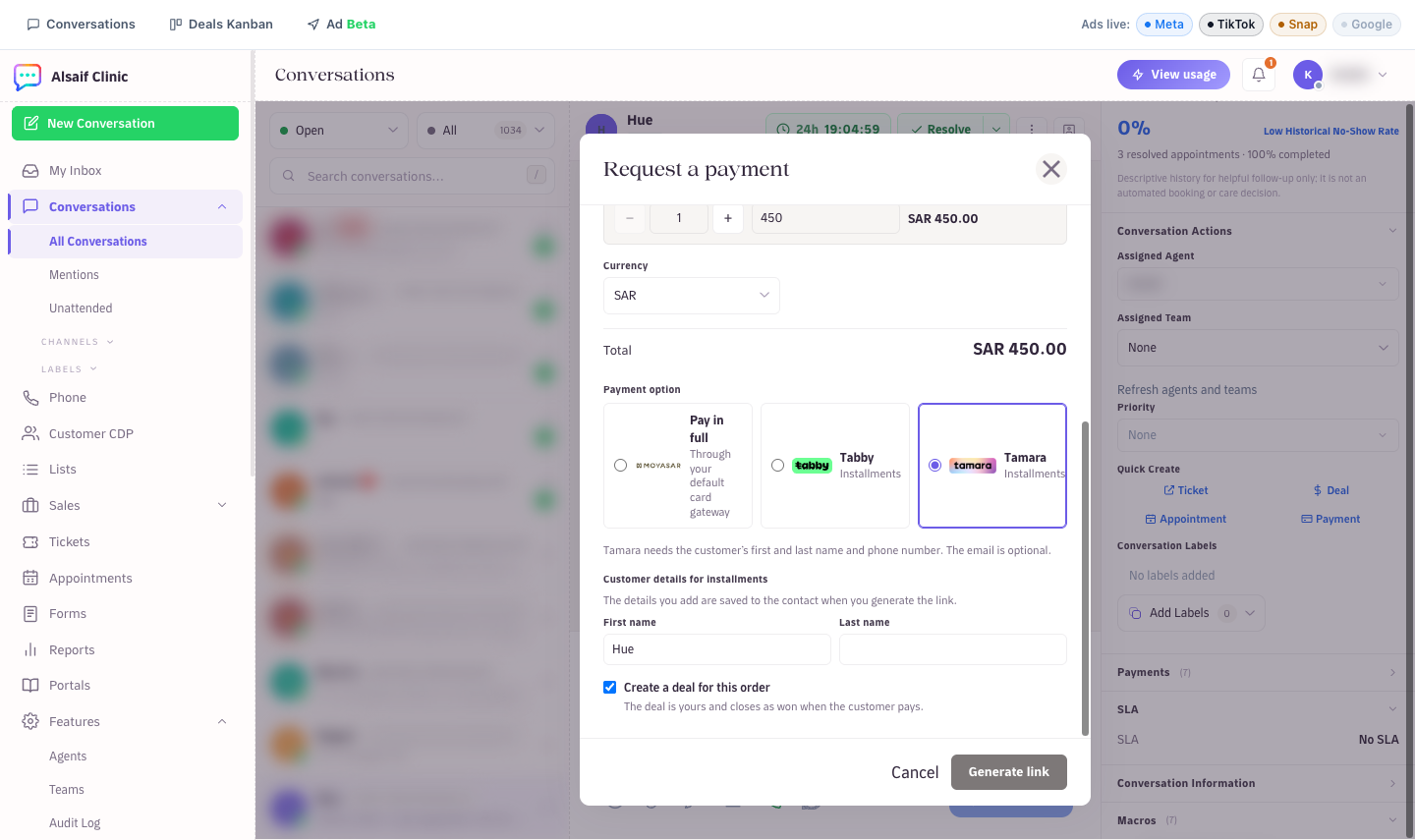
Choosing Pay in full or installments, with the customer details the provider needs
¶ Create and send the link
- Choose Generate link. Payment link ready shows the order number, the amount, the expiry time and the link.
- Choose Send to customer. Pick the Message language, edit the message if you like (keep the link in it), and choose Send message.
- Or choose Copy and paste the link yourself.
An order link lasts 24 hours. If the reply window is closed, a normal message cannot be sent: copy the link or send an approved template instead.
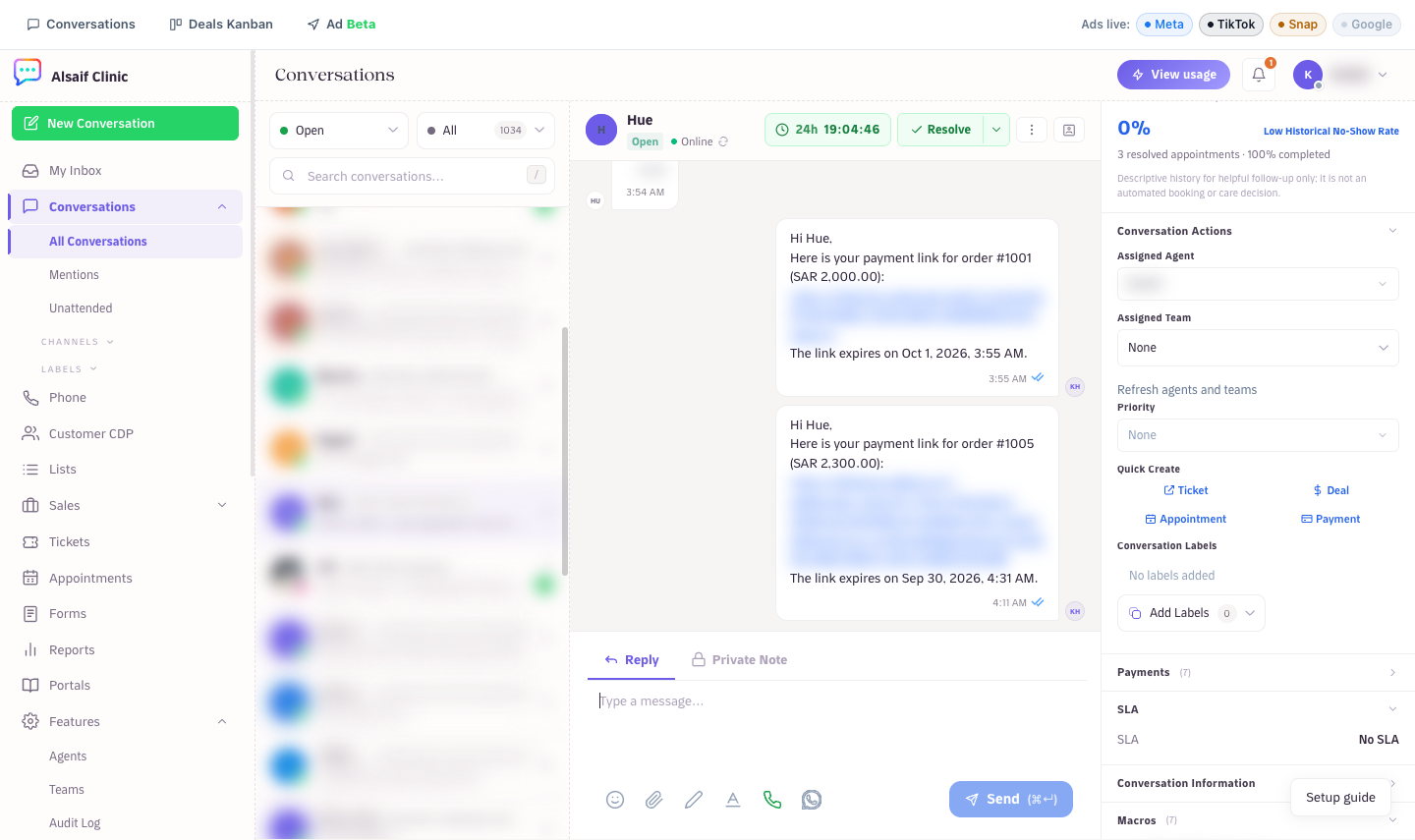
A payment link sent to the customer in the chat
¶ Follow the status
The sidebar's Payments section lists every payment in the conversation with its order number, sender and status. Like Previous Conversations, it starts collapsed: choose its header to open it. It opens by itself after you create a link.
The status updates automatically: Awaiting payment, Processing, Paid, Partially paid, Failed, Expired, Cancelled or Refunded.
- An unpaid link shows Expired within minutes after it runs out. For Tabby, Tamara and HyperPay, this happens once the provider's own checkout time has also passed.
- A payment the customer has already started shows Processing and is never closed early.
- A payment that arrives after the link expired is still recorded as Paid.
HueChat checks every payment with the provider before it marks anything as paid. After payment, the customer receives a confirmation with the order number (orders start at #1001) in their language, as long as the reply window is open. Choose View in Reports to open the payment in the Payments report.
When the customer pays, you get a Payment received notification because you sent the link. It appears in the bell and as a push on your phone, with the order number and the amount. Choose it to open the conversation or the deal. To get an email as well, open Profile and turn on A payment is received under Email Notifications.
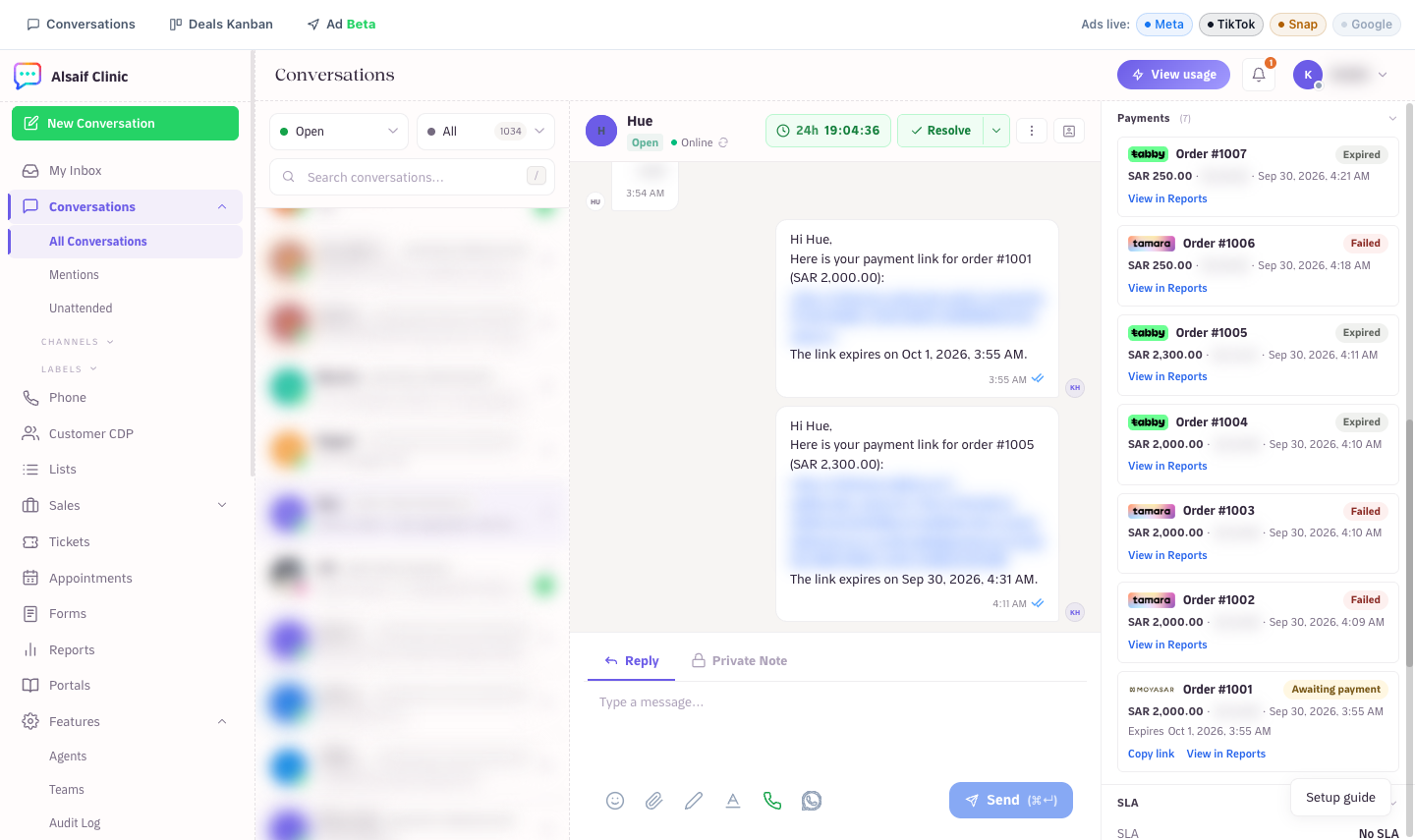
Live payment status in the conversation sidebar
¶ Payments and deals
- If the chat already has an open deal (for example the automatic deal for incoming chats), the payment joins that deal. No second deal is created.
- If there is no open deal and Create a deal for this order is ticked, HueChat opens a deal owned by you and links it to the chat.
- A confirmed payment closes the deal as won.
- The deal's Quotes & payments tab lists each payment with the provider, method, order number, reference, paid time and refunds.