A deal is a qualified opportunity with an amount, a stage and a close date. This article shows you how to view your pipeline, move deals between stages and keep each deal complete.
¶ Open your pipeline
Open Sales → Deals and choose List, Kanban or Split at the top right.
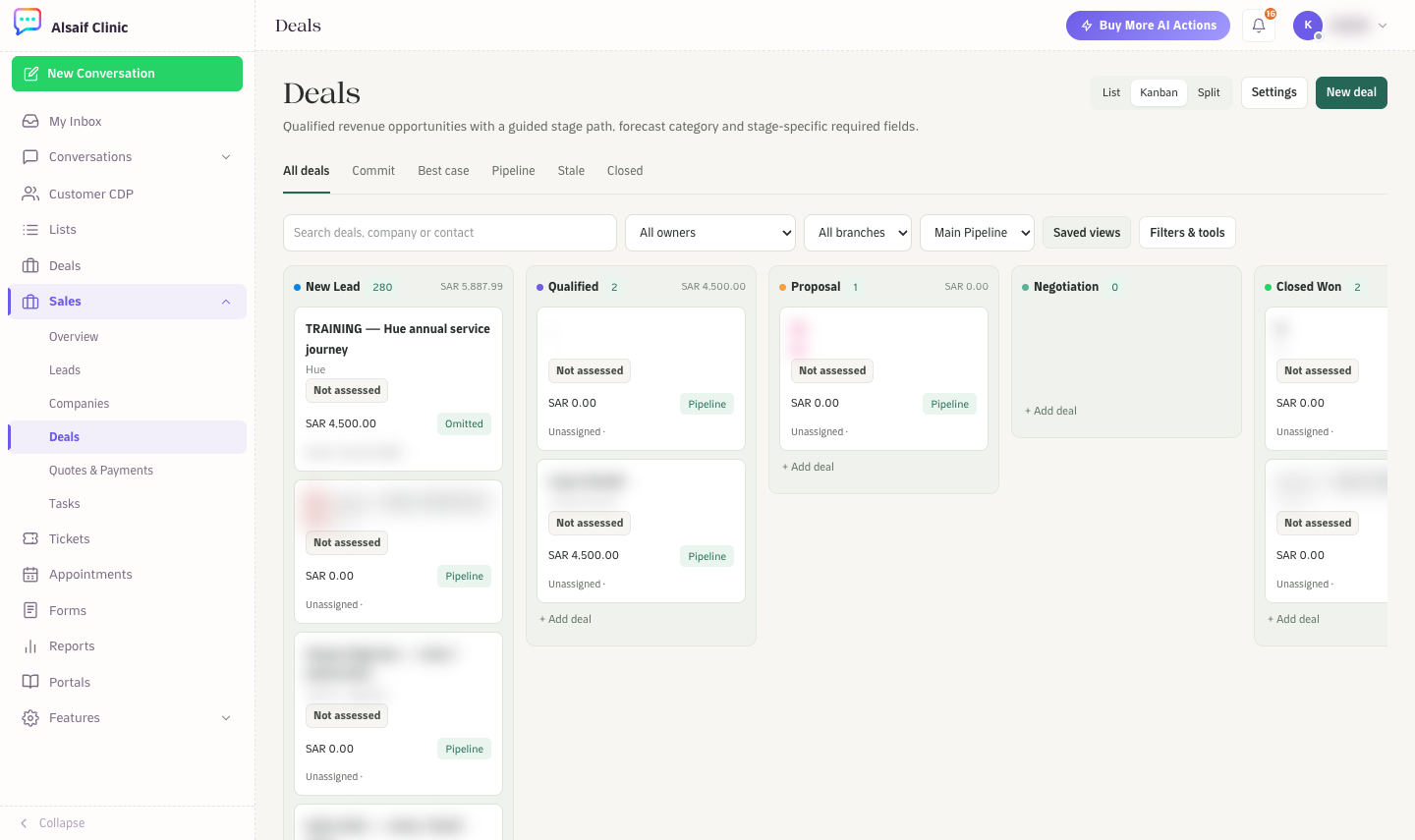
Deals in Kanban view with stage totals
- The queues All deals, Commit, Best case, Pipeline, Stale and Closed group deals by forecast category and freshness.
- In List view, the cards show Open pipeline, Weighted, Commit and Average age.
- Filter by owner, branch and pipeline. Filters & tools adds status, ad source, channel and date filters, plus import, export and pipeline editing.
- The list columns are Deal, Contact, Stage, Amount, Probability, Forecast, Owner, Close date and Next step.
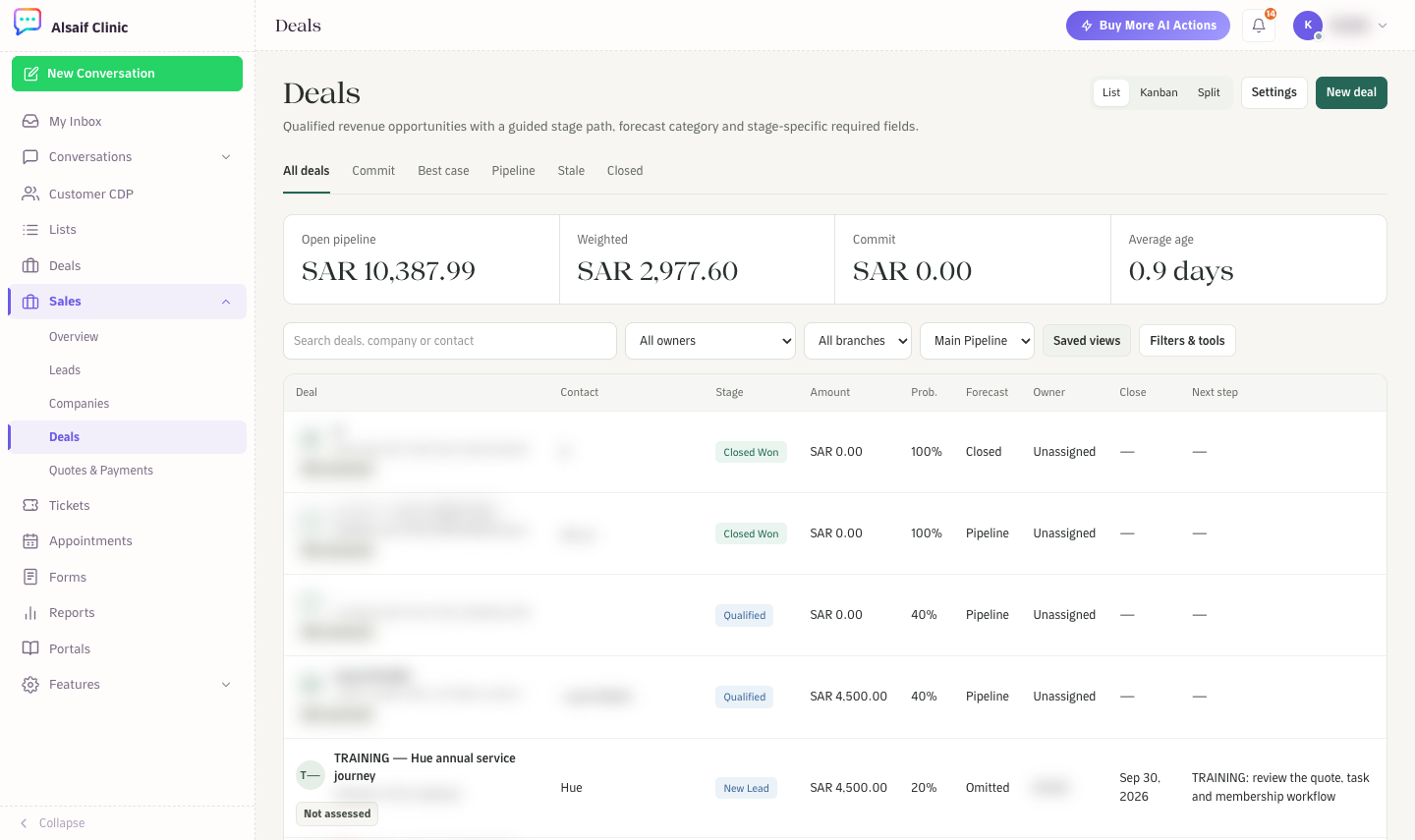
Deals in List view with pipeline totals
¶ Create a deal
Choose New deal, or + Add deal at the bottom of a Kanban column. Pick the company and contact (or create a contact), then enter the deal title, stage, owner, amount, currency and close date, and save. New deal is not available while All pipelines is selected, so choose one pipeline first.
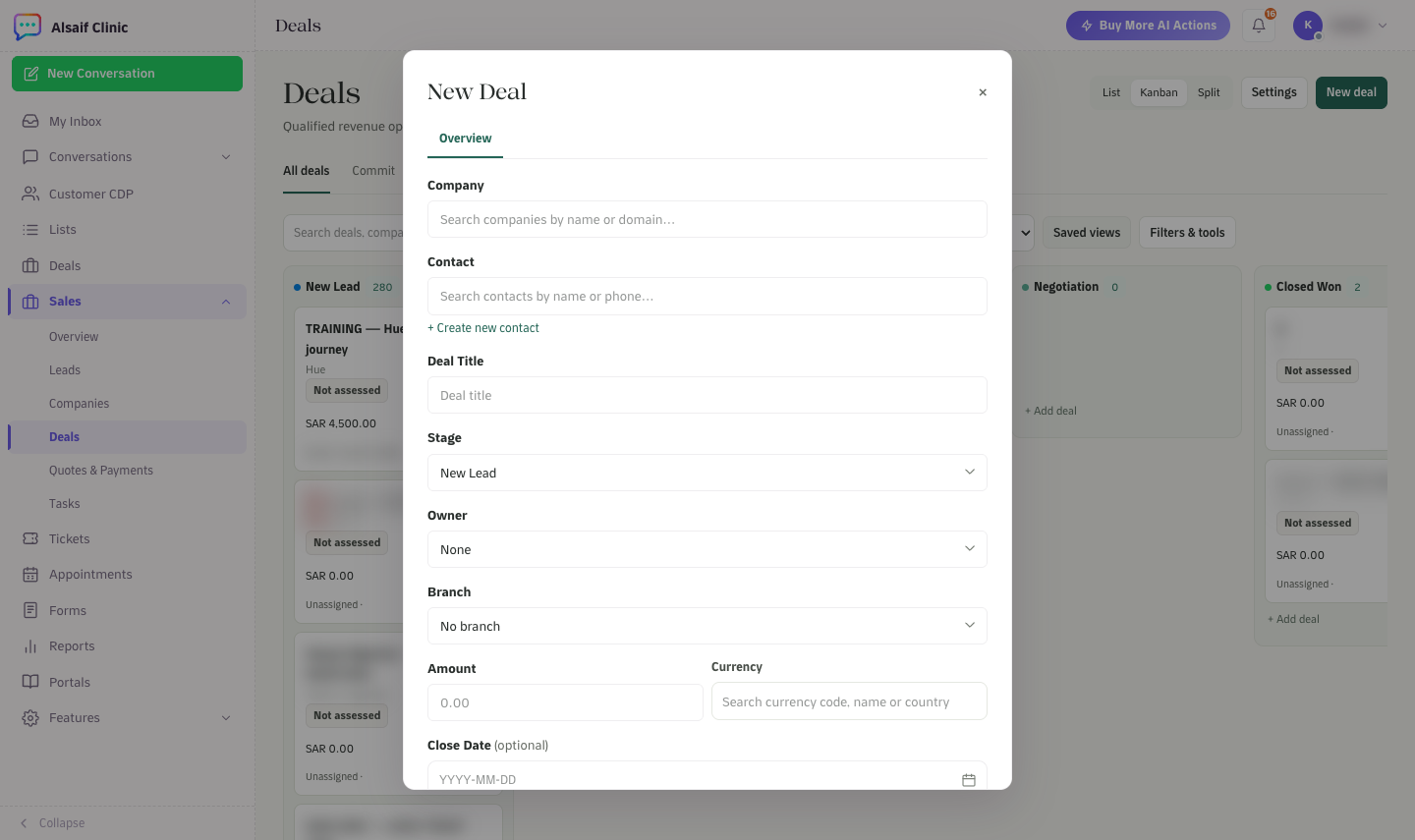
The New Deal form
You can also create a deal when you convert a lead, from a customer profile, or from the contact panel in a conversation.
¶ Move a deal to another stage
- In Kanban view, drag the card to the new stage.
- In a deal record, choose Move stage.
HueChat checks the stage rules first. If a stage needs fields such as an amount or a close date, the dialog lists them and offers Complete required fields. Moving a deal to a lost stage asks for the reason it was lost.
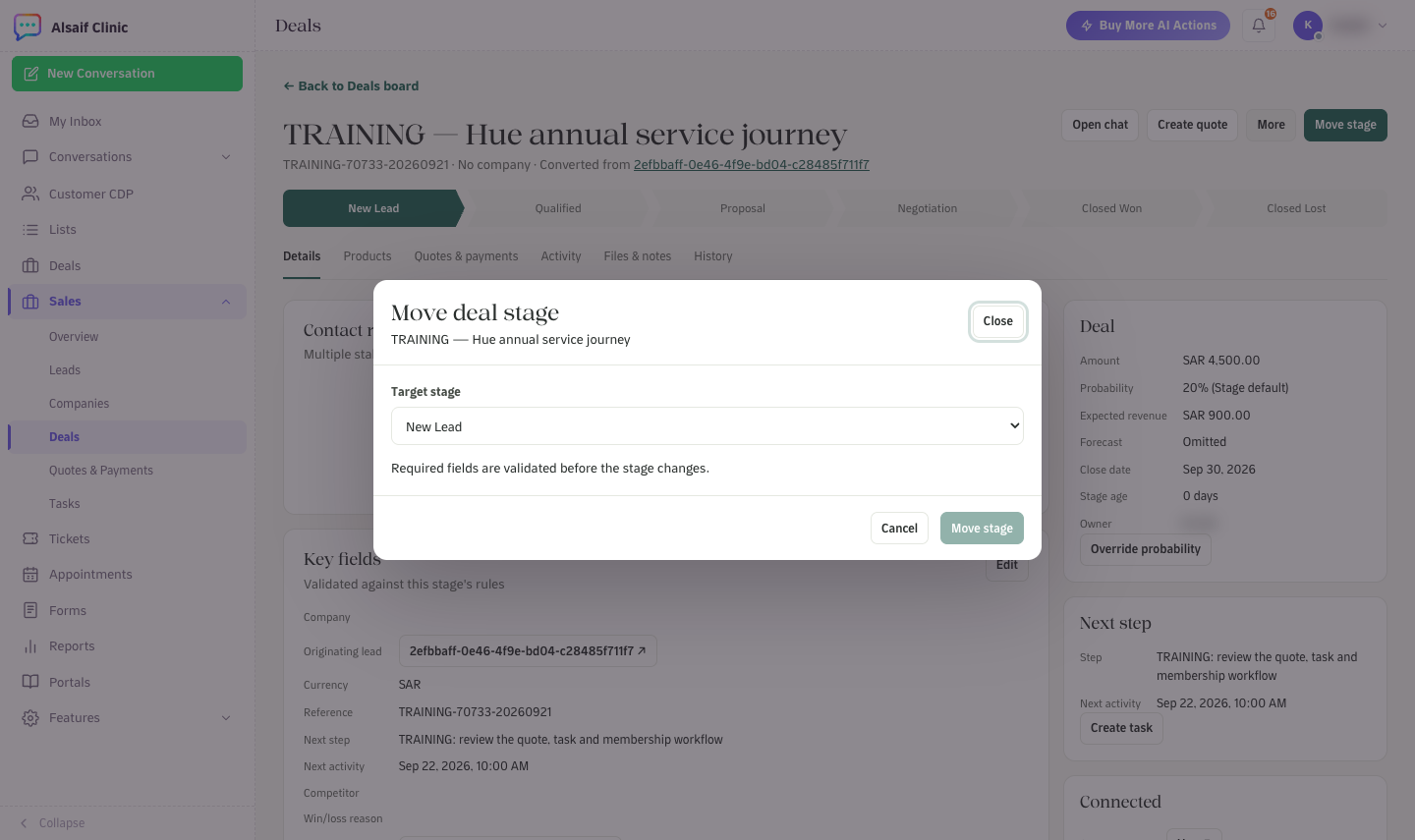
Move deal stage: required fields are checked before the stage changes
¶ Inside a deal
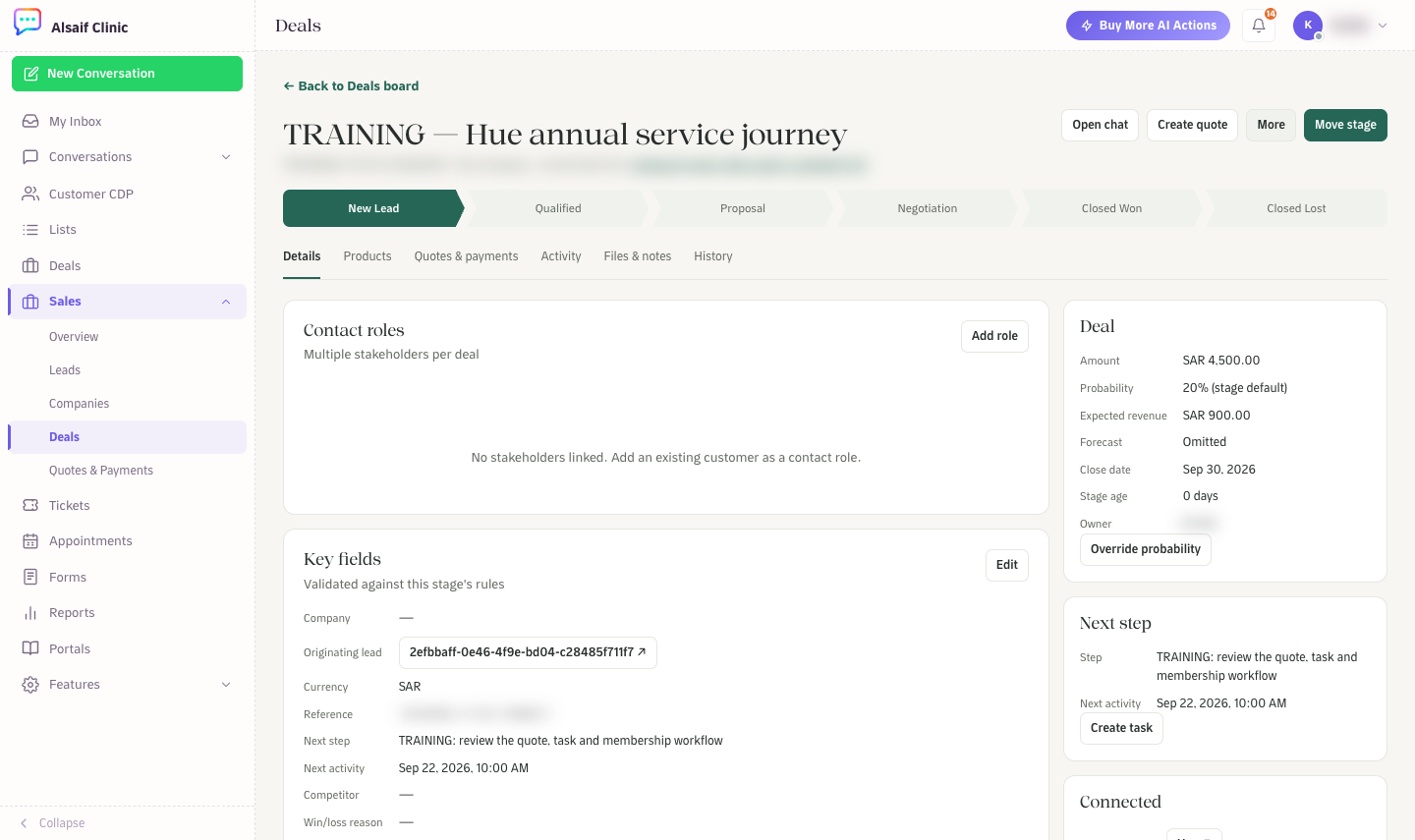
A deal record with the stage path, key fields and the deal panel
- Details shows contact roles for everyone involved, key fields checked against the current stage, and a panel with the amount, probability, expected revenue, forecast category, close date, stage age and owner. Use Override probability when your judgment differs from the stage default.
- Products lists line items with quantity, list price, unit price, discount, tax and total. A discount above your approval threshold needs an administrator's approval.
- Quotes & payments, Activity, Files & notes and History complete the record. History keeps every field, stage, owner, product, quote and payment change.
- Open chat jumps to the customer's conversation, and Create quote starts a quote for this deal.
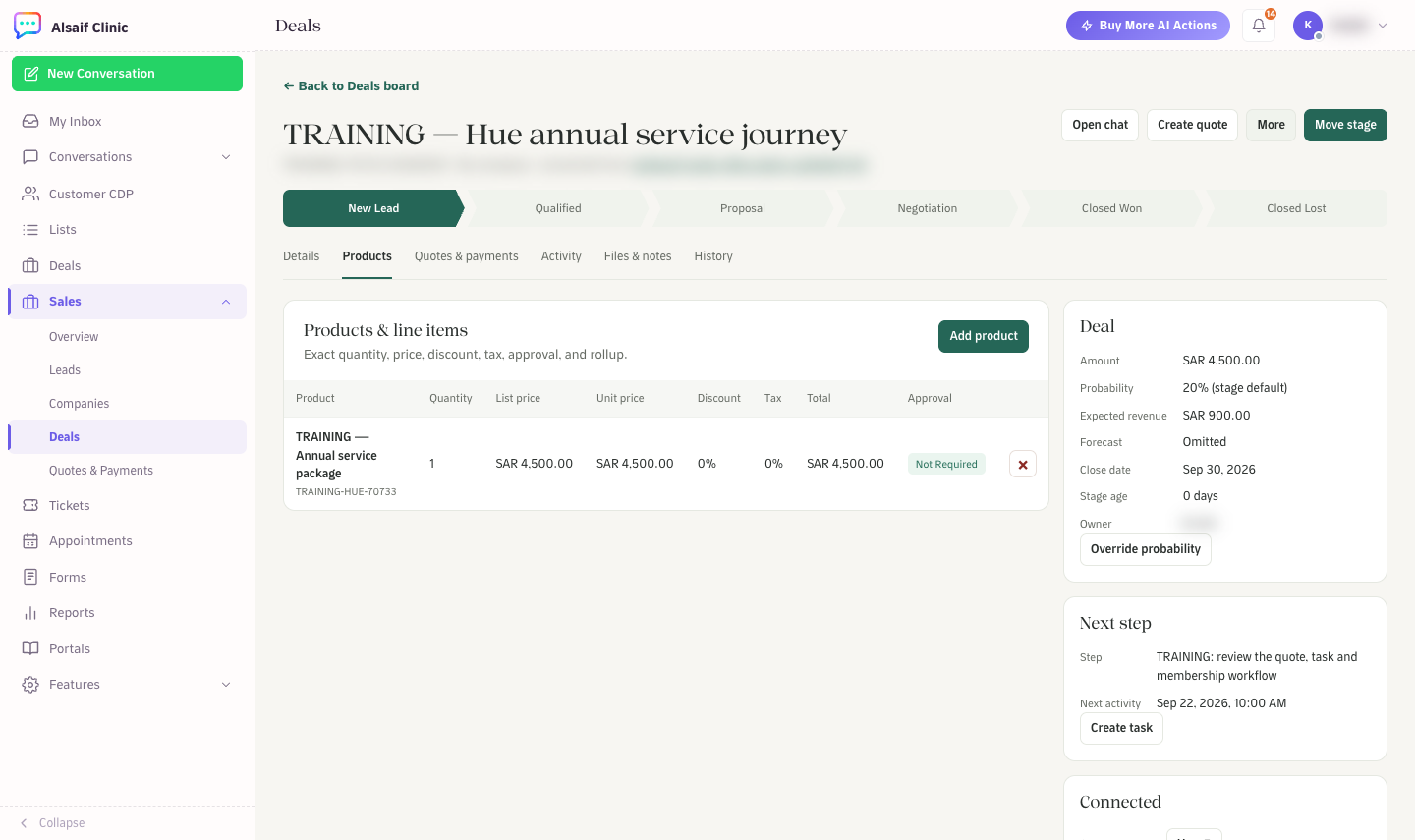
Products and line items on a deal
¶ Stale deals and next steps
Each stage can have a "stale after" number of days. A deal that stays longer shows a stale signal and appears in the Stale queue. Keep a Next step and a next activity on every open deal so nothing is forgotten.
¶ Import and export
Under Filters & tools, Import / Export accepts CSV or XLSX files with up to 100,000 rows. The contact name and phone are required. Choose whether duplicates are skipped, update the open deal, or create another deal.