After you publish a form, you can share it in several ways and follow the answers in one report. This article explains each option.
¶ Ways to share
Open a published form and choose Share:
- Public link: anyone with the link can answer. Use it on your website, in a social profile or in an email.
- Embed: place the form on your website or in an email.
- Private invitation: a link for one verified recipient, with an expiry date, single use and the option to revoke it. Answers from an invitation can update the fields you allow on the customer's profile.
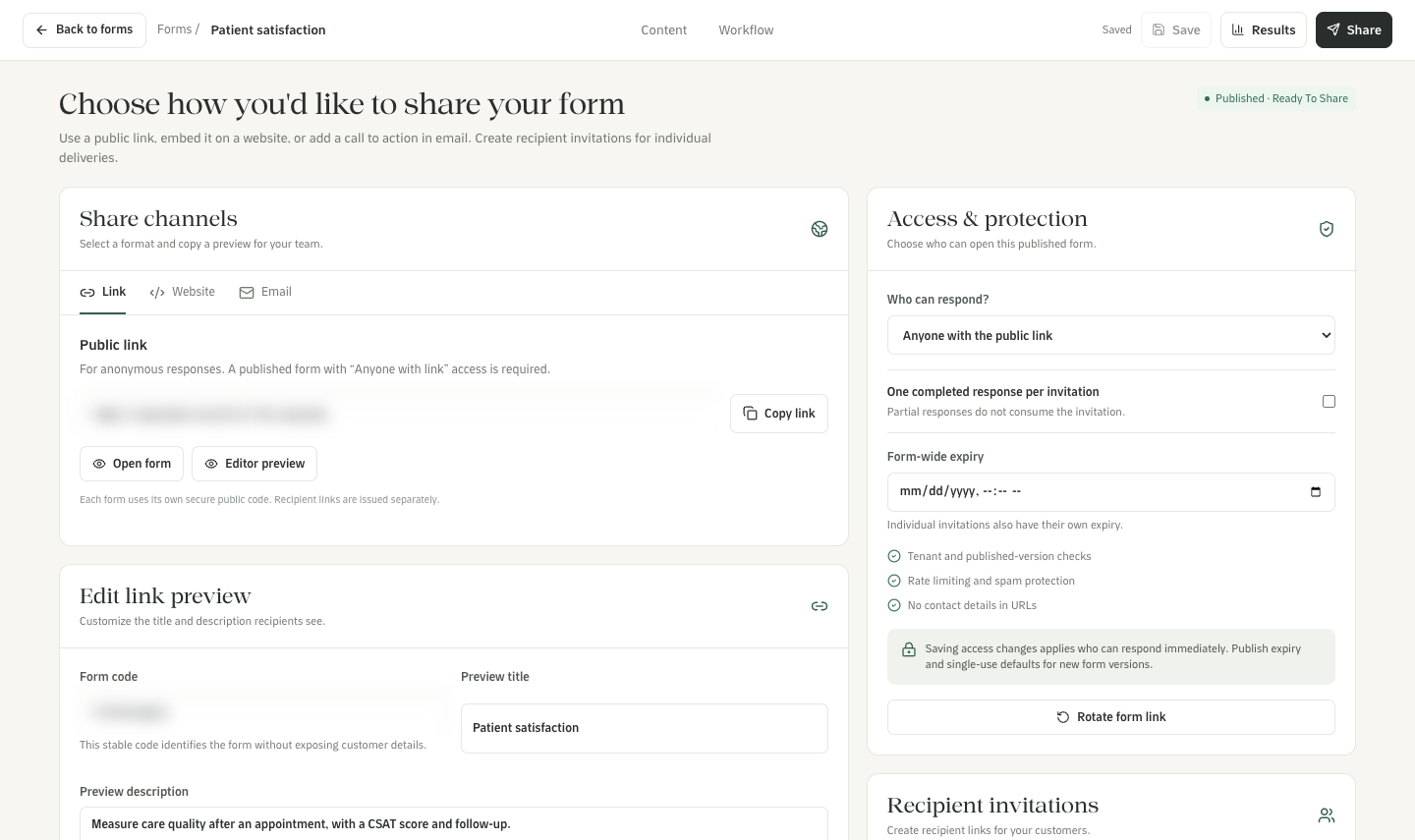
The Share page with the public link, link preview, access and recipient invitations
WhatsApp only lets a business start a chat with an approved template. To send a form link on WhatsApp outside the 24-hour window, use an approved template with a website button.
¶ Send forms automatically
- Appointment reminders: in a reminder rule, use Attach a form (optional). A private link for each recipient goes in the template's website button, and the reminder can stop once the form is completed. A fixed public link can go in the template text, but it cannot show who answered.
- Customer journeys: add a step that sends a private form, or start a journey when a form is submitted.
- AI Agents: turn on the Send Forms action and choose the form, the inbox, the template and when the agent should send it.
¶ Read the results
Choose Results on a form, or open Reports → Forms. You see the responses, completion and drop-off, devices, and CSAT or NPS scores, and you can export the answers to CSV. Opens and completions also appear on the customer's activity timeline in the Customer CDP.
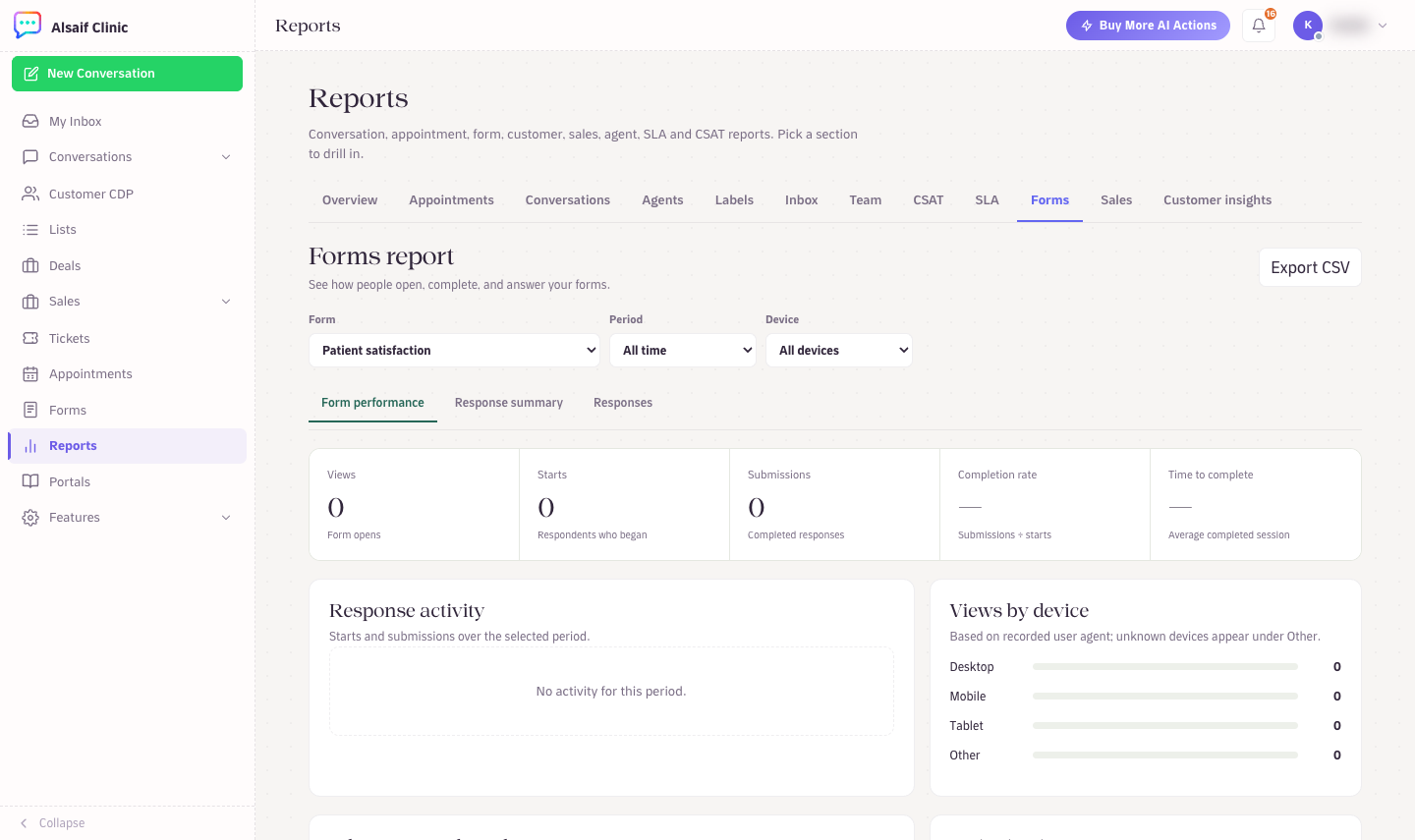
The Forms report with views, starts, submissions, completion rate and devices
¶ Good to know
- Forms are available in eight languages, including Arabic from right to left.
- Answers from a public link are not verified. HueChat keeps them apart from verified customer data.
- Create with AI has a monthly limit on the number of drafts.
Forms are available on plans that include Forms & Surveys.