A reminder before the visit is one of the most effective ways to cut no-shows. HueChat sends appointment reminders on WhatsApp automatically, using your approved templates. This article shows you how to set up reminder rules and check what was sent.
¶ Before you start
- Connect a WhatsApp inbox to HueChat.
- Get a Utility template approved in that inbox, for example: "Reminder: your {{1}} appointment is on {{2}} at {{3}}. Reply CONFIRM or RESCHEDULE." Marketing templates cannot be used for reminders.
¶ Create a reminder rule
- Open Appointments and choose Booking settings.
- Choose the WhatsApp reminders tab, then + Add reminder.
- Choose the WhatsApp inbox and choose the approved template. The WhatsApp preview on the right shows the message.
- Map each template variable to an appointment or customer detail, such as the customer's name, the service, the date and the time. Add a media header if the template has one.
- Choose when to send: the previous day at a set time, a custom time before the appointment, or a custom time after it.
- Choose which appointment statuses receive it, for example Booked and Confirmed. A rule for Cancelled or No show works as a follow-up message.
- Optionally limit the rule to one resource, and choose a 12-hour or 24-hour time format.
- Save the rule, then choose Enable.
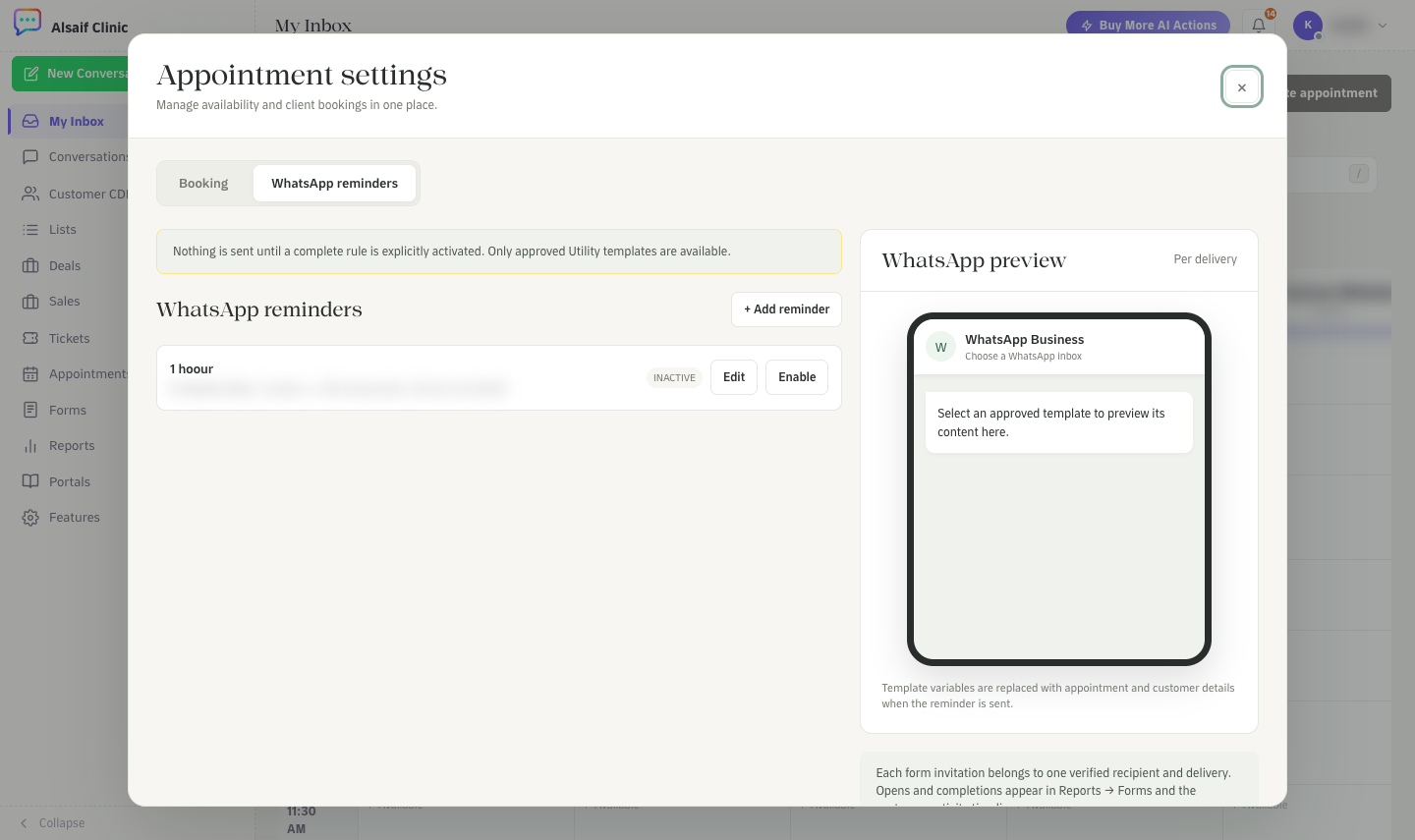
WhatsApp reminder rules with the template preview
Nothing is sent until a complete rule is enabled, and a new rule starts inactive. Reminders that are already scheduled keep the settings they were created with. Appointments imported from another system do not trigger reminders.
If your plan includes Forms, you can attach a form to a reminder, for example a short check-in before the visit.
¶ Check what was sent
Open an appointment to see its Reminder delivery history. Each reminder shows its status: pending, sent, skipped, failed or needs review. The same history appears on the customer's profile.
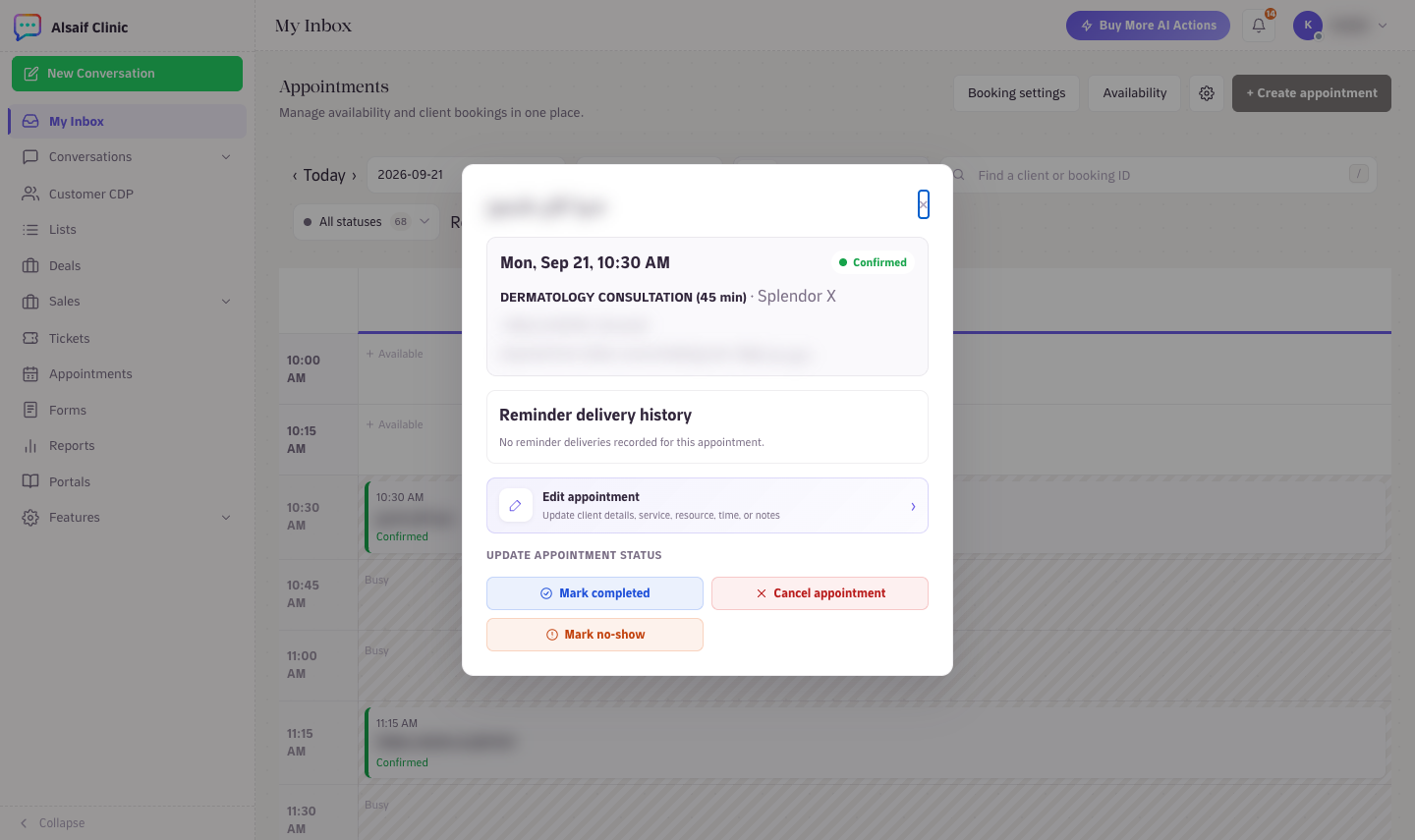
An appointment with its reminder delivery history and status actions
¶ Settings that reduce no-shows
In the Booking tab of the same settings:
- Confirmation mode: with Manual confirmation your team confirms each booking after a quick check.
- Minimum notice (minutes): last-minute bookings are missed more often. Sixty minutes or more is a sensible floor.
- Cancellation notice (minutes): the AI agent politely refuses very late cancellations and offers to reschedule instead.
- Add short buffers to your services to absorb late arrivals without delaying the whole day.
¶ Track and learn
- When a customer does not arrive, open the appointment and choose Mark no-show.
- Open Reports → Appointments to see your no-show rate and the attendance watchlist.
- Answer reschedule requests quickly. An unanswered reschedule often becomes a no-show.