After this article you will have a WhatsApp Business API number connected to a HueChat inbox and ready to receive and send messages.
¶ What you need
- A HueChat plan that includes WhatsApp. WhatsApp is included on Starter and above. Free includes Live Chat only.
- A Facebook account that manages, or can create, a Meta Business Portfolio for your company.
- A phone number that is not currently registered on the WhatsApp or WhatsApp Business app. If it is, delete that WhatsApp account first or use a different number. The number must be able to receive an SMS or a voice call for verification.
- Your legal business name and address as they appear in your commercial registration.
HueChat uses Meta's Cloud API. WhatsApp messaging fees are billed by Meta based on your usage. HueChat adds no markup.
¶ Connect the number
- Sign in to app.huechat.ai as an administrator.
- Open Settings, choose Channels (inboxes) and add a new WhatsApp inbox.
- On the Connect WhatsApp screen choose Connect a number for API use. (The other card, Keep using WhatsApp Business on your phone, is Coexistence; see the related article.) Click Connect with Meta. A Meta window opens. Sign in with your Facebook account and allow the permissions HueChat asks for.
- Select an existing Business Portfolio or create one. Enter your business name, address, website and category.
- Create a WhatsApp Business account, or select an existing one.
- Enter the phone number, choose SMS or voice call, and type the verification code Meta sends.
- Enter the display name customers will see. Meta reviews it against its display name rules.
- Finish the Meta window. Back in HueChat, give the inbox a name and choose the agents who should work in it.
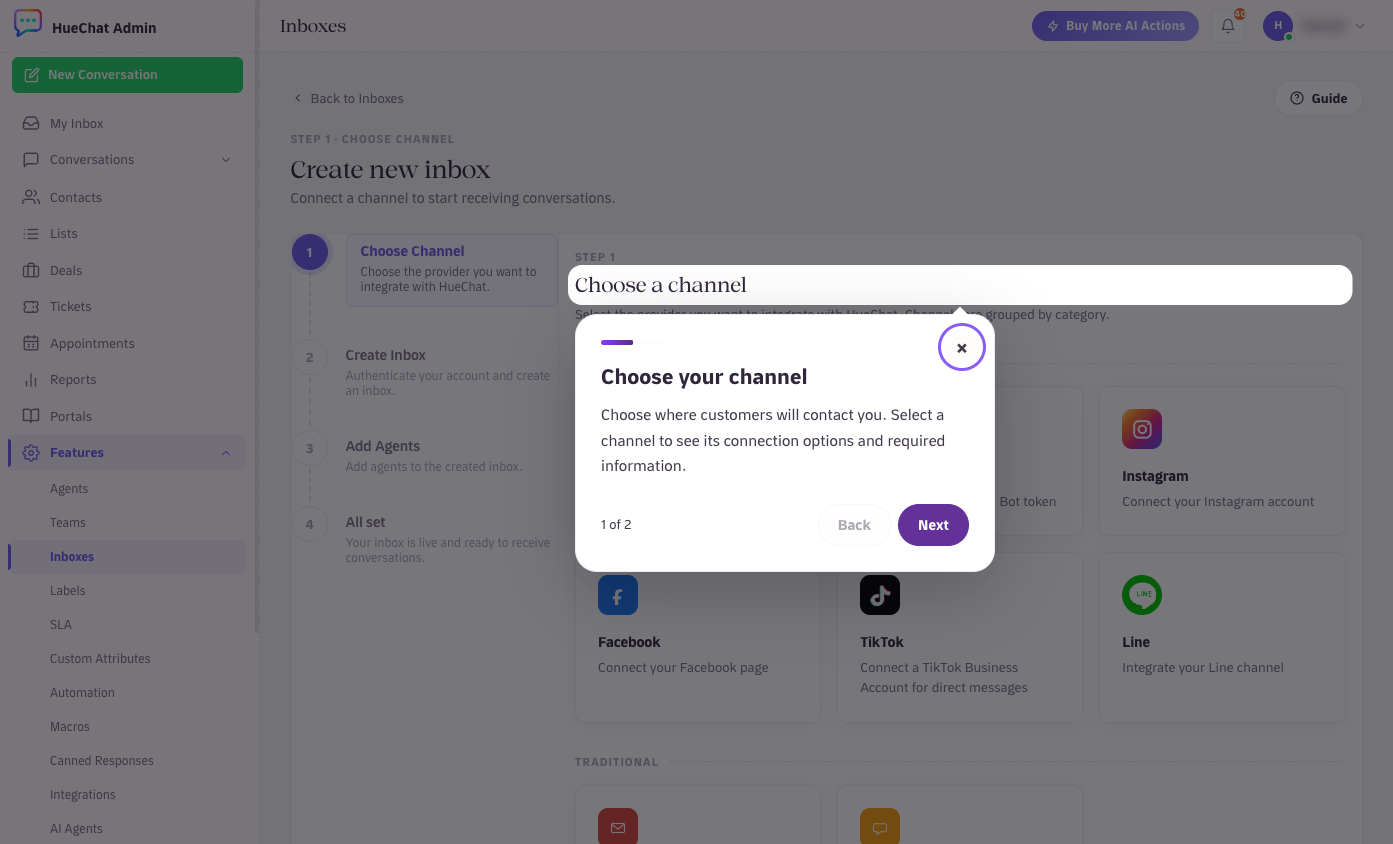
Settings, Inboxes, Add: choose WhatsApp
Keep the Meta window open until it finishes. If it closes early, HueChat reports that it timed out waiting for business details. Start again from step 3.
¶ After connecting
- Send a test message to the number from your own phone. It should appear in the new inbox within seconds.
- The number starts with a limited messaging tier until your business is verified. See the article on quality rating and messaging limits.
- Create at least one message template so you can start conversations after the 24-hour window closes.
- HueChat stores your WhatsApp credentials encrypted at rest and isolates them to your account.
¶ Common problems
- Number already in use: the number is registered on the WhatsApp app or with another provider. Delete the WhatsApp account on the phone, or move the number away from the other provider before retrying. Never delete and re-add a number that is live with another provider without a migration plan.
- Two-step verification PIN: if the number had a PIN with a previous provider, you will need it to complete the move.
- Business details error: usually a Meta prompt that was not answered in the popup. Retry and complete every step.
If you are stuck, email support@huechat.ai with the phone number and the exact message shown.