After this article your existing WhatsApp Business app number will be connected to a HueChat inbox. You keep the phone app, and the same one-to-one conversations also reach your team in HueChat.
¶ What Coexistence is
Meta lets one number work in two places at once: the WhatsApp Business app on your phone and the WhatsApp Business Platform (Cloud API) used by HueChat. HueChat calls this Coexistence. It is different from an API-only number, where the number leaves the phone app completely.
What you get:
- Messages sent from the phone app appear in HueChat, and replies from HueChat appear on the phone.
- Eligible one-to-one chat history from the last six months can be imported, with your consent.
- Your phone contacts can be imported into HueChat Contacts.
What stays on the phone:
- Groups you created in the phone app stay there. They do not synchronize to HueChat.
- WhatsApp Groups created from HueChat need an API-only number with an Official Business Account. A Coexistence number cannot use them.
¶ What you need
- A HueChat plan that includes Coexistence. If the option is greyed out, the wizard tells you it is not included in your plan. Ask your account administrator.
- The WhatsApp Business app installed and active on your primary phone, using the number you want to connect.
- A Facebook account that manages your Meta Business Portfolio.
- Administrator access in HueChat.
¶ Connect the number
- Sign in to app.huechat.ai as an administrator.
- Open Settings, choose Inboxes and click Add Inbox.
- Choose WhatsApp.
- On the Connect WhatsApp screen choose Keep using WhatsApp Business on your phone (the card labelled Coexistence).
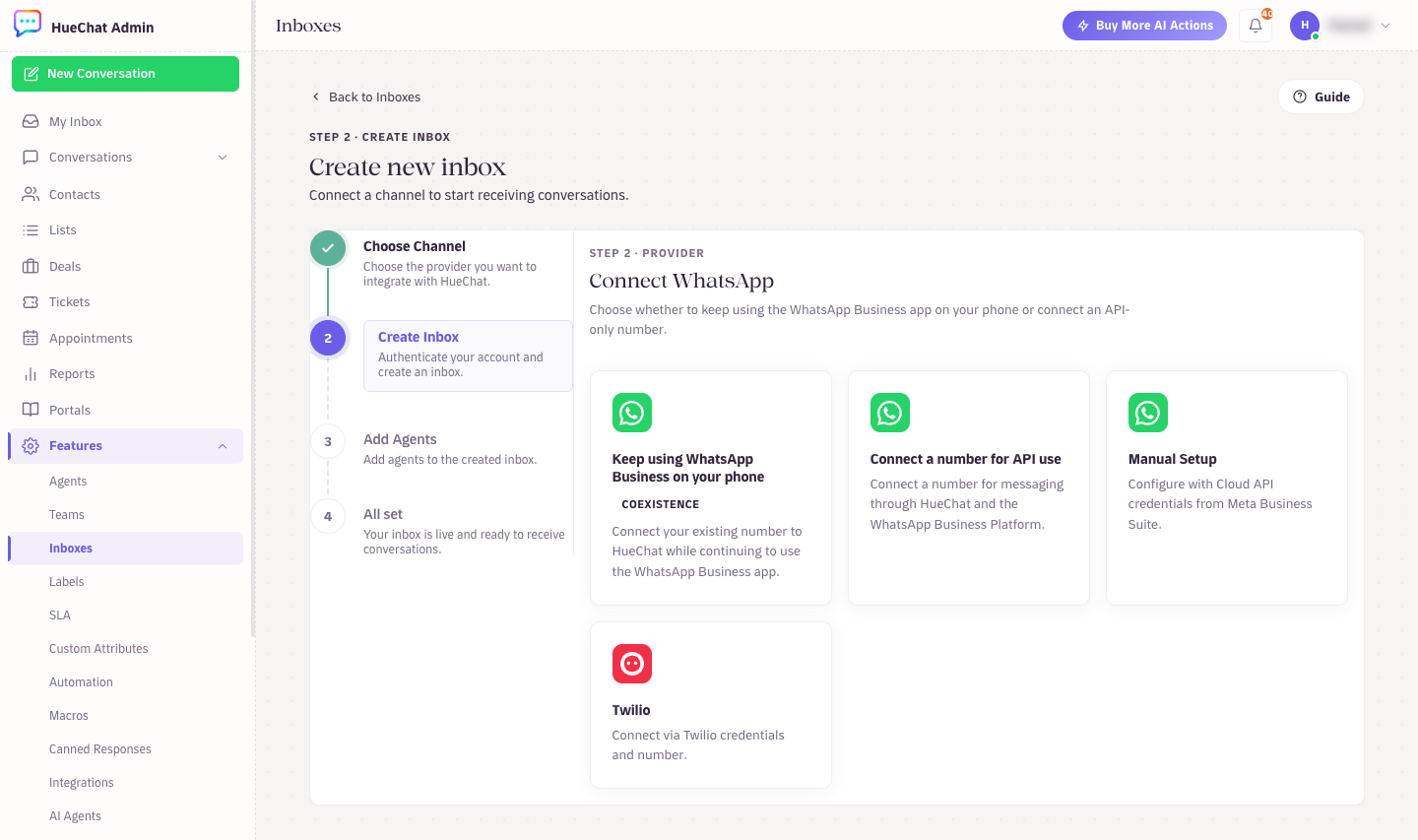
Connect WhatsApp: Keep using WhatsApp Business on your phone (Coexistence), Connect a number for API use, Manual Setup
- Read the summary and click Connect my Business app. A Meta window opens. Keep your phone next to you and follow the expiry shown in the Meta window. If HueChat reports a timeout, close the expired window and start again from this button. Do not reuse an expired QR code.
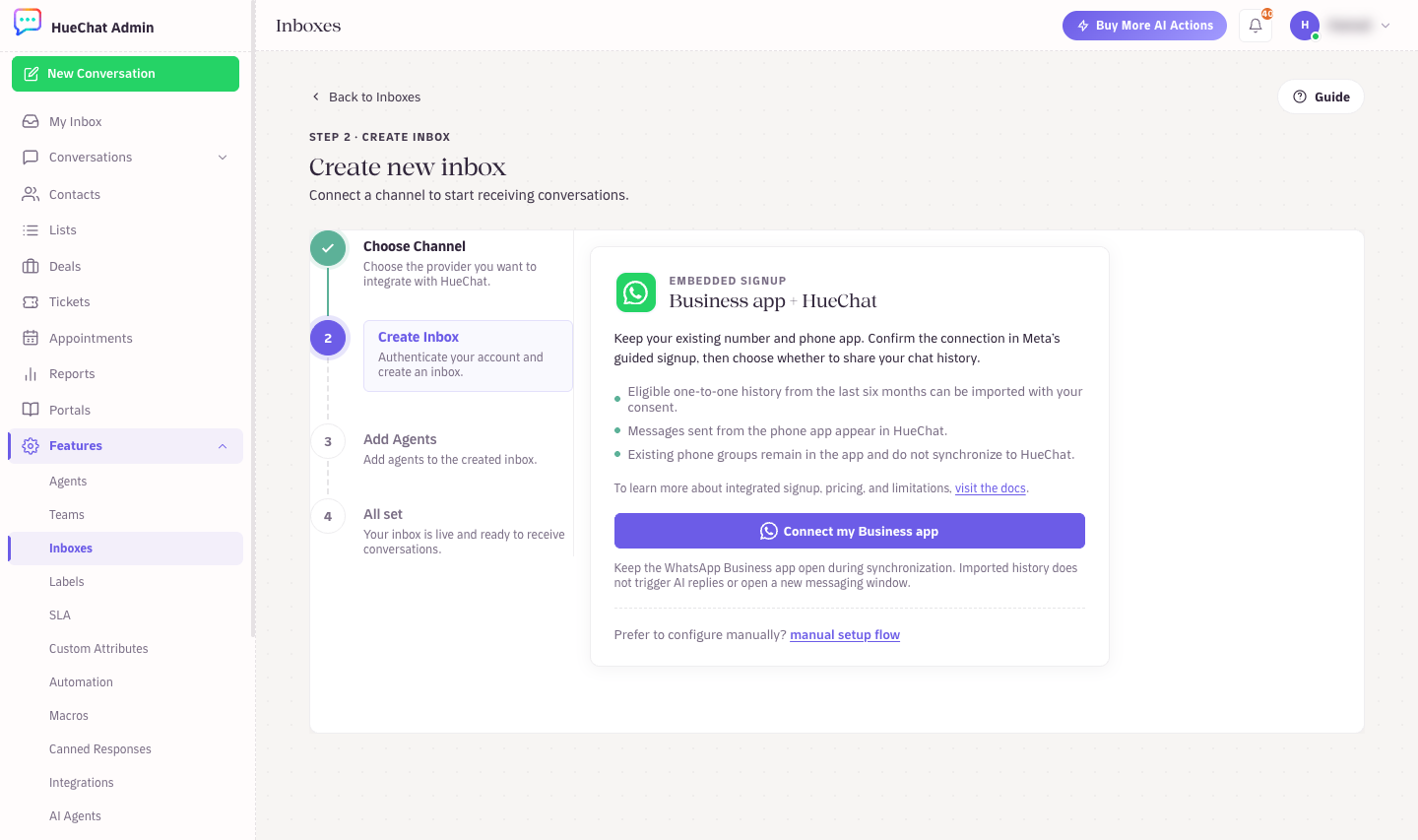
Business app + HueChat: what syncs, then Connect my Business app
- In the Meta window, click Continue, then enter the phone number that is on your WhatsApp Business app and click Next.
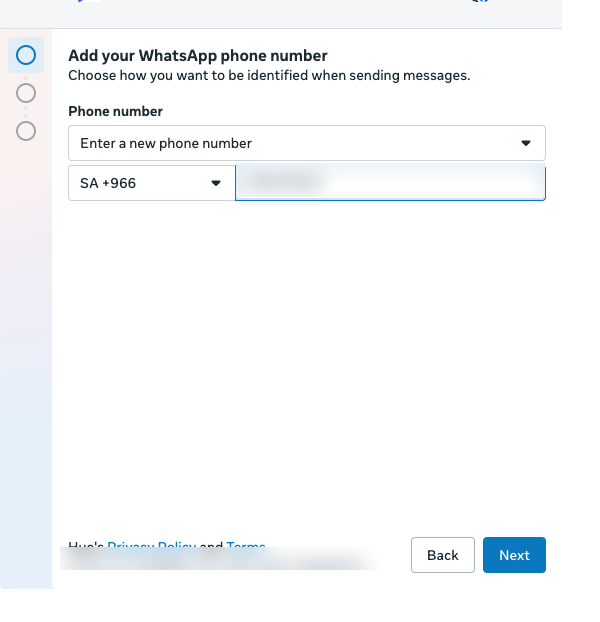
Meta window: enter the phone number on your WhatsApp Business app
- Meta shows the business profile it found for that number (name, category, website). Check it and click Next. If the details are wrong, go back and correct the number.
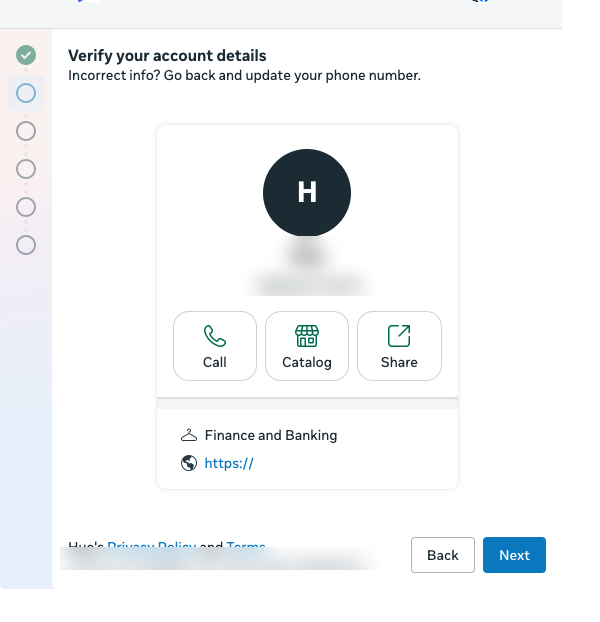
Meta window: verify the business profile found for the number
- Choose the Meta Business portfolio that should own this WhatsApp account. If your company has no portfolio yet, keep Create a Business portfolio selected and Meta creates one for you. Click Next.
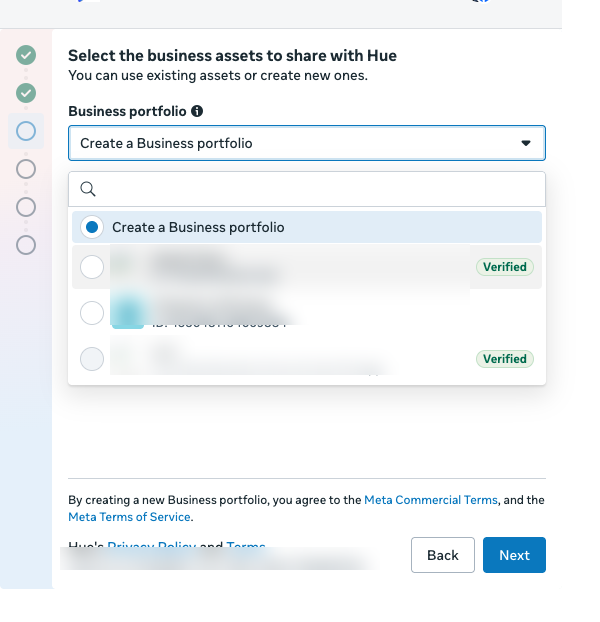
Meta window: pick an existing Business portfolio or create one
- Meta shows a QR code. Now switch to your phone.
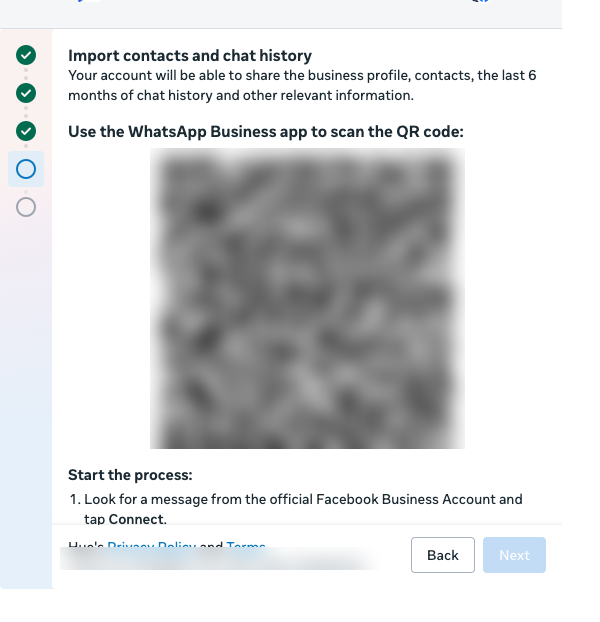
Meta window: scan the QR code with the WhatsApp Business app
¶ On your phone
- Open the WhatsApp Business app. A chat from the official Facebook Business account contains a message "Connect to the Business Platform". Tap Connect. If you do not see it, open Settings, Account, Business Platform.
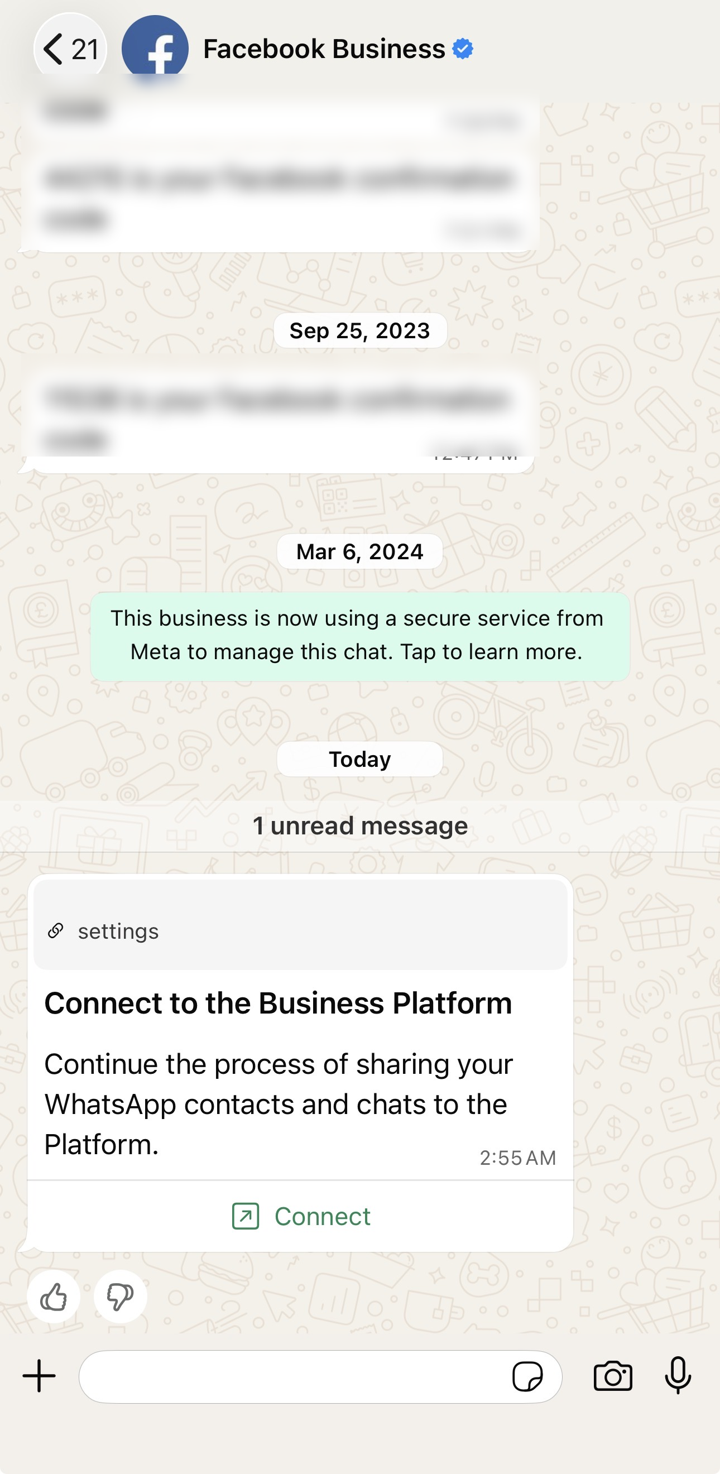
WhatsApp Business app: the Connect to the Business Platform message from Facebook Business
- Read the summary and tap Connect to the Business Platform. The app explains that you keep using it, that up to six months of one-to-one history can be shared, and that group chat history cannot be shared.
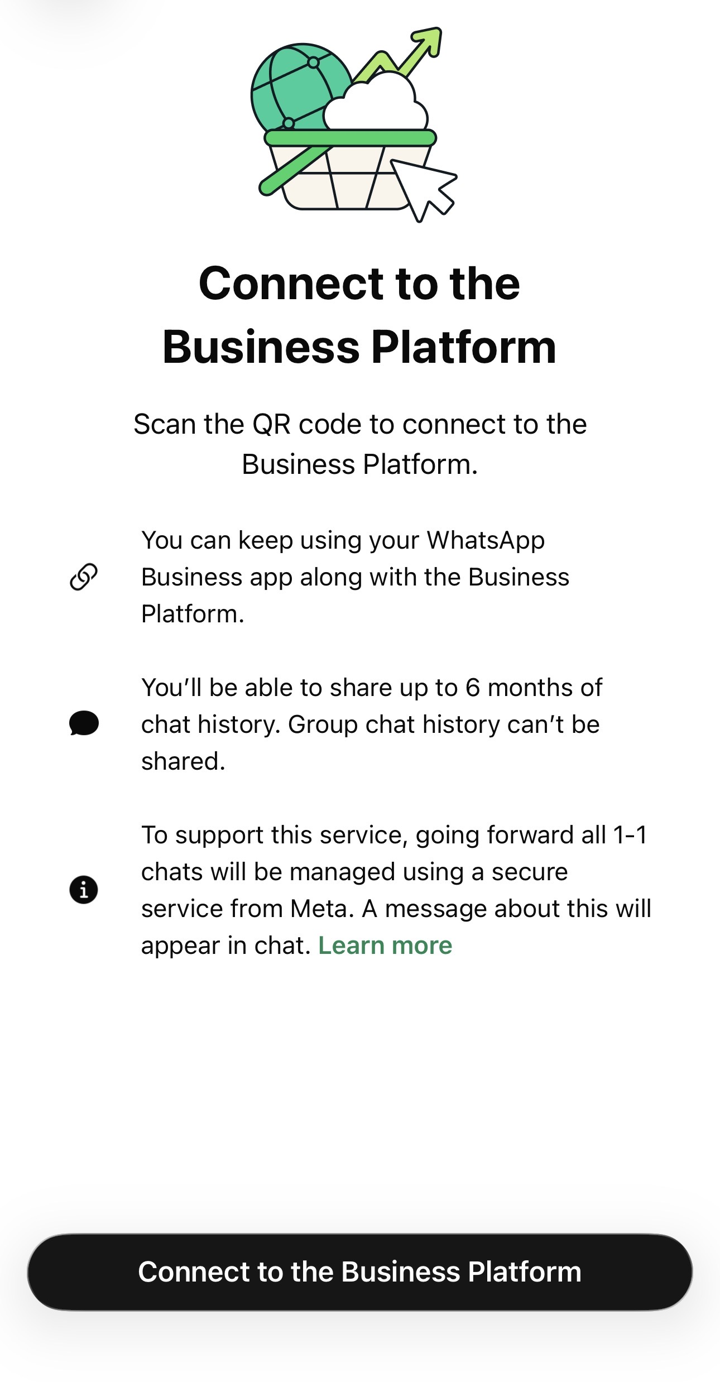
WhatsApp Business app: Connect to the Business Platform
- Choose Share all chats or Don't share chats, then tap Confirm. This decision cannot be changed later for this connection.
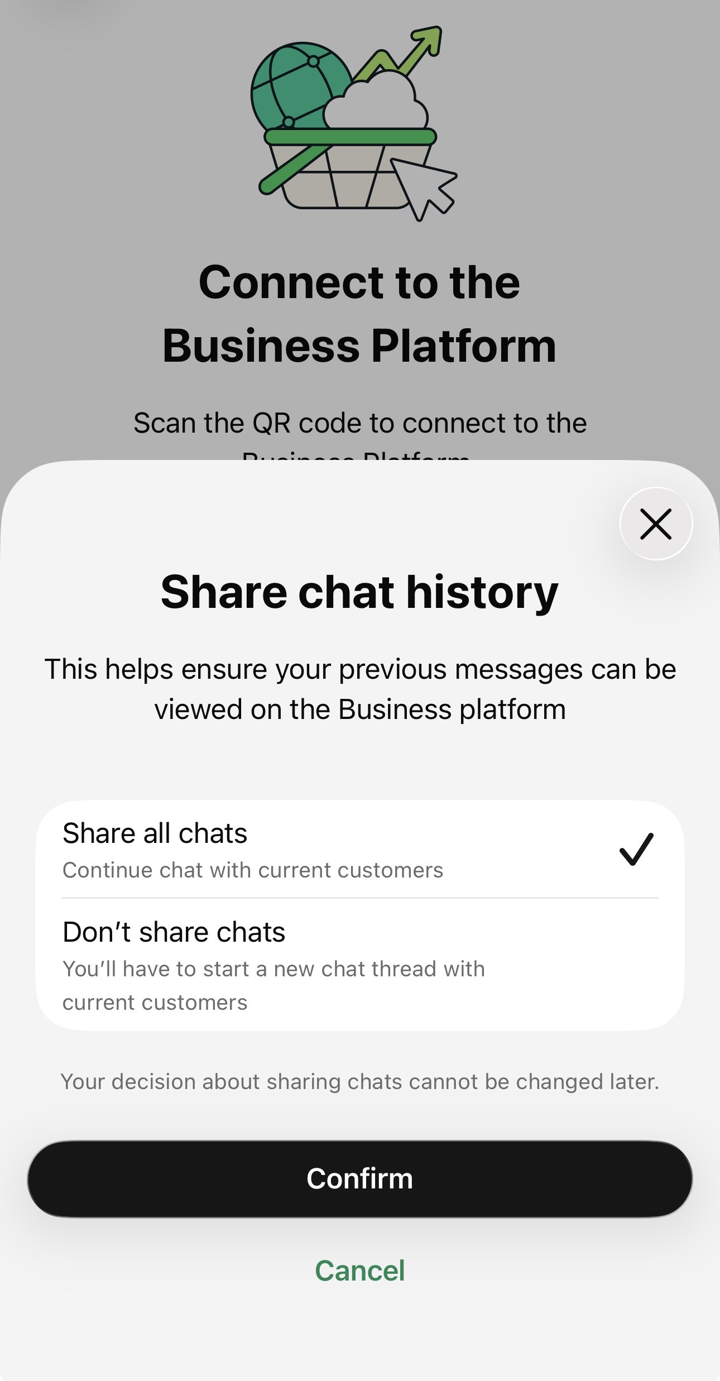
WhatsApp Business app: choose whether to share chat history
- Scan the QR code shown in the Meta window (or tap Enter Access Code Instead and type the code from that screen). The phone shows Connecting your account for up to 45 seconds.
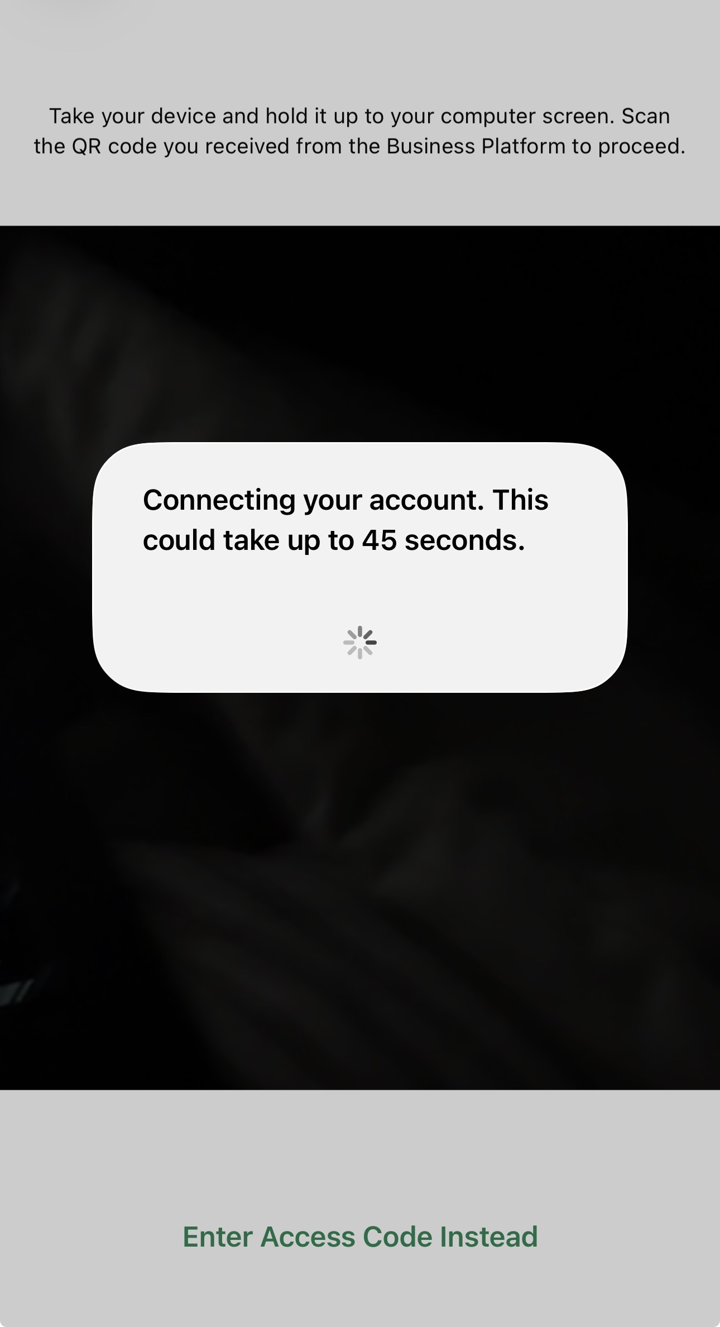
WhatsApp Business app: connecting your account after the scan
- When the phone shows You're connected, tap OK. Under Settings, Account, Business Platform the app now lists HueChat as the connected platform. Open the WhatsApp Business app at least once every 14 days, otherwise Meta pauses the connection.
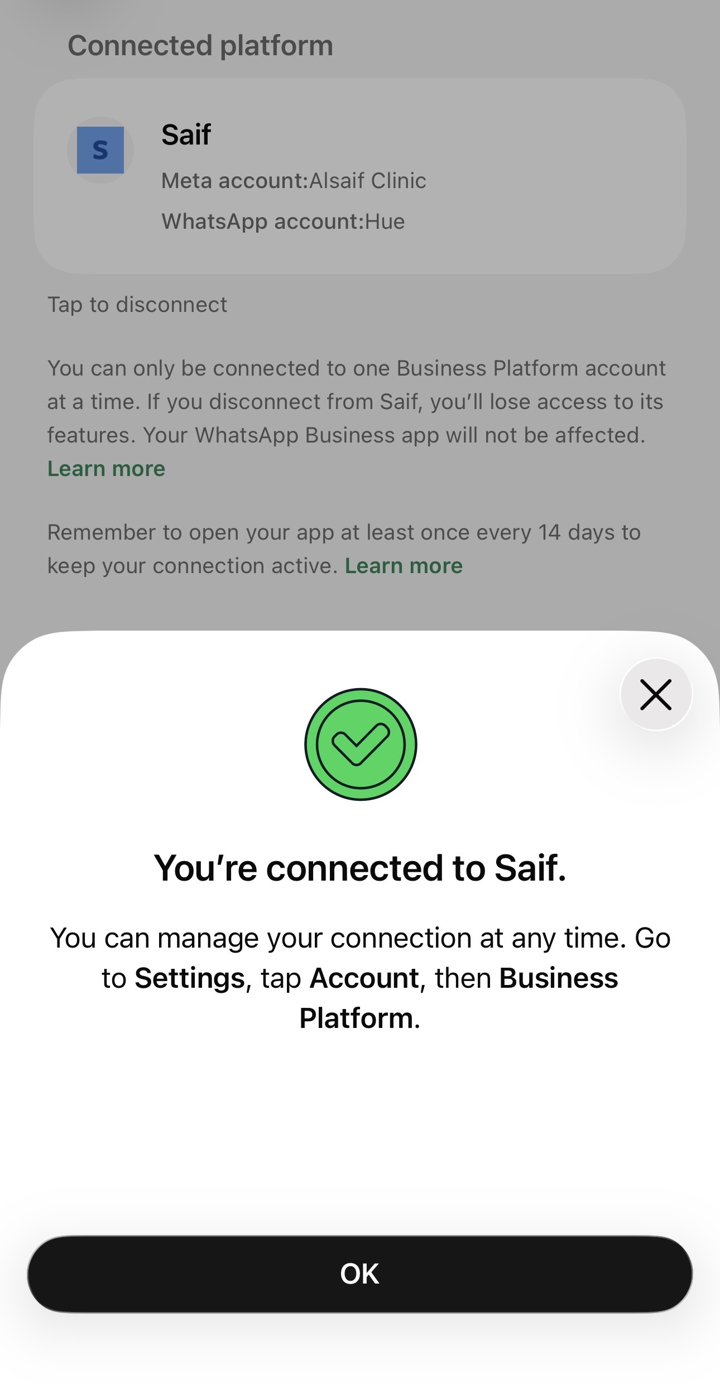
WhatsApp Business app: connected to the Business Platform
¶ Finish in the Meta window
- Meta confirms the WhatsApp Business account name and time zone. Click Next.
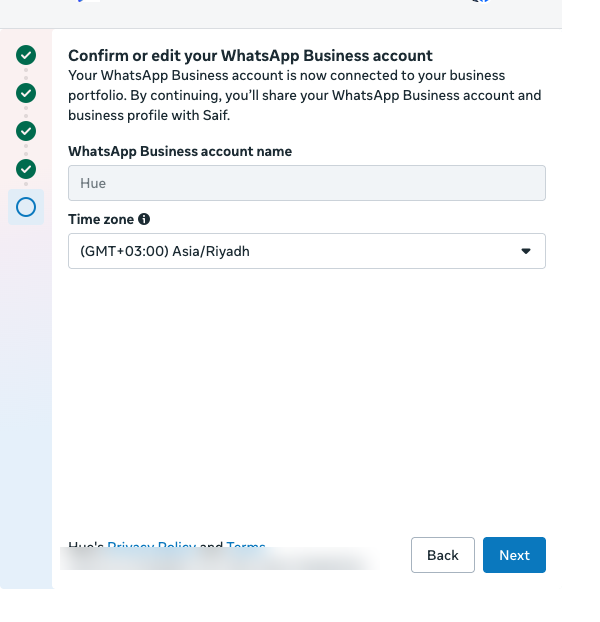
Meta window: confirm the WhatsApp Business account name and time zone
- Review what HueChat will be able to access (manage your WhatsApp account and conversations) and click Confirm.
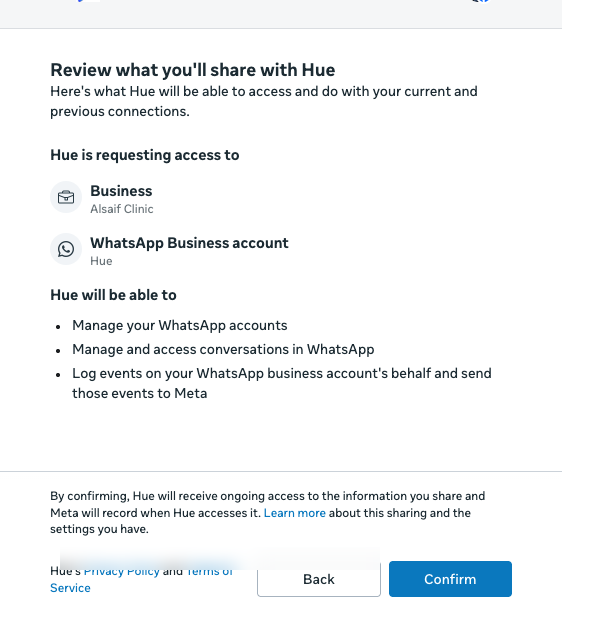
Meta window: review the access you grant to HueChat
- Meta sends an SMS confirmation code to the phone number of your Facebook account. Type it and click Next.
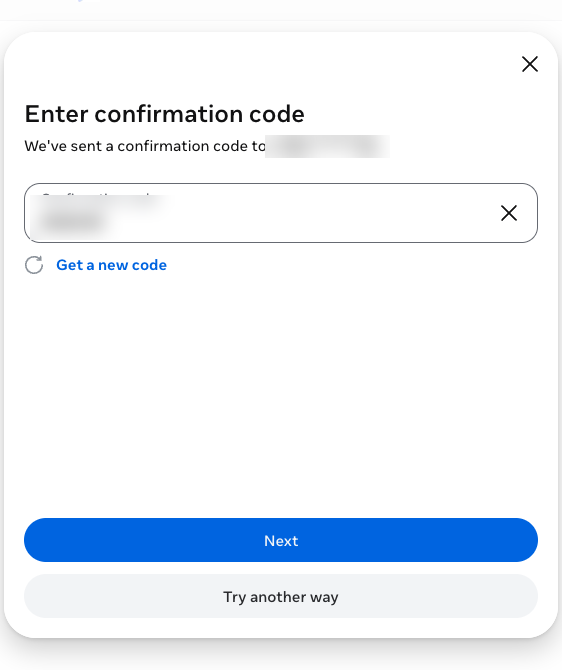
Meta window: enter the SMS confirmation code
- Wait while Meta connects the account, then click Finish. Meta may review your business against the WhatsApp Business Messaging Policy and contact you within 24 hours if there is an issue.
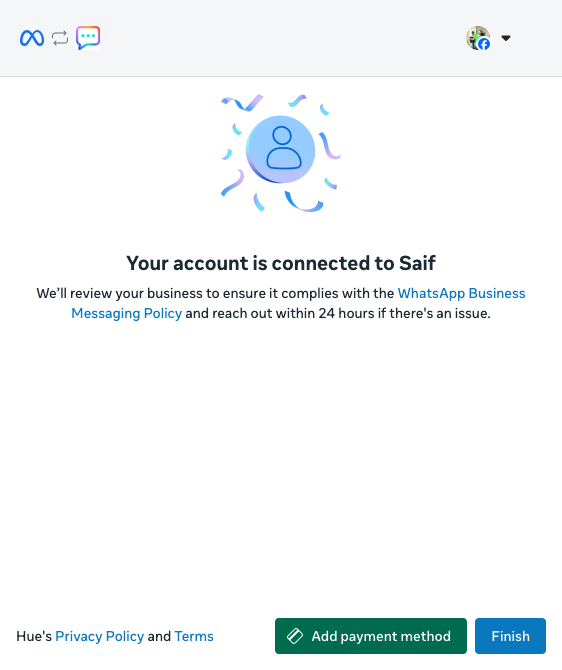
Meta window: your account is connected
- Back in HueChat the wizard shows Creating your WhatsApp inbox, then Step 3. Select the agents who should work in this inbox and click Continue.
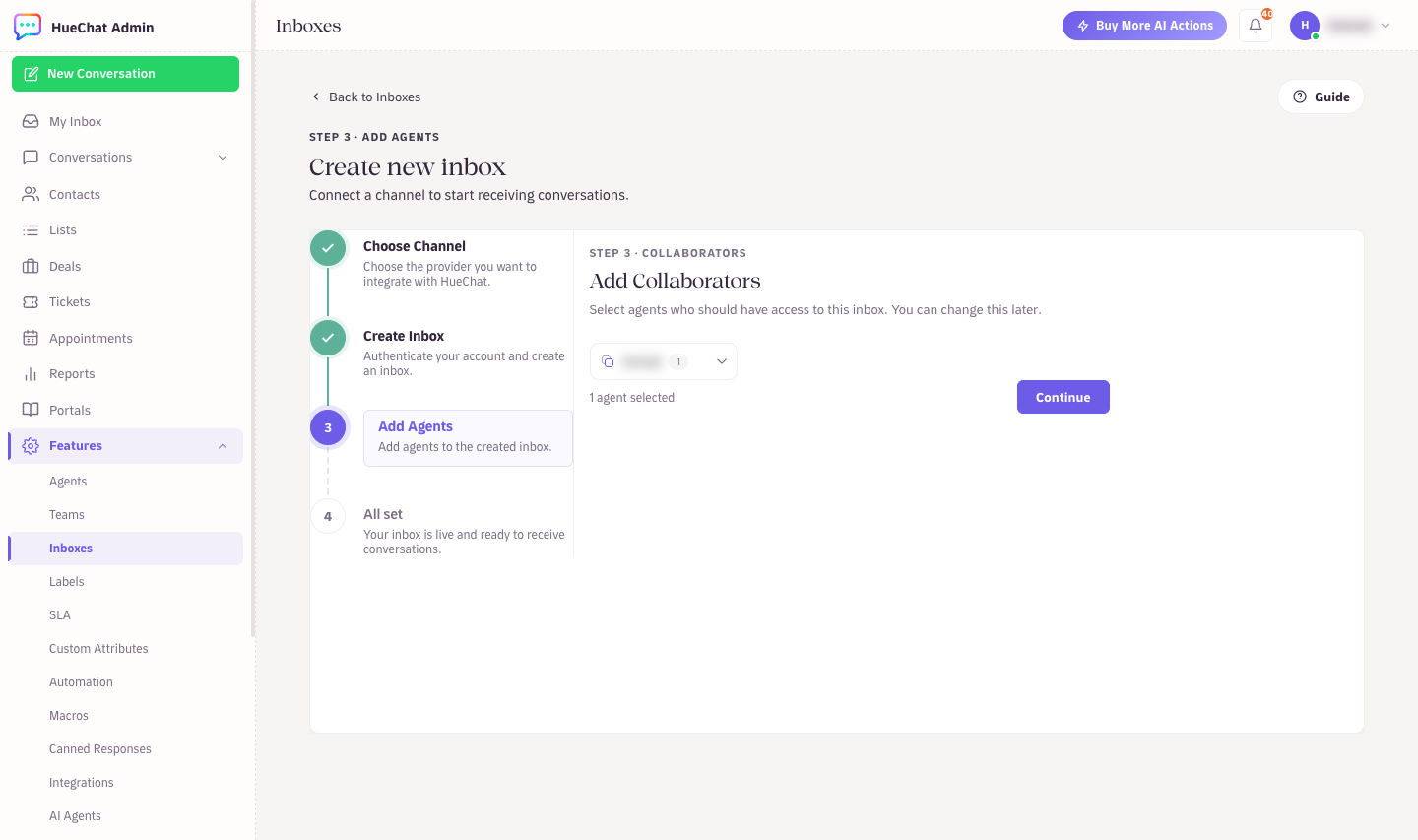
Step 3: select the collaborators for the new inbox
¶ Import contacts and history
Meta allows each import once per connection, and only within 24 hours of connecting. Start it right away and keep the phone app open.
The final wizard step, All set, already shows the Business app + HueChat panel with the connection status, a Refresh status button and two cards: Contacts and Chat history. You can open the same panel later from Settings, Inboxes, your inbox, Configuration tab.
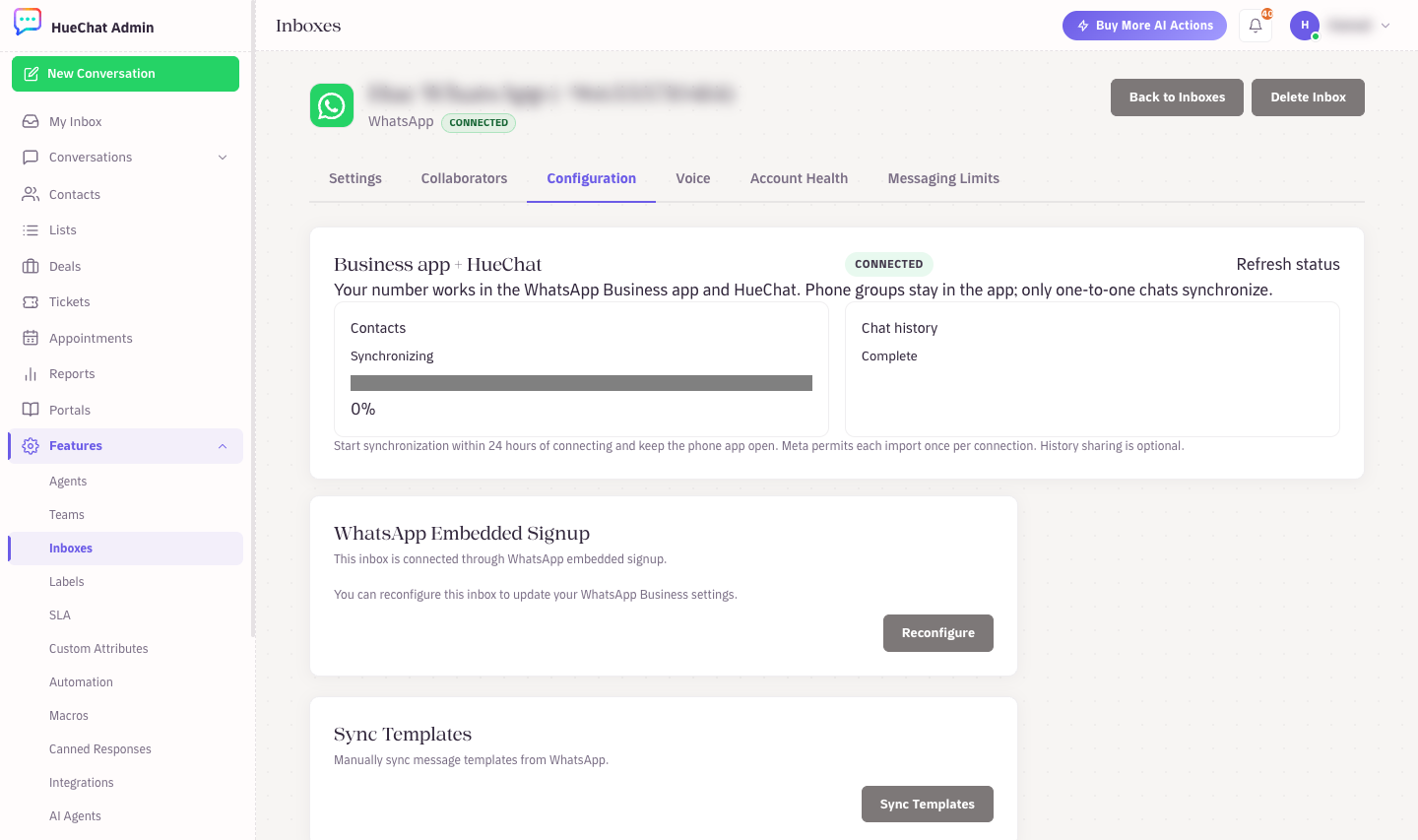
Settings, Inboxes, your inbox, Configuration: the Business app + HueChat panel with sync status and connection details
- Click Start synchronization on the Contacts card and confirm. HueChat processes the contact records Meta sends and preserves your existing customer records and CRM edits. Receiving imported contacts does not grant marketing consent.
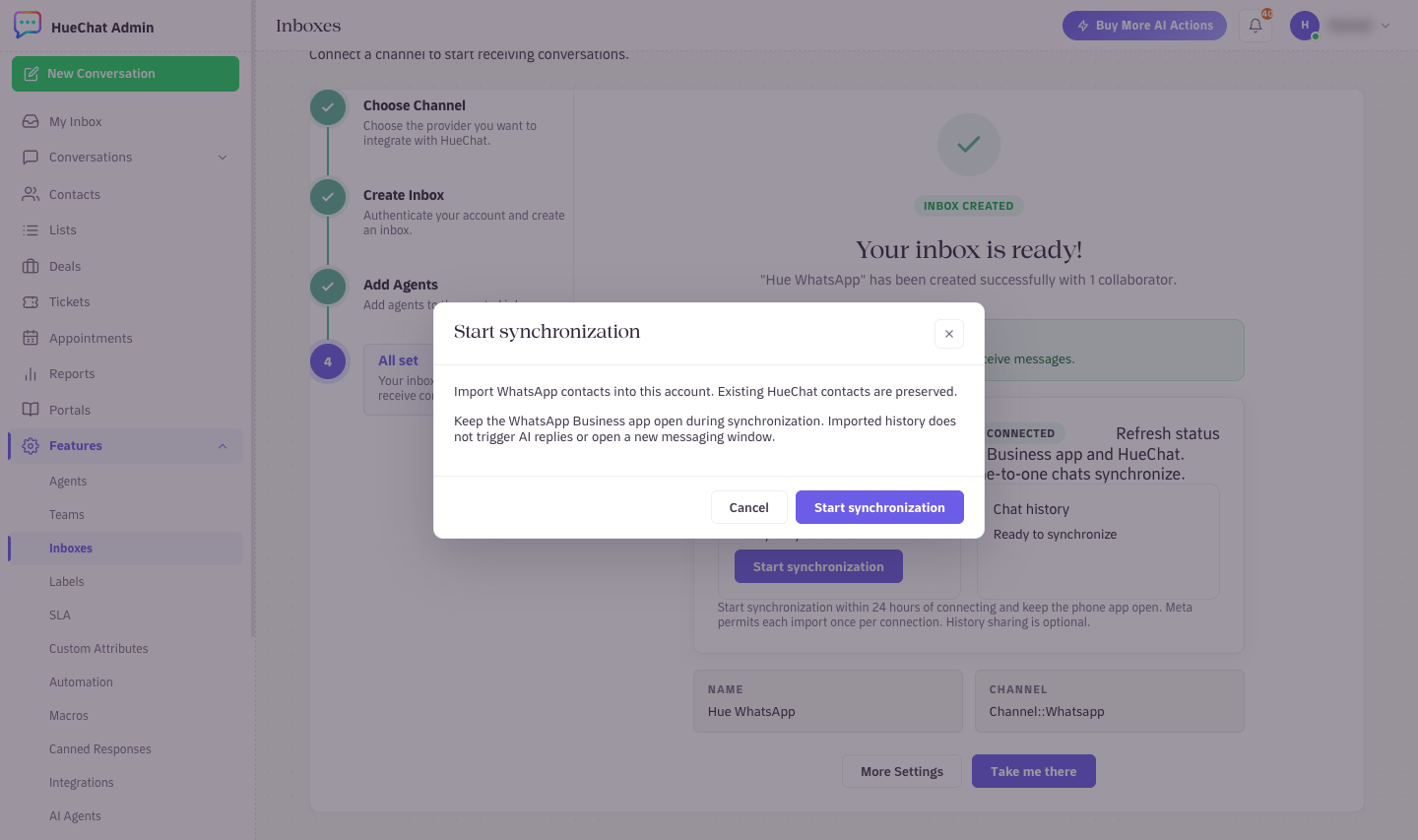
All set: Start synchronization on the Contacts card
- As soon as the contacts request is accepted, the Chat history card gets its own Start synchronization button. Click it and confirm if you chose to share history on the phone. Media is included only where Meta provides it.
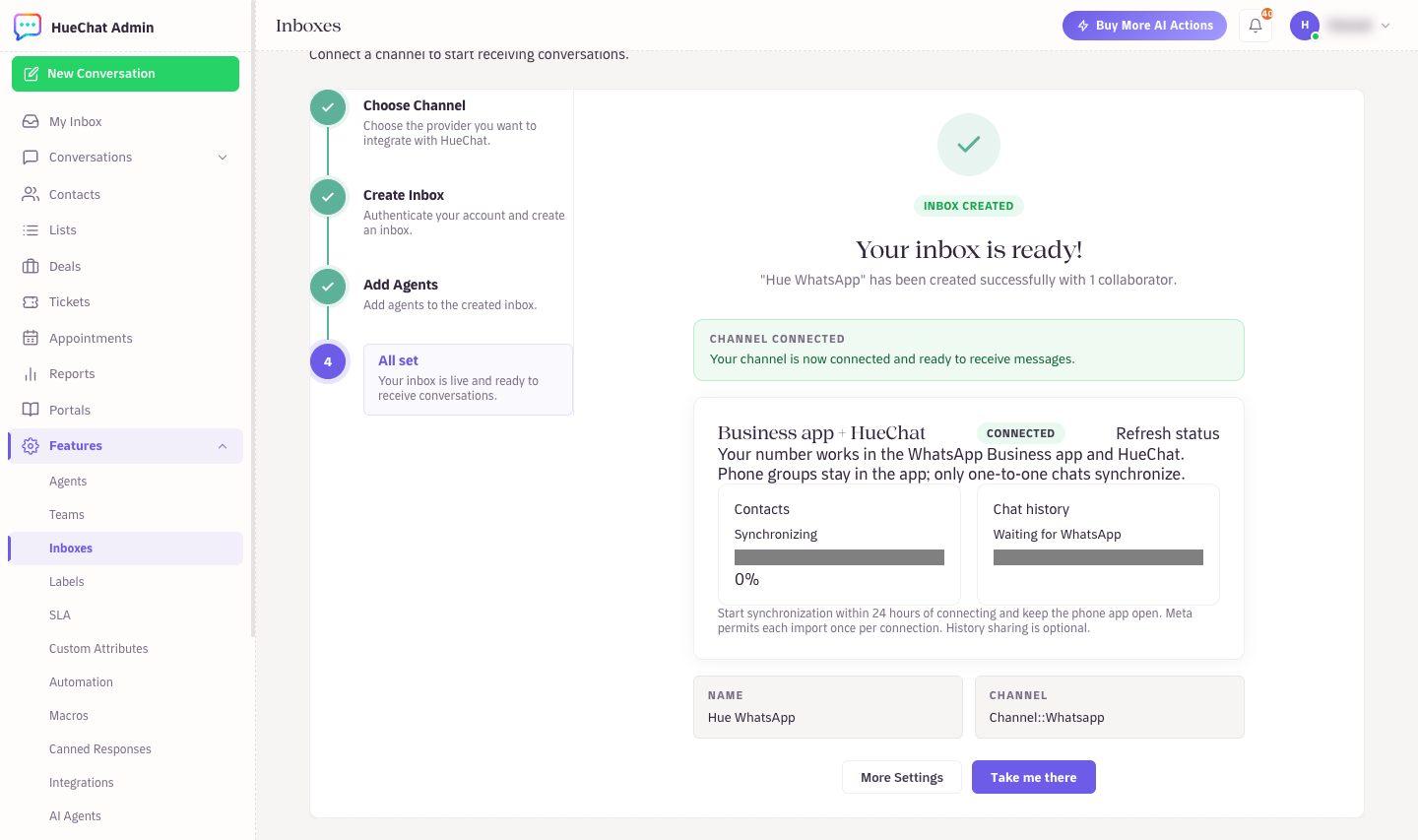
Contacts synchronizing, chat history starting
- A queued or accepted request is not a completed import. For chat history, follow the progress reported by Meta. For contacts, check the received-record counts and latest receipt: Meta does not provide a documented final marker for the complete address book, so a contact receipt must not be read as proof that every phone contact has arrived. If you chose Don't share chats on the phone, the card shows History was not shared and the connection stays active.
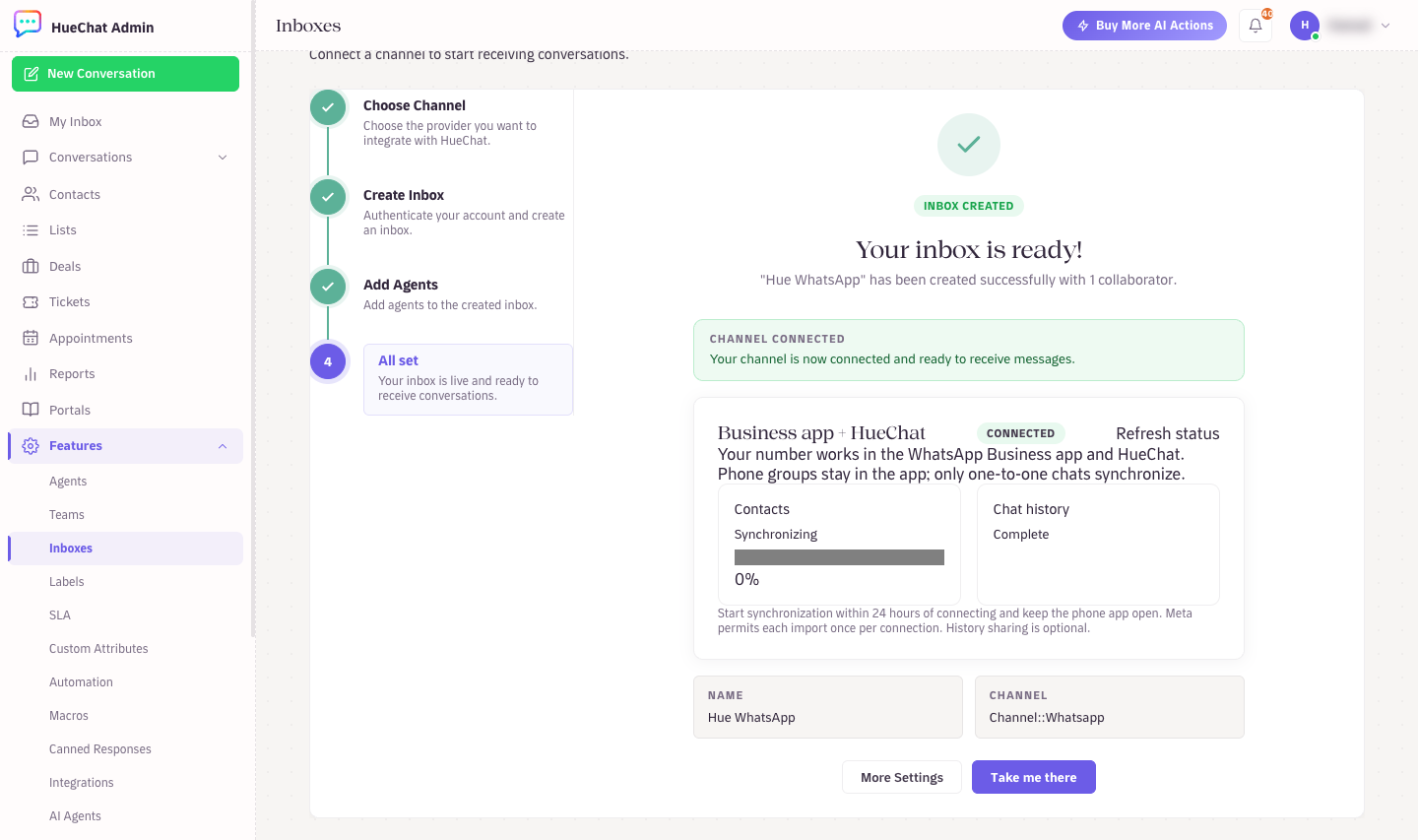
Chat history complete while contacts are still synchronizing
- Click Take me there and open the new inbox from the Channels list. Imported conversations appear with their original dates and a Syncing badge until the import ends.
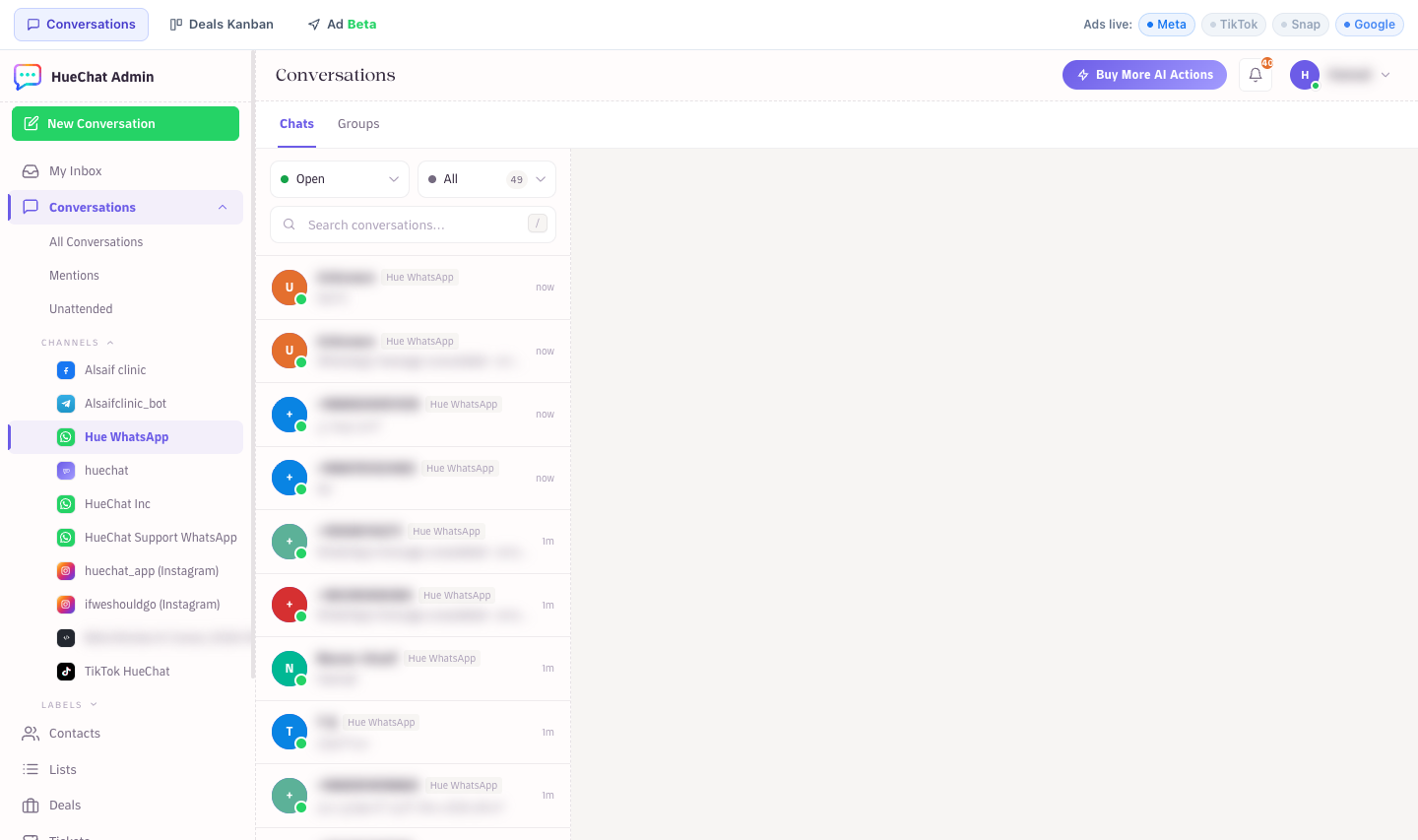
The new inbox with imported one-to-one conversations
Imported history does not create unread counts, does not reopen the 24-hour reply window, and never triggers AI Agents, automations or notifications. An old conversation therefore shows the template-only notice until the customer writes again.
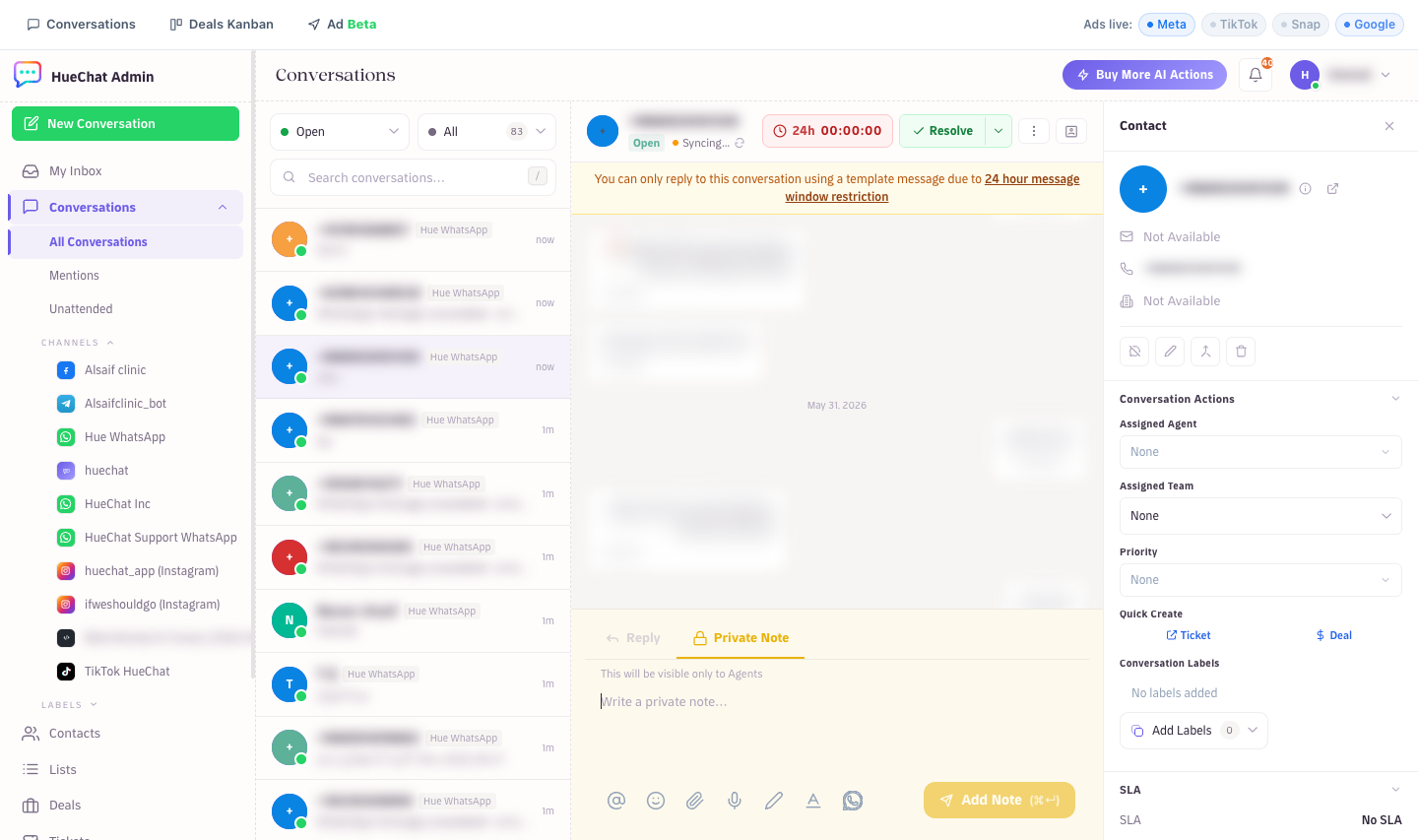
An imported conversation: history with the original dates, reply limited to templates until the customer writes
¶ Day-to-day use
- Customers keep messaging your number as before. New one-to-one messages arrive in the phone app and in the HueChat inbox at the same time.
- Replies sent from HueChat show on the phone; replies typed on the phone show in HueChat as sent by your business.
- Assign the inbox to agents or teams, use labels, notes, canned responses and AI Agents like any other WhatsApp inbox.
- Messages sent through HueChat use the WhatsApp Business Platform rules for the customer service window, templates and pricing. Do not assume that sending from the phone app opens a new customer service window in HueChat.
- Groups created on the phone stay on the phone. WhatsApp Groups in HueChat need an API-only number (see the related article).
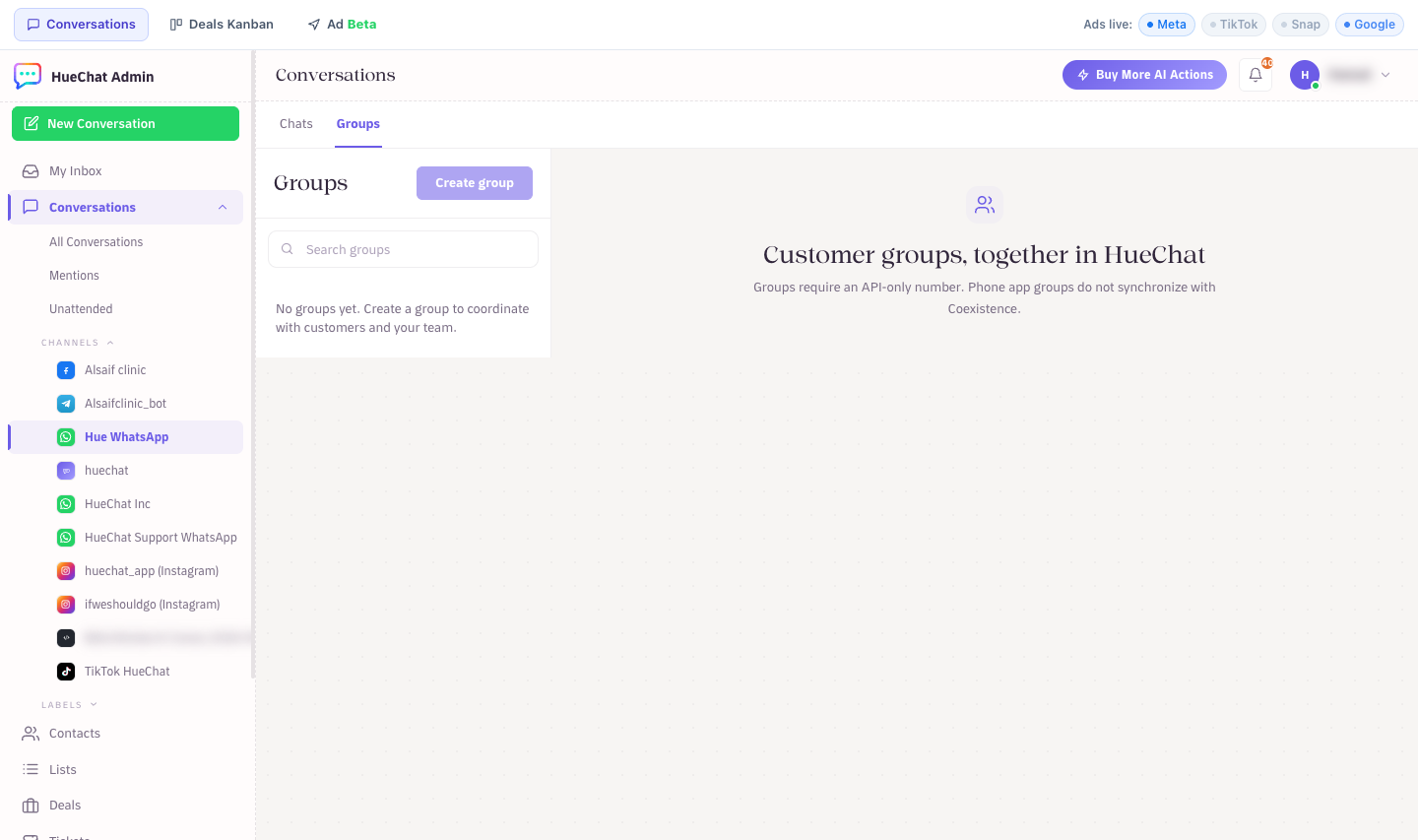
The Groups tab on a Coexistence inbox explains that groups need an API-only number
- Broadcasts from HueChat use approved templates on this number too.
¶ Turn new customer activity into a journey
Connecting the number and importing history are not the same as activating an automated journey. Imported history is excluded from automation. A journey needs its own audience, trigger, steps and publication.
Where your plan includes customer journeys:
- Open Contacts, then Journeys, and choose New journey.
- Name the journey and choose a specific trigger and audience. Start with one internal test customer. Preview the matching customers before publishing.
- Add a team task first. Confirm which team should follow up and what they should do.
- Add a wait only when that delay is useful. Add a WhatsApp step only after choosing the sending inbox and an approved template in that inbox. Match the inbox name and phone number, not only the template name.
- Bind each variable to the intended customer field and preview a customer. For a media-header template, provide the required media where the installed version supports it. A draft or pending template cannot be used as an approved message.
- Check consent, exclusions and the expected audience again. Saving a draft does not publish it or send a message. Publish only when those checks are complete, then inspect the journey activity.
A new incoming message and an imported old message must not be treated as the same trigger. A completed team task, an enrollment or a stage change also needs an explicit configured rule; it is not inferred from this article.
¶ Membership and rewards are separate actions
Opening a template, completing a preview Flow or receiving an imported contact does not enroll a customer or award points.
In Contacts, open Membership to configure the program, terms and benefits. Use the invitation option when the customer still needs to verify their WhatsApp number and accept the terms. Record enrollment only when you have genuine evidence of acceptance. Membership acceptance and permission to receive marketing messages are separate records.
For an internal example, label the program and benefit as a test with no monetary value. Restrict the audience to one test customer. Do not promise a redeemable benefit, show invented balances or record acceptance on the customer's behalf. Check the member activity after a real, authorized points or benefit action. Exact options may differ by plan and installed version.
¶ Disconnect
Disconnection starts on the phone: open WhatsApp Business, Settings, Account, Business Platform, and choose Disconnect account. Do not deregister the number. Once Meta confirms the phone app is detached, the Configuration tab offers Remove connection from HueChat. Your saved conversations stay readable.
¶ Common problems
- Synchronization window expired: do not repeatedly start imports or disconnect a working number. Email support@huechat.ai with the inbox name and reference code so the team can check whether a supported reconnection is appropriate.
- Confirmation needed or Synchronization failed: Meta did not confirm the request. The card shows a reference code. Email support@huechat.ai with the code before reconnecting.
- Disconnected banner: the phone app was unlinked. Keep the Business app active on your primary phone and reconnect with Meta from the Configuration tab.