After this article you will know when WhatsApp Groups are available for your number, how to create and manage a group, and what you can send to it.
¶ Who can use Groups
Groups use Meta's WhatsApp Groups API. Meta allows it only for:
- An API-only number connected to HueChat through the WhatsApp Business Platform. A number connected with Coexistence (the Business app on your phone) cannot use Groups.
- A number with Official Business Account status (the green tick). See the article on Meta Business verification.
- A HueChat plan that includes WhatsApp Groups. If it is not included, the Groups tab is disabled and shows a plan message.
Each group holds up to seven customer contacts plus your business number. HueChat operators do not use those seven places.
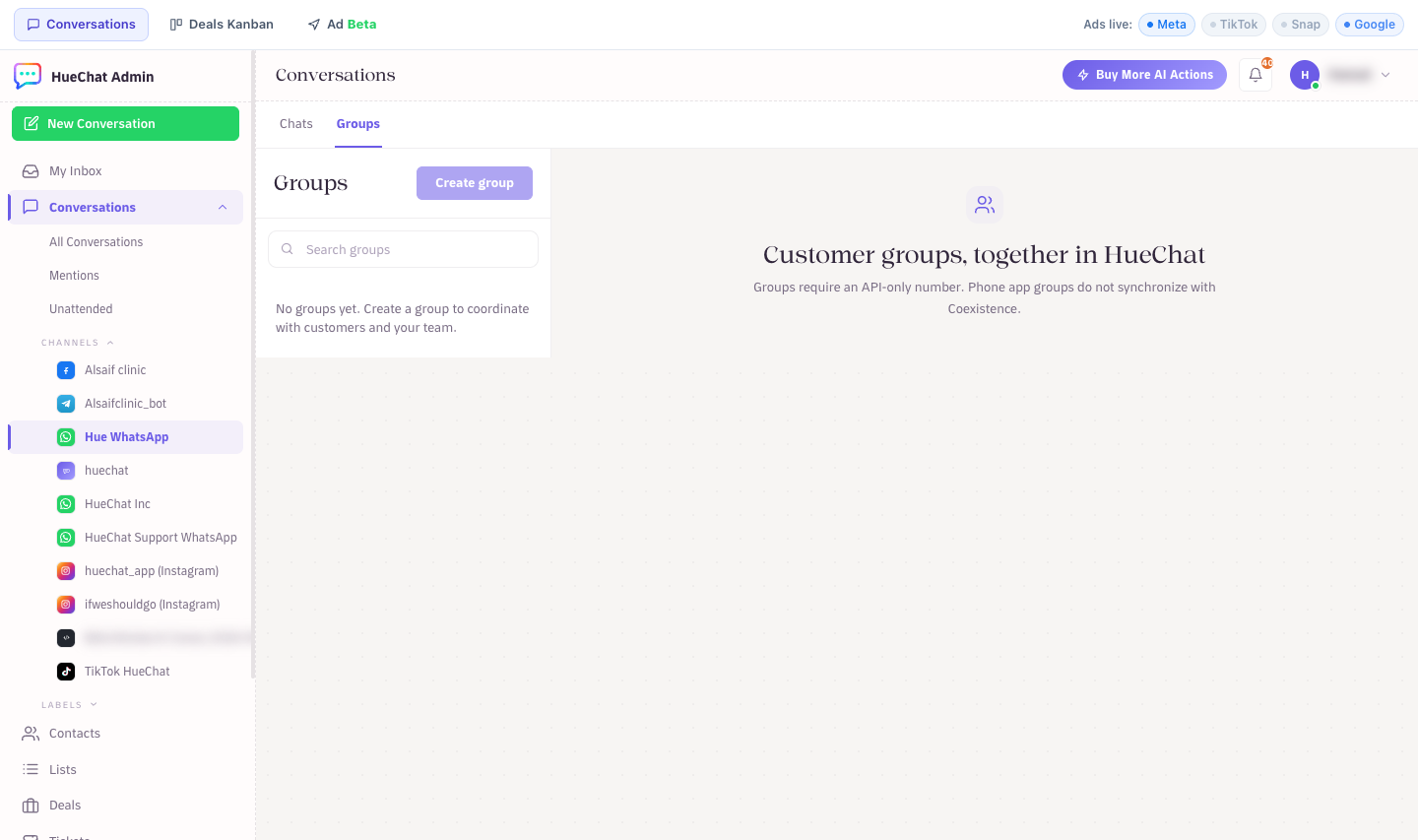
On a Coexistence inbox the Groups tab shows that groups need an API-only number
¶ Open the Groups tab
- In the left sidebar under Channels, open your WhatsApp inbox.
- At the top of the inbox switch from Chats to Groups.
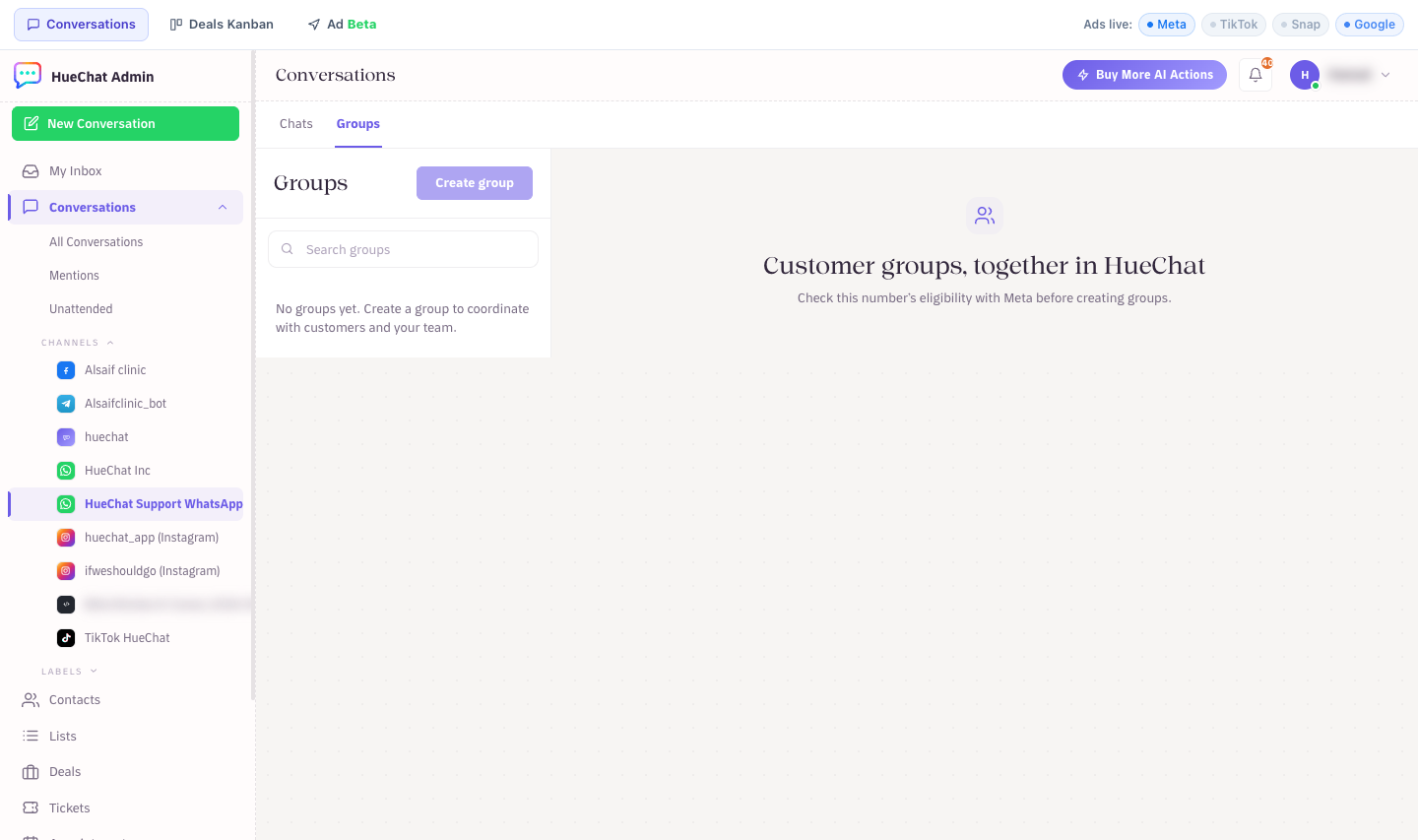
The Groups tab inside a WhatsApp inbox, with Create group and the eligibility notice
If the number is not eligible yet, the empty state explains why, for example that Meta must confirm the number's eligibility or that Official Business Account status is required. Fix that first, then click Refresh.
¶ Create a group
- Click Create group.
- Enter a Group name customers will recognise. Everyone in the group can see it.
- Add an optional Description.
- Under Joining the group choose Anyone with the invite link can join, or Approve each join request.
- Choose the Operators who will reply in this group. Operators use the business identity.
- Optionally link a Deal from your CRM so the group appears next to that opportunity.
- Click Create group. The group shows Creating until WhatsApp confirms it, then becomes Active.
¶ Invite customers
- Open the group and click Invite contacts.
- Search your Contacts by name or phone and select up to the remaining customer places.
- Click Choose invitation template and pick an approved utility template from Meta's Group invite link library. HueChat fills the invitation link automatically. Ordinary templates cannot invite members.
- Send. The contact shows as Invited. They join only after they accept, and WhatsApp confirms it.
You can also copy the Invitation link from Group details and share it yourself. Reset link stops the old link from working. If you chose to approve join requests, pending members show Awaiting approval with Approve and Reject actions.
All members can see each other's phone numbers, so only invite customers who agreed to be in a group together.
¶ Message the group
The composer works like a normal conversation:
- Text and files (images, video, audio, PDF, Office documents).
- Approved marketing or utility templates without interactive buttons.
- Keyboard shortcut: Ctrl or Cmd plus Enter to send.
The 24-hour window applies to the group as a whole. While a member wrote in the last 24 hours, you can send free-form text and media. When the window is closed, the composer blocks free text and only templates are allowed. Each sent message shows how many recipients received it and read it. Billable messages are charged by Meta per delivered recipient.
Not supported in groups: calls, interactive messages, and editing or deleting sent messages.
¶ Manage a group
Open Group details to:
- Edit the name, description and joining policy.
- Assign or change operators.
- Remove a member. They can rejoin with a valid invitation.
- Delete the group. Type the group name to confirm. The group closes for all members; the message history stays readable in HueChat.
If WhatsApp could not complete a request, the group shows a reference code. Click Refresh, and if it persists email support@huechat.ai with the code.