This article explains what WhatsApp message templates are, when you need them, and how to write one that passes Meta's review.
¶ What a template is
A message template is a pre-formatted message that Meta reviews and approves before you can send it. You need a template to start a conversation with a customer who has not messaged you recently, or when the 24-hour service window has expired. Free-form replies inside an open window do not need a template.
Templates fall into three categories:
- Marketing: promotions, product launches, newsletters, re-engagement. Always billed, even inside an open window, and usually the highest rate.
- Utility: order updates, shipping notices, payment confirmations, appointment reminders. Free inside an open window, billed at the utility rate outside it.
- Authentication: one-time passcodes for verification and sign-in. Always billed.
Meta bills each delivered template message based on its category and the recipient's country. Incoming messages and failed deliveries are free. HueChat adds no markup.
¶ Create a template in HueChat
- Sign in to app.huechat.ai as an administrator.
- Open the templates section, from Broadcasts or from the WhatsApp inbox settings.
- Choose to create a new template. Give it a name using lowercase letters, numbers and underscores.
- Choose the category and the language. Create one template per language.
- Write the body. Use variables such as {{1}} for the customer's name or an order number. Add an optional header, footer and buttons.
- Provide a sample value for each variable, so the reviewer understands the message.
- Submit. HueChat sends it to Meta and shows the review status.
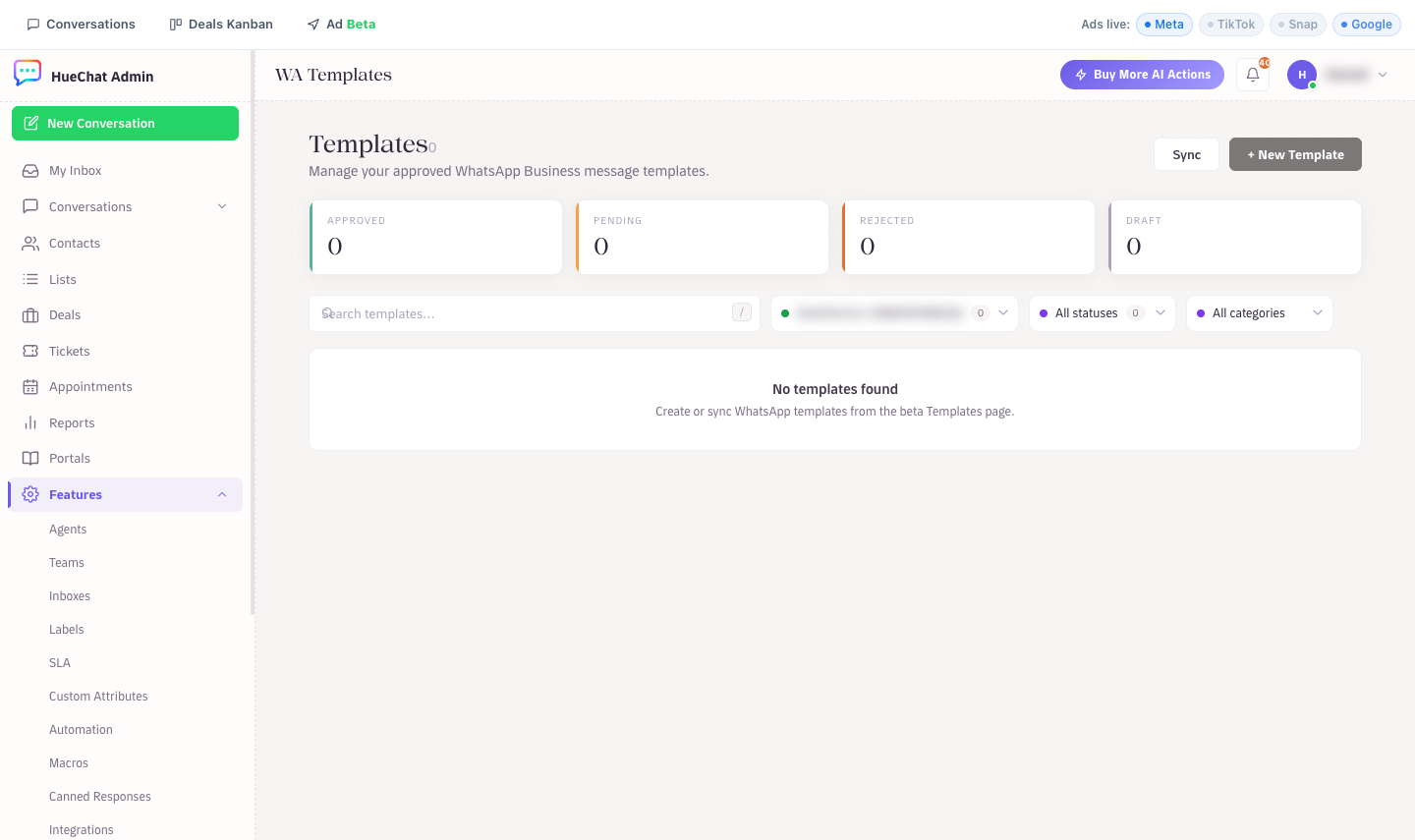
WA Templates: approved, pending, rejected and draft templates
Meta usually responds within minutes to a day. Approved templates appear in Broadcasts and in the composer when a conversation is outside its window.
¶ Get approved the first time
- Match the category to the content. Meta reclassifies templates that look like marketing but were submitted as utility, and a mismatch dialog before submission is your chance to reword. Cancel, adjust the text and resubmit.
- Write full sentences with clear purpose. Avoid vague messages such as "Hello {{1}}, we have news".
- No misleading claims, no requests for sensitive data, no content that breaks WhatsApp's commerce or business policies.
- Do not start or end the message with a variable, and do not put variables next to each other.
- Use real sample values, not "test" or "xxx".
- Marketing templates must give an easy way to stop, such as a "Stop" quick reply, and you must honour it.
¶ Use a template
- Broadcasts: pick an approved template, choose the audience from Contacts, map the variables and schedule the send.
- In a conversation: when the composer shows that the window is closed, choose a template, fill the variables and send.
- Automations and Appointments: reminders and confirmations use utility templates automatically.
¶ Edit or replace
Editing an approved template sends it back for review. Create a new version if you need the old one to keep working while the new one is reviewed. Rejected templates show Meta's reason in HueChat. Fix the issue and submit again.
Questions about a specific rejection: email support@huechat.ai with the template name.