Statuses keep the inbox honest: they show what still needs work and what is finished. This article explains each status and the resolve and reopen flow.
¶ The four statuses
- Open: the conversation needs a reply or an action from your team. New conversations start here.
- Pending: you are waiting on something. Use it when the ball is in the customer's court or you are waiting for another department.
- Snoozed: temporarily hidden from the open queue. Use it for "come back to this later".
- Resolved: the request is handled. Resolved conversations leave the open queue but keep their full history.
The status filter in the conversation list lets you look at any of these groups. The Mine and Unassigned filters combine with it.
¶ Change the status
- Open the conversation.
- In the header, use the Resolve button to resolve it in one click, or open the status menu next to it.
- Pick Open, Pending, Resolved or Snoozed.
Macros can change the status together with other actions, for example "resolve and add the label 'done'".
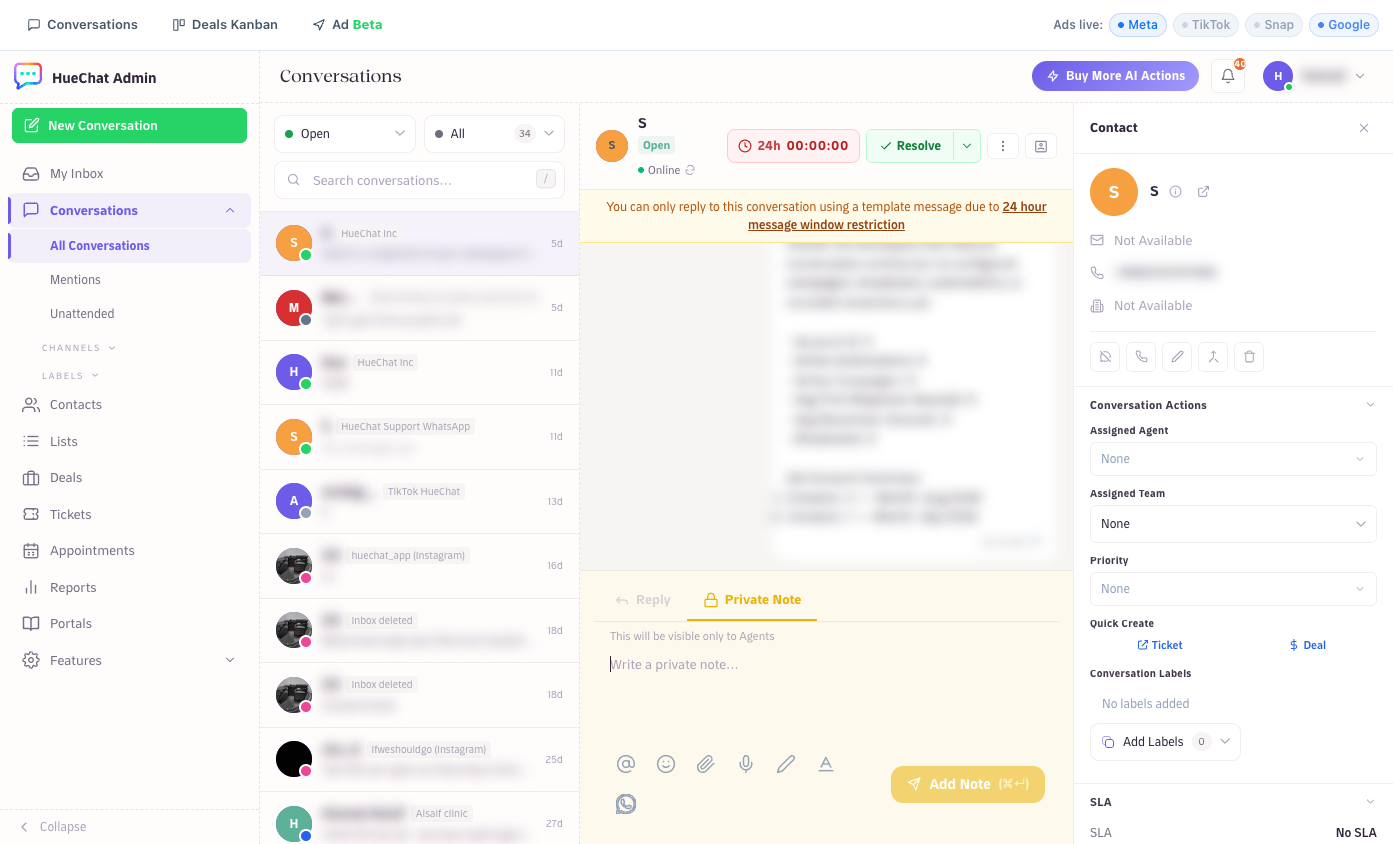
The Resolve button at the top of a conversation
¶ What happens when you resolve
- The conversation moves to Resolved and disappears from the open queue.
- If CSAT surveys are enabled for the inbox or the AI agent, the customer receives a short satisfaction survey shortly after the conversation is resolved. See "How do CSAT surveys work after a conversation is resolved?".
- Analytics counts the resolution and the resolution time.
¶ Reopen
A resolved conversation is not locked:
- When the customer sends a new message, the conversation reopens automatically and returns to the open queue with its history intact.
- You can reopen it yourself with the Reopen button in the header or the composer.
Because reopening is automatic, a customer's reply to a survey does not get lost. When the reply is a CSAT rating, HueChat records the rating, thanks the customer and resolves the conversation again.
¶ How AI agents resolve conversations
An AI agent can close conversations on its own when it is configured to do so:
- Closing Question and Closing Message under Conversation End in the agent editor control how the AI wraps up. It asks something like "Is there anything else?" and, when the customer says no, sends the closing message and resolves the conversation.
- Auto-resolve after silence (minutes) resolves the conversation when the customer stops replying after an answer. Set it to 0 to turn this off.
- Auto-Summary & Resolve adds a summary for your team when the AI concludes.
If the AI handed the conversation to a human, it does not resolve it; the assigned person does.