CSAT (customer satisfaction) surveys ask the customer for a 1 to 5 rating after a conversation is resolved. This article explains how to turn them on, how they are delivered and how to review the results.
¶ Turn surveys on
There are two switches, depending on who resolves the conversation:
- Per inbox: open Settings, choose Inboxes, open the inbox and enable the CSAT survey. You can edit the survey message there.
- Per AI agent: in the agent editor, under Quality & Feedback, turn on CSAT Survey ("Send satisfaction survey (1 to 5 stars) after conversation ends").
Exact options may differ by plan.
¶ What the customer sees
- The conversation is resolved, by a team member or by the AI.
- A few seconds later HueChat sends the survey message in the customer's language.
- The customer replies with a number from 1 to 5, and may add written feedback.
- HueChat records the rating, sends a thank-you, and resolves the conversation again so it does not sit in the open queue.
The customer's reply reopens the conversation for a moment; that is expected and is handled automatically.
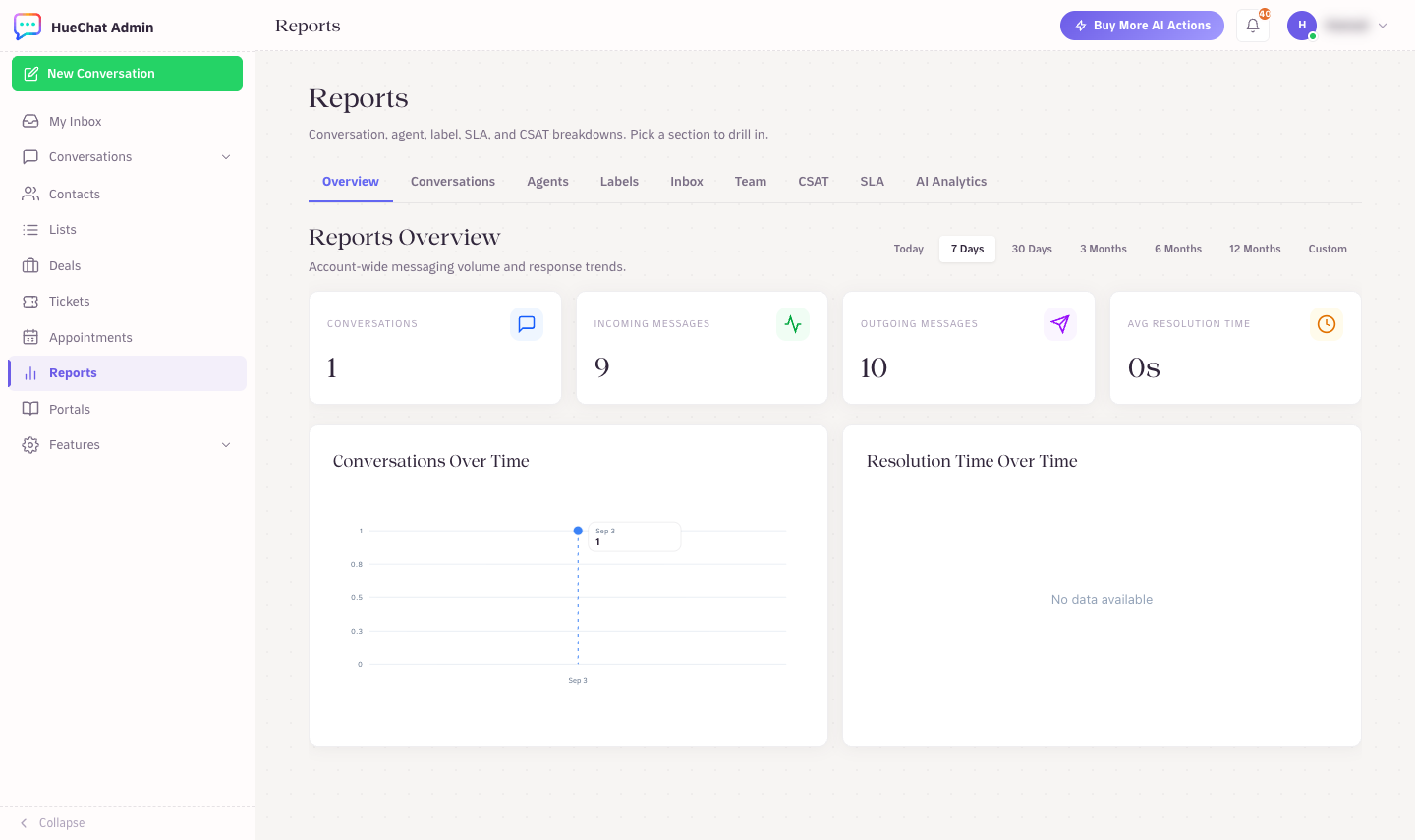
Reports: the CSAT section lives here
¶ Deliver the survey as a WhatsApp template
A plain-text survey can only be delivered inside WhatsApp's 24-hour customer-service window. If a conversation is resolved later than that (for example by auto-resolve after silence), Meta will not deliver plain text. An approved template solves this.
- Open Reports and choose the CSAT tab.
- Choose CSAT settings (the gear icon).
- Pick the WhatsApp inbox, choose WhatsApp template instead of Plain text, and select an Approved template.
- If the template has variables, map them under Variable mapping (for example the contact name).
- Save.
Tips:
- Use a utility-category template. It is cheaper than marketing and is not affected by Meta's marketing frequency caps.
- The template body must still ask for a 1 to 5 reply. Quick-reply buttons labelled 1 to 5 also work.
- If a template send fails (paused or rejected template), HueChat falls back to plain text once and shows "Last send fell back to plain text" in the settings so you can fix it.
¶ Review scores in Reports
The CSAT tab in Reports shows:
- Overall Satisfaction Score and Rating Distribution for the period.
- Recent Responses: date, contact, rating, feedback, assigned agent and a link to the conversation.
- Review note per response. Notes are internal only and never visible to the customer. Only administrators can edit them. Use them to record context, such as a delivery delay that was outside the support team's control.
- AI review: HueChat reads the conversation and writes a short explanation of the score. It never edits your note. Use Investigate un-reviewed to run it for the whole period.
- Notes coverage: how many low scores still need a note.
Responses and notes are included in the CSV download.
Reports: the CSAT section lives here