A good AI agent knows when to stop. This article explains when HueChat hands a conversation to your team, how to tune it, and how to take over manually.
¶ What triggers a handoff
With Human Handoff turned on in the agent editor, the AI transfers the conversation when:
- The customer asks for a person. HueChat recognises many Arabic and English phrasings, such as "I want to talk to someone", "transfer me", "ممكن اكلم مسؤول" or "حولني".
- The customer sounds frustrated, if Frustration Detection is on under Quality & Feedback.
- One of your Handoff Instructions matches. Write one condition per line, for example "If the customer asks to speak with a manager" or "If the customer mentions a medical emergency". Leave it empty for the default behaviour (only when the customer explicitly asks).
- The AI cannot resolve the request from its knowledge and instructions.
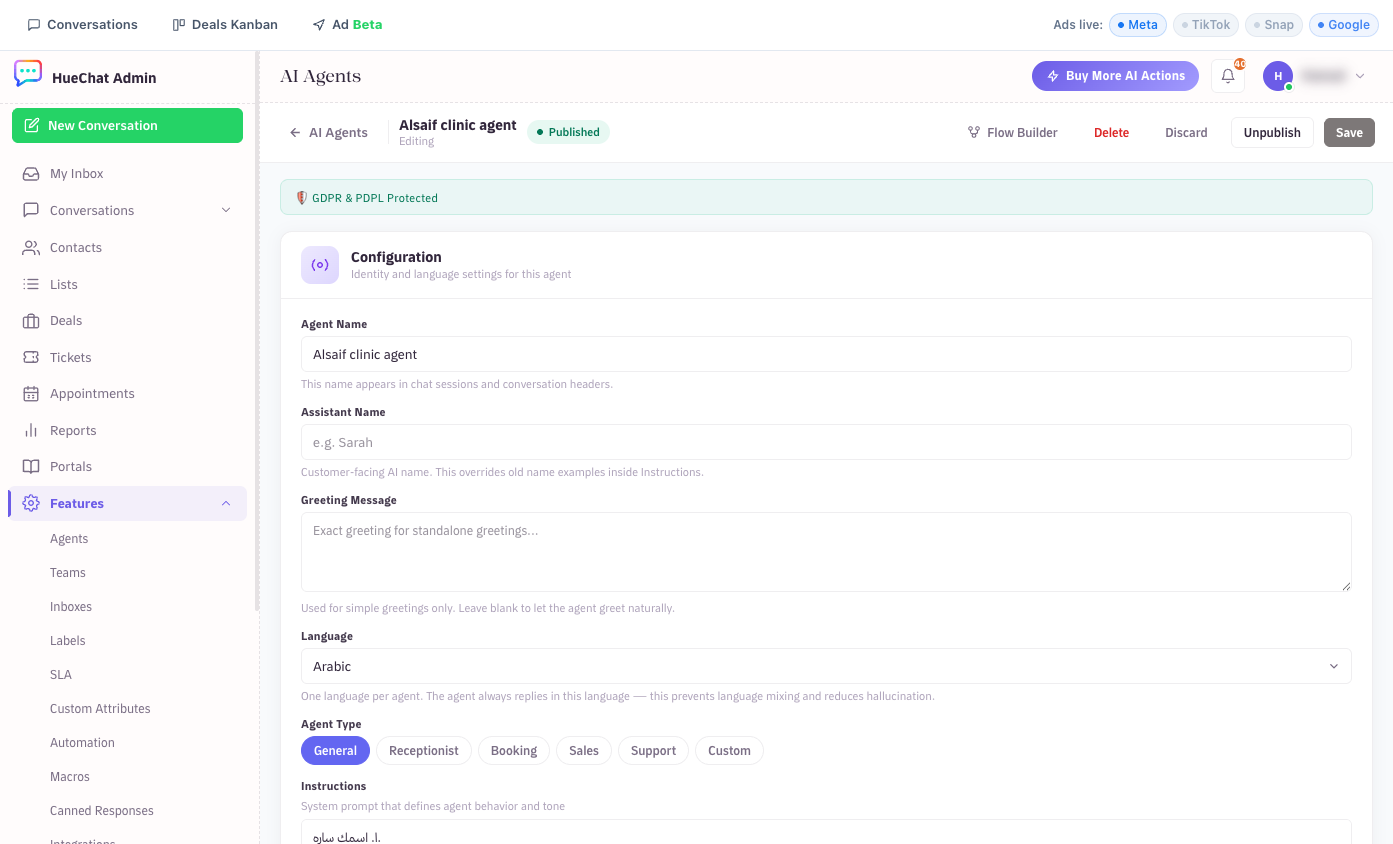
Handoff rules are configured in the agent editor
¶ What happens next
- The AI sends the Handoff Message ("I'm connecting you with one of our team members...").
- HueChat assigns the conversation according to Assign To: Any available agent, Least busy agent, Previously assigned, Round-robin or Another AI agent. Online agents with the fewest open conversations are preferred.
- The assignee gets a notification. The full history is in the conversation, so the customer never repeats themselves. When the AI concludes a conversation, a summary is added for the team.
- If nobody is online, the customer sees the message you set under When no agents are online, and the conversation waits in the queue.
If you pick Another AI agent, choose the target under Transfer to AI agent. If that agent is inactive or does not serve this inbox, HueChat hands off to a human instead.
¶ Cooldown
Cooldown Period (No cooldown, 15 minutes, 30 minutes, 1 hour, 2 hours, 4 hours or 24 hours) is how long the AI stays quiet after a handoff. When it expires, the AI answers new messages again unless a team member has paused it. The same cooldown applies after the AI auto-resolves a conversation.
¶ See and control the state in the inbox
The contact panel shows one of:
- AI Active: the agent answers this conversation.
- Handed Off, AI Paused: a handoff happened and the cooldown is running.
- Manually paused: a team member turned the AI off for this conversation.
Use the AI Handoff control in the contact panel to pause the AI on a conversation, or to switch it back on. A manual pause stays until you turn it off again.
Replying yourself does not pause the AI. If you want to take a conversation over for good, pause the AI in the panel first, then reply.
Handoff rules are configured in the agent editor
¶ Tips
- Keep the handoff message honest about waiting times outside business hours.
- Review handed-off conversations weekly. If the same question keeps causing handoffs, add the answer to the knowledge sources.