My Notes is your personal notepad inside HueChat. Write a quick note, link it to a customer if you like, and ask HueChat to remind you later. This article shows you how to write, find and manage your notes, and how to add them from a conversation.
¶ Who can see your notes
Your notes are personal. Only you can see them.
- Your teammates cannot see them.
- Admins cannot see them.
- The HueChat API cannot read them.
To share something with your team, use a Private Note in the conversation or Contact Notes in the contact panel instead.
My Notes is available on every plan.
¶ Open My Notes
- In the left sidebar, choose My Notes. It is right below My Inbox.
- The My Notes page opens.
The number next to My Notes in the sidebar shows how many of your reminders are due today.
Shortcut: press N anywhere in HueChat, outside a text box, to open My Notes with the Write a note… box ready.
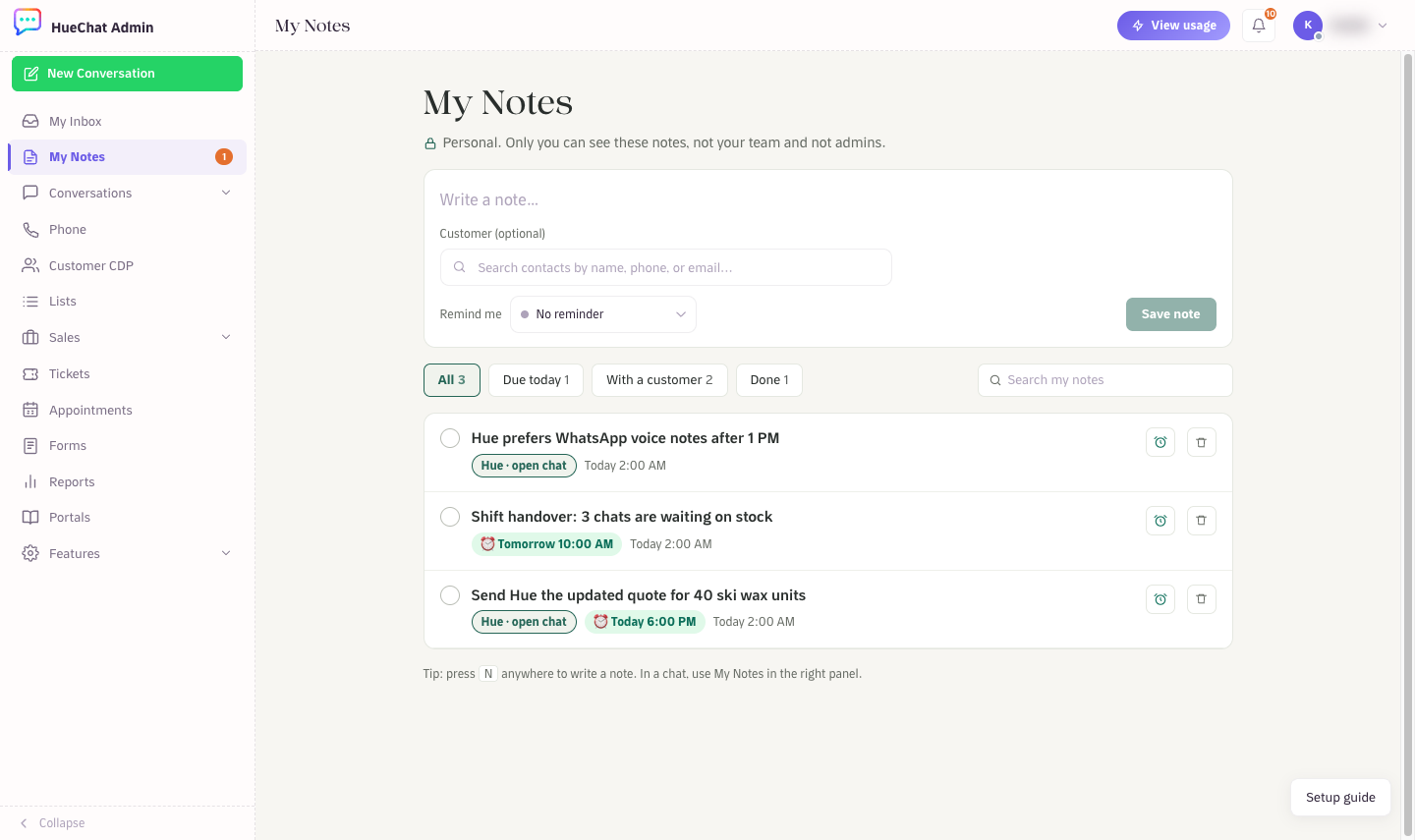
My Notes below My Inbox in the sidebar, with the number of reminders due today
¶ Write a note
- Type your note in the Write a note… box at the top of the page.
- Optional: link a customer. Under Customer (optional), type at least 2 letters of the customer's name, phone number or email, then pick the customer from the list. This is the same search as Add Contacts in Lists, and it finds your customers in Customer CDP.
- Optional: choose a reminder under Remind me (see below).
- Press Enter, or choose Save note.
When you link a customer, the note keeps the customer's name and phone number, so you always know who it is about.
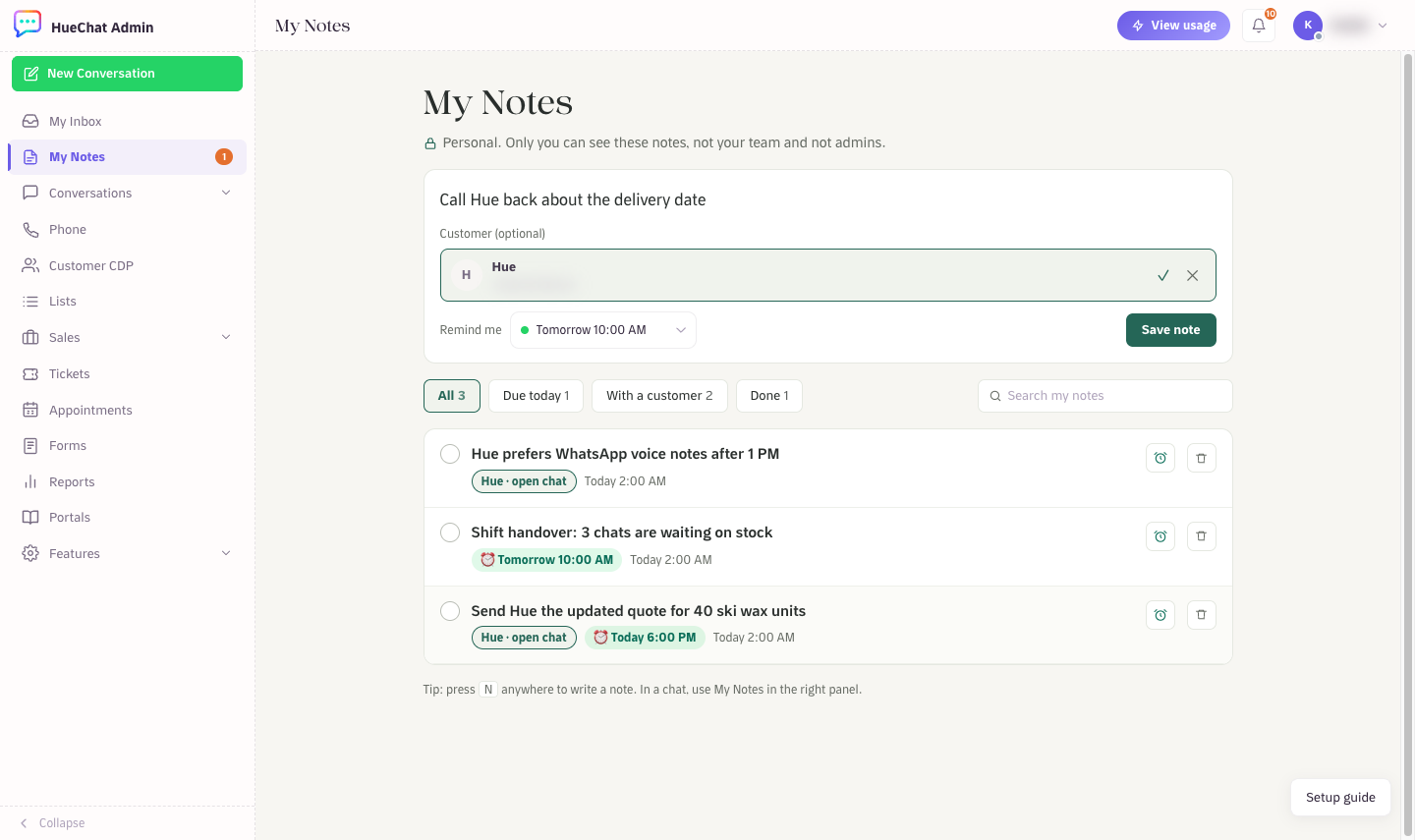
A new note with a customer picked from the search and a reminder for tomorrow
¶ Set a reminder
Open Remind me and choose one option:
- No reminder
- Today 6:00 PM
- Tomorrow 10:00 AM
- Next Sunday 9:00 AM
- Pick a date and time…
Today 6:00 PM cannot be chosen after 6:00 PM.
Pick a date and time… opens a calendar:
- Choose a day. Days that have passed cannot be picked.
- Choose one of the quick times, or set the hour, the minutes and AM or PM.
- Choose Set reminder.
When the reminder is due, you get a notification in the bell menu and a push notification on the HueChat mobile apps. Choose the notification to open the note. Only you get it. HueChat never sends a message to the customer.
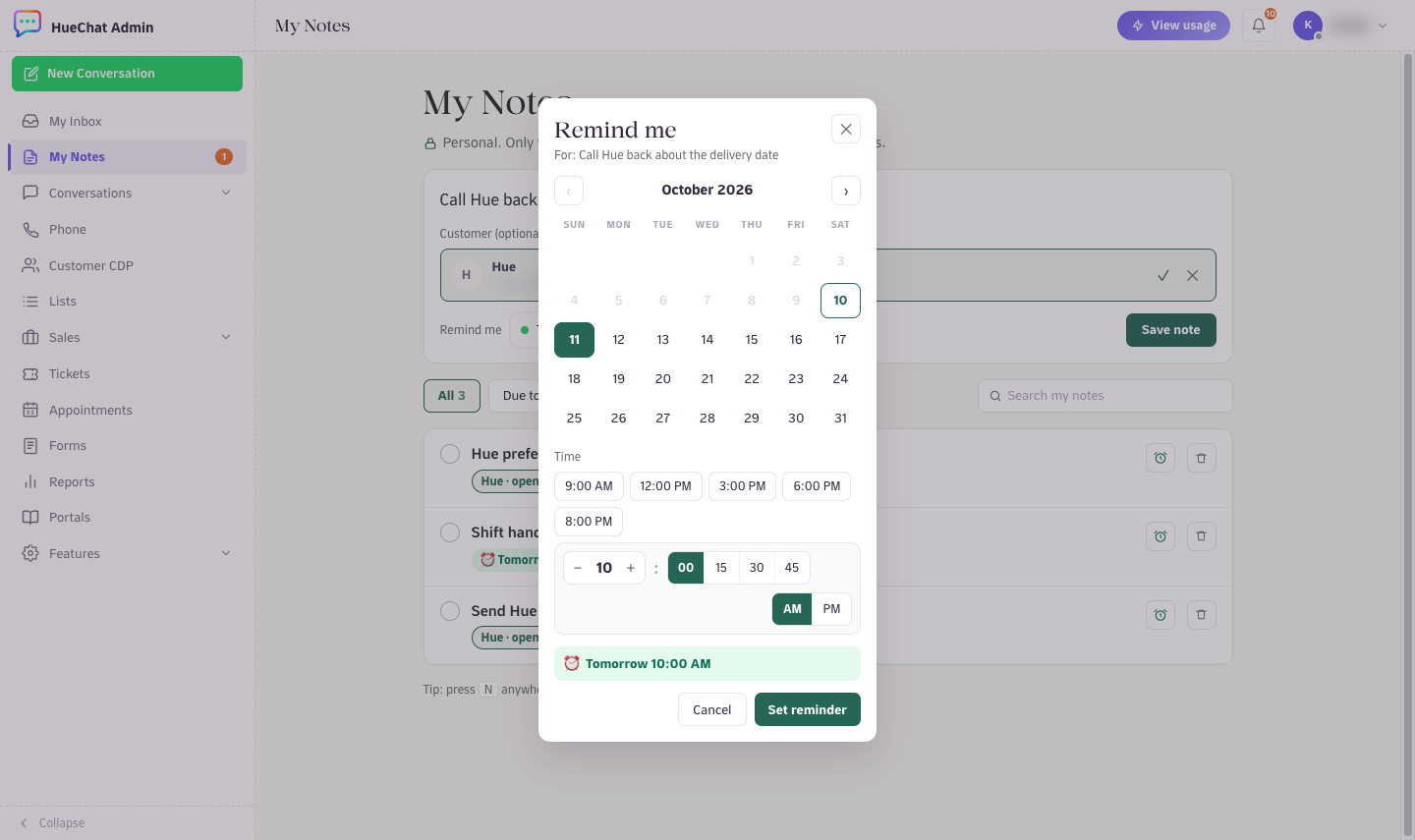
Pick a date and time: the calendar, quick times, hour, minutes and AM or PM
¶ Find and manage your notes
Use the filters above the list:
- All: your notes that are not done yet.
- Due today: notes whose reminder is due by the end of today.
- With a customer: notes linked to a customer.
- Done: notes you marked as done.
To find a note, type in Search my notes. The search looks in the note text and in the linked customer's name and phone number.
On each note, you can:
- Mark done: choose the circle next to the note. Choose it again to mark the note not done.
- Set a reminder: choose ⏰ and pick a new date and time, or choose Remove reminder.
- Delete note: choose the bin icon. A deleted note cannot be restored.
- Open the customer's chat: a note linked to a customer shows a chip with the customer's name and open chat. Choose the chip to open that customer's latest conversation.
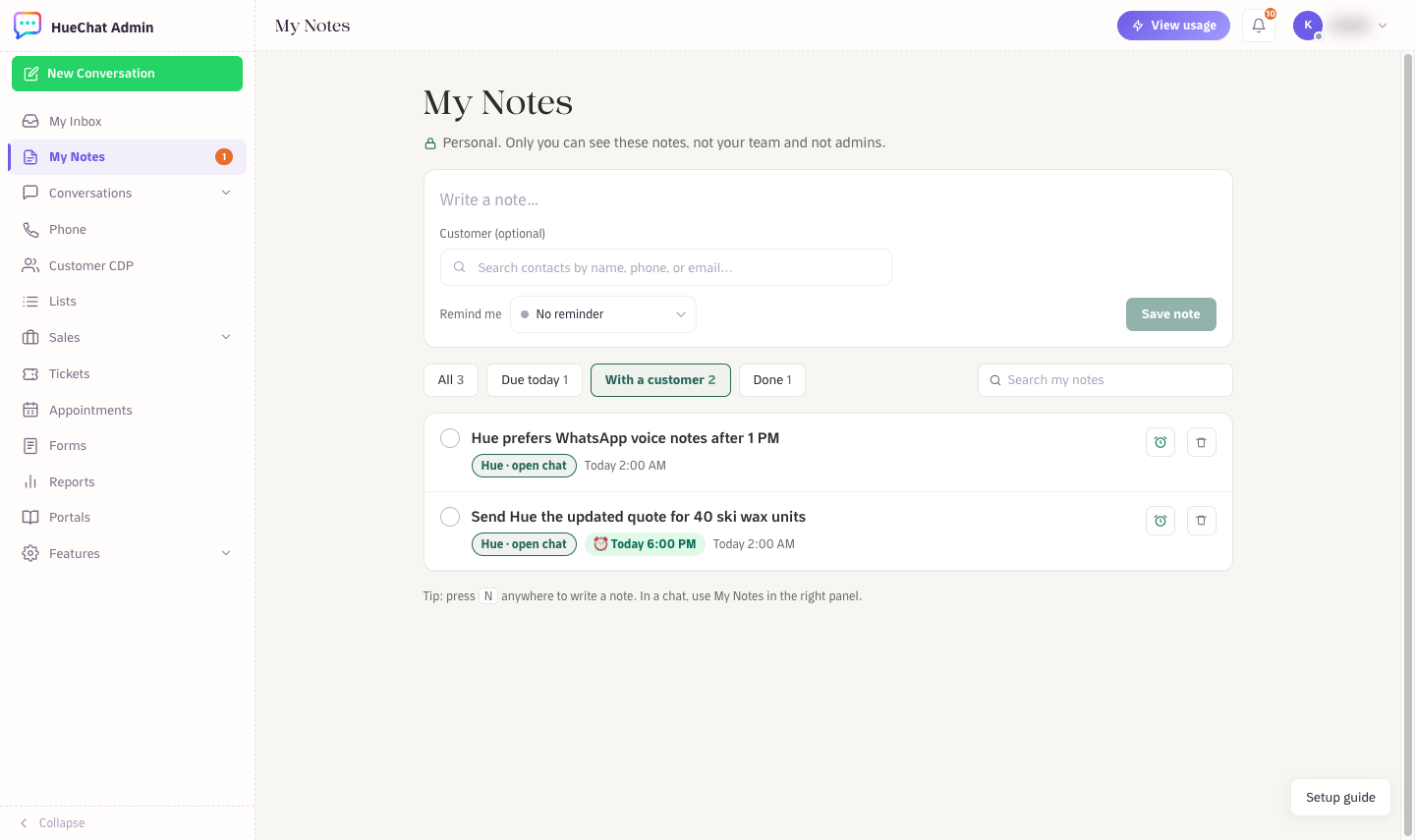
The With a customer filter, the search box and notes with a customer chip and a reminder
¶ Open a note and copy its link
Every note has its own link. Choose the text of a note to open it. In the open note, you can:
- change the text, then choose Save;
- link a customer, or remove the linked customer;
- choose Copy link to copy the note's link.
The link only works for you. Anyone else who opens it sees This note is not available.
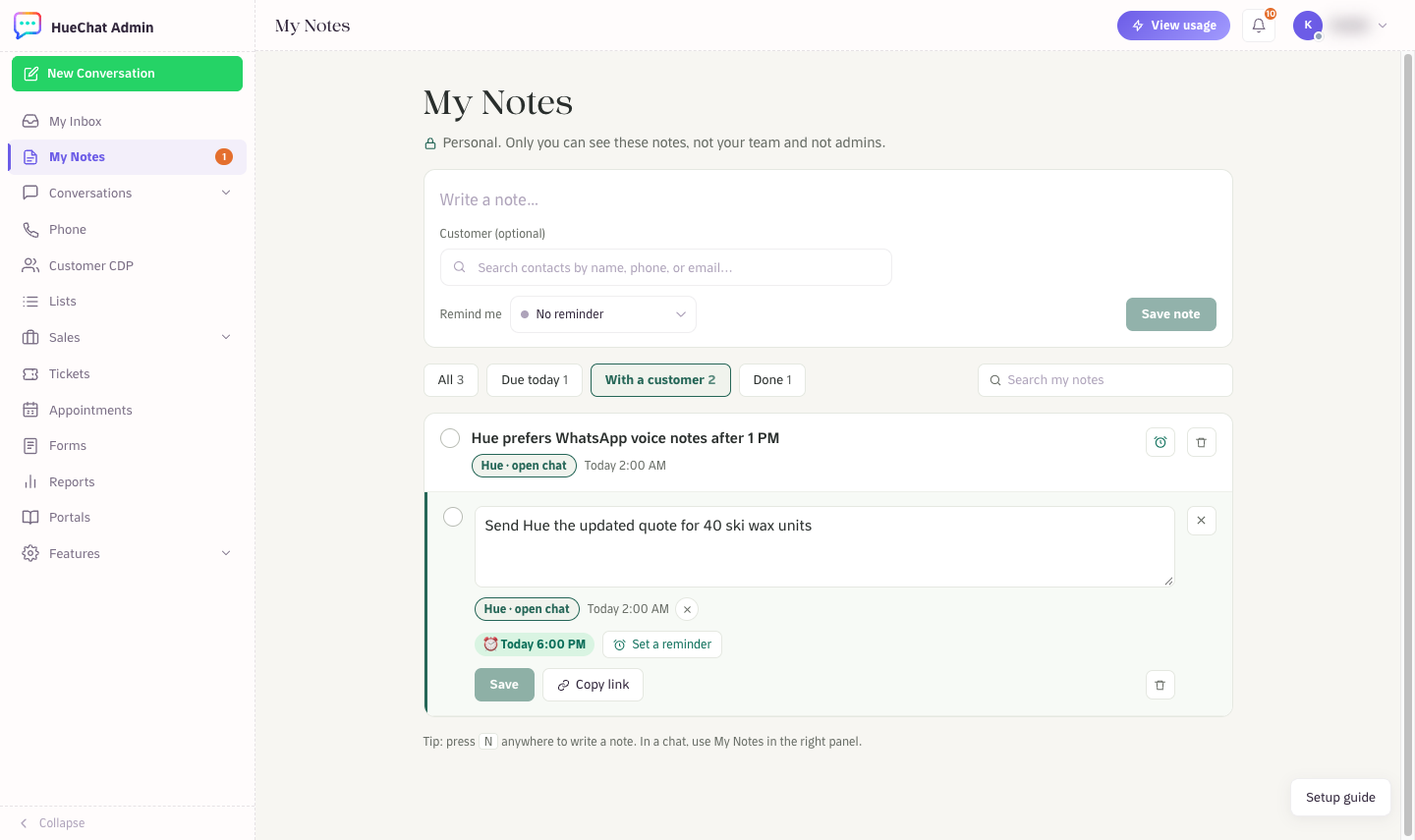
An open note with Save and Copy link
¶ Add a note from a conversation
- Open the conversation.
- In the contact panel on the right, scroll to the bottom and open My Notes. The section is closed by default. Its header shows only you and how many notes you have about this customer.
- Type in the Note about box, which shows the customer's first name, then press Enter or choose Add.
HueChat links the note to this customer and this conversation for you. Below the box, you see your notes about this customer. Choose a note to open it, or choose See all my notes → to open the My Notes page.
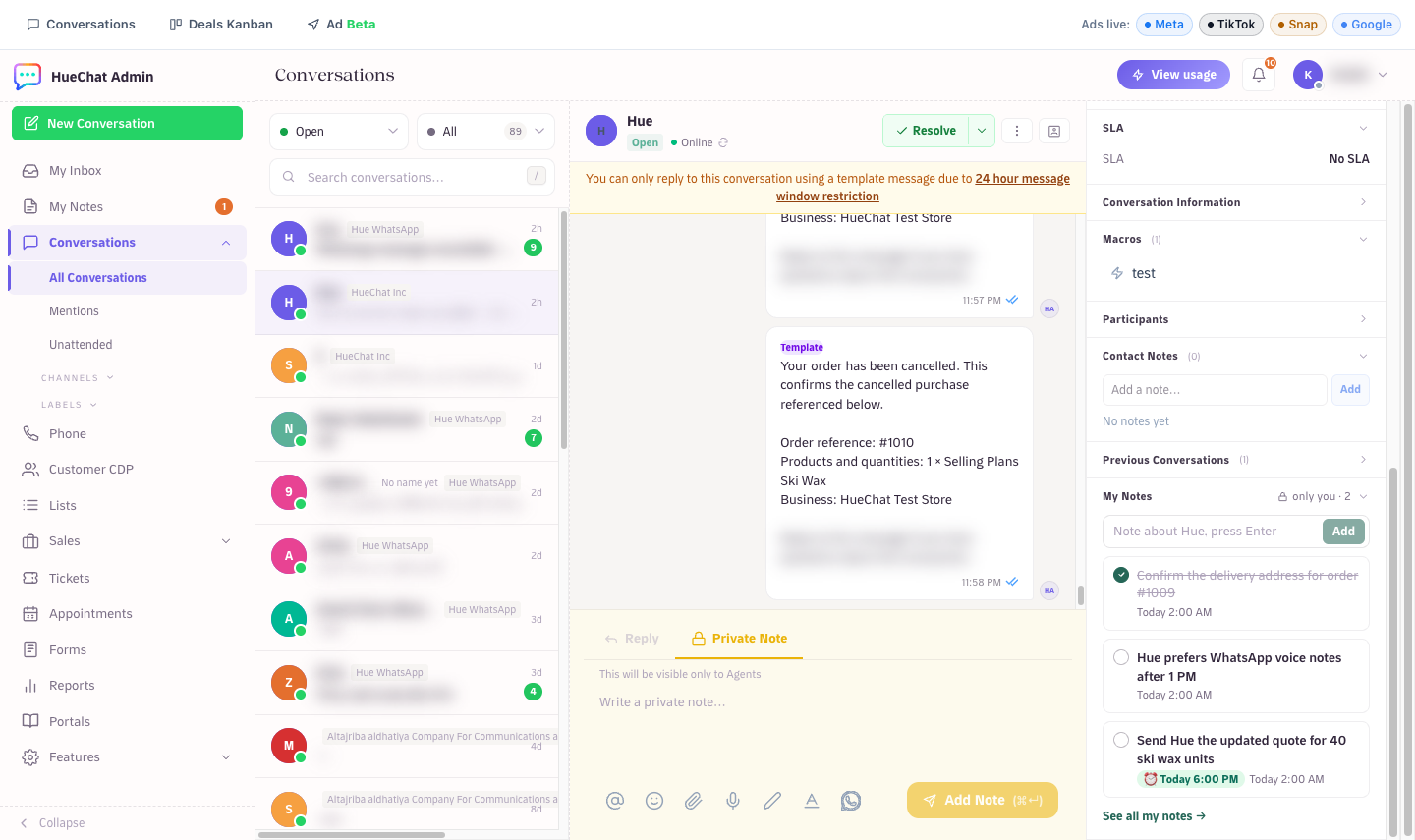
The My Notes section at the bottom of the contact panel in a conversation
¶ If you leave the workspace
If you leave the workspace or are removed from it, your notes are deleted after 30 days. If you rejoin within those 30 days, your notes stay.