This article explains the three ways HueChat can notify you and how to choose which events reach you on each.
¶ Three notification channels
- In-app: the bell in the dashboard shows new notifications while you are signed in. New messages also update conversation counts in real time.
- Email: HueChat sends an email for the events you choose, in the language of your account.
- Mobile push: the iOS and Android apps send push notifications for the events you choose, as long as you allowed notifications on the phone.
Each person sets their own preferences. An administrator cannot change them for you.
¶ Events you can be notified about
- A new message in a conversation assigned to you.
- A conversation assigned to you.
- A teammate mentions you in an internal note.
- Changes to items you follow, such as tickets, contacts or appointments, when they are assigned to you.
By default, email notifications cover assignments only, so your mailbox is not flooded by every message. In-app and push are on for the events above. Exact options may differ by plan.
¶ Change your preferences
- Sign in to app.huechat.ai.
- Open your profile or account settings.
- Open the notifications section.
- For each event, turn in-app, email and push on or off.
- Save.
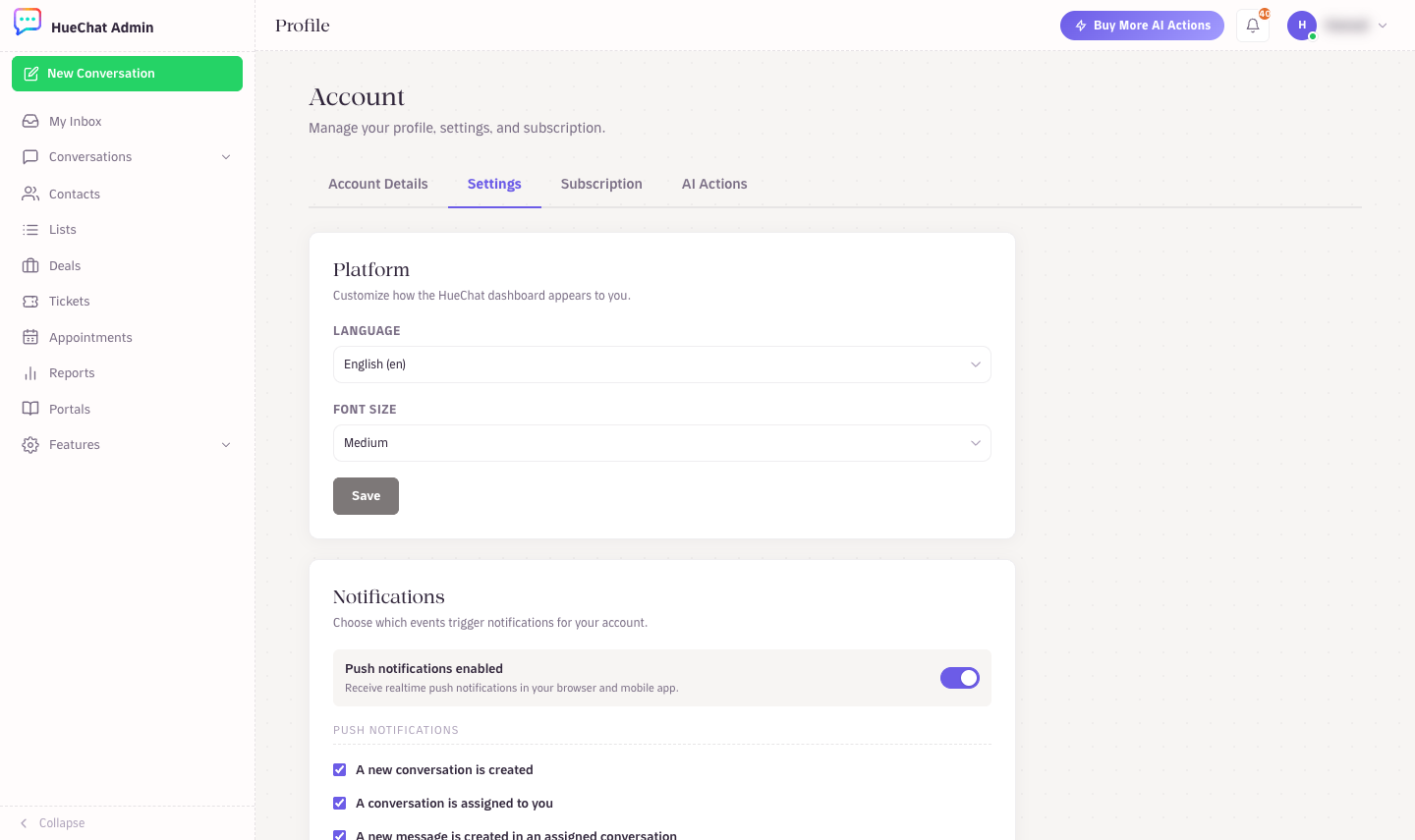
Push and email notification preferences
¶ Manage push on your phone
- Allow notifications for HueChat in your phone settings. If you declined when installing, turn them on there.
- Stay signed in. A session that ends, or is signed out from the web, stops receiving push.
- Do not disturb and focus modes on the phone can silence pushes. Add HueChat as an exception if you need alerts at all hours.
¶ Reduce noise
- Assign conversations properly. Notifications for new messages go to the assigned agent, so unassigned conversations notify everyone in the inbox.
- Use mentions in internal notes when you need a specific teammate, instead of reassigning.
- Turn off email for new messages if you keep the dashboard open during the day.
- Set business hours. Off-hours auto-responses handle customers, and you can leave push on for assignments only.
¶ Customer-facing notifications
Notifications to customers, such as appointment reminders, order updates and broadcast messages, are separate. They are sent through the channel the customer uses, with WhatsApp templates where needed, and are controlled in Appointments, Automations and Broadcasts rather than in your personal preferences.
¶ Not receiving notifications?
- Check the event is turned on for that channel in your preferences.
- Check spam for email notifications and add the sender to your contacts.
- Confirm you are a member of the inbox where the conversation lives.
- On mobile, reinstall the app and sign in again if pushes never arrive.
Still stuck? Email support@huechat.ai with the event and channel that is not working.