WhatsApp templates can carry variables such as {{1}}, a media header and buttons. This article shows you how HueChat fills them in the Personalize step so the send is accepted by Meta.
¶ Approved templates only
Broadcasts use templates that Meta has approved for your WhatsApp sender. Create templates on the Templates page, submit them for approval and wait for the Approved status. Marketing offers need a marketing-category template; order updates and appointment reminders should use utility templates, which are cheaper and not affected by Meta's marketing frequency caps.
If a template does not appear in the wizard, sync templates from the WhatsApp inbox settings, or check that it is approved and belongs to the selected sender.
¶ Fill the variables
In the Personalize step HueChat lists every variable in the template body, plus the header and buttons.
- Type a fixed value that every recipient sees, for example a promo code.
- Or choose a merge field to personalise per recipient, such as the contact's name. A name from your CSV or contact record is inserted for each person.
Every variable must have a value. The wizard blocks Continue until they are all filled, because WhatsApp rejects the entire send if one is missing. If a template has no variables and no media header, the step says there is nothing to personalise and you can move on.
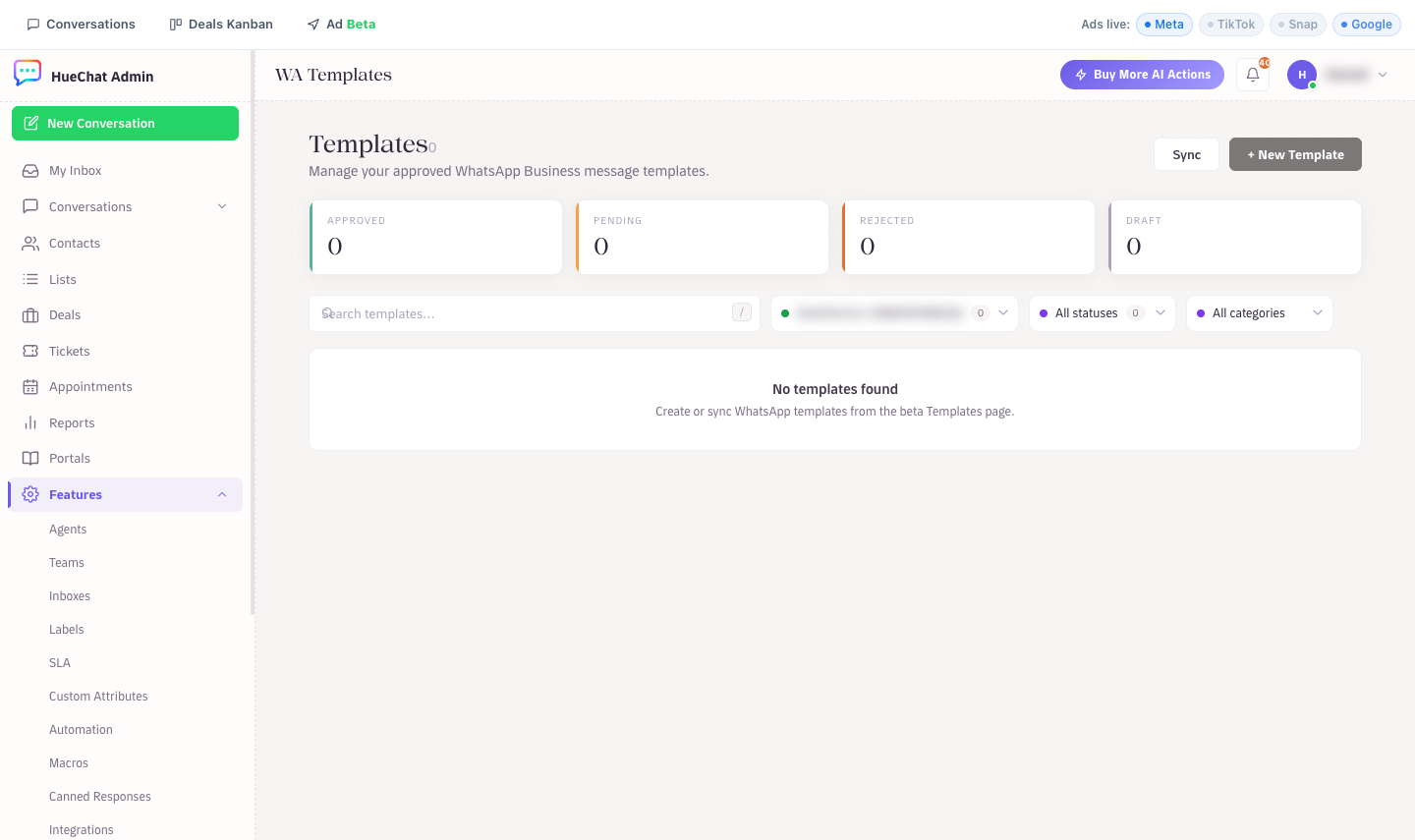
WA Templates: create or sync templates before broadcasting
¶ Header text and media
Templates with a header need either:
- Header text: type it in the field.
- Header media: upload the file HueChat will send with every message. Accepted files are a JPEG or PNG image up to 5 MB, an MP4 video up to 16 MB, or a PDF document up to 16 MB. For documents, HueChat shows the Document filename the customer will see.
The uploaded file is used for the whole campaign. To send a different document, create another broadcast.
¶ Buttons and carousels
- Templates with a dynamic URL button ask for the Button value (the part of the link that changes).
- Carousel templates show one Card per carousel item; upload media and fill the card variables for each.
¶ Preview before you send
The Review & Send step renders the final message with your values and media. Read it as a customer would, in the right language, and check that names, prices and dates make sense. A merge field with no data shows "Name not provided" in recipient outcomes; add names to your CSV or contacts if you rely on them.
¶ Common rejections
- Empty variable: fill it, even with a space-free placeholder like "customer".
- Wrong media type: match the header type the template was approved with (image, video or document).
- Paused template: Meta pauses marketing templates with poor quality; the broadcast auto-pauses and the reason is shown. Fix or replace the template, then resume.