Tasks keep every follow-up visible, whether it belongs to a customer, a lead, a company or a deal. This article shows you how to open your queue, create tasks and use the shared calendar.
¶ Open Tasks & Calendar
Open Sales → Tasks in the sidebar. You can also get there from Sales → Overview (choose Open queue under Today's work, or click the Overdue tasks card) and from task links on leads, deals and customer profiles.
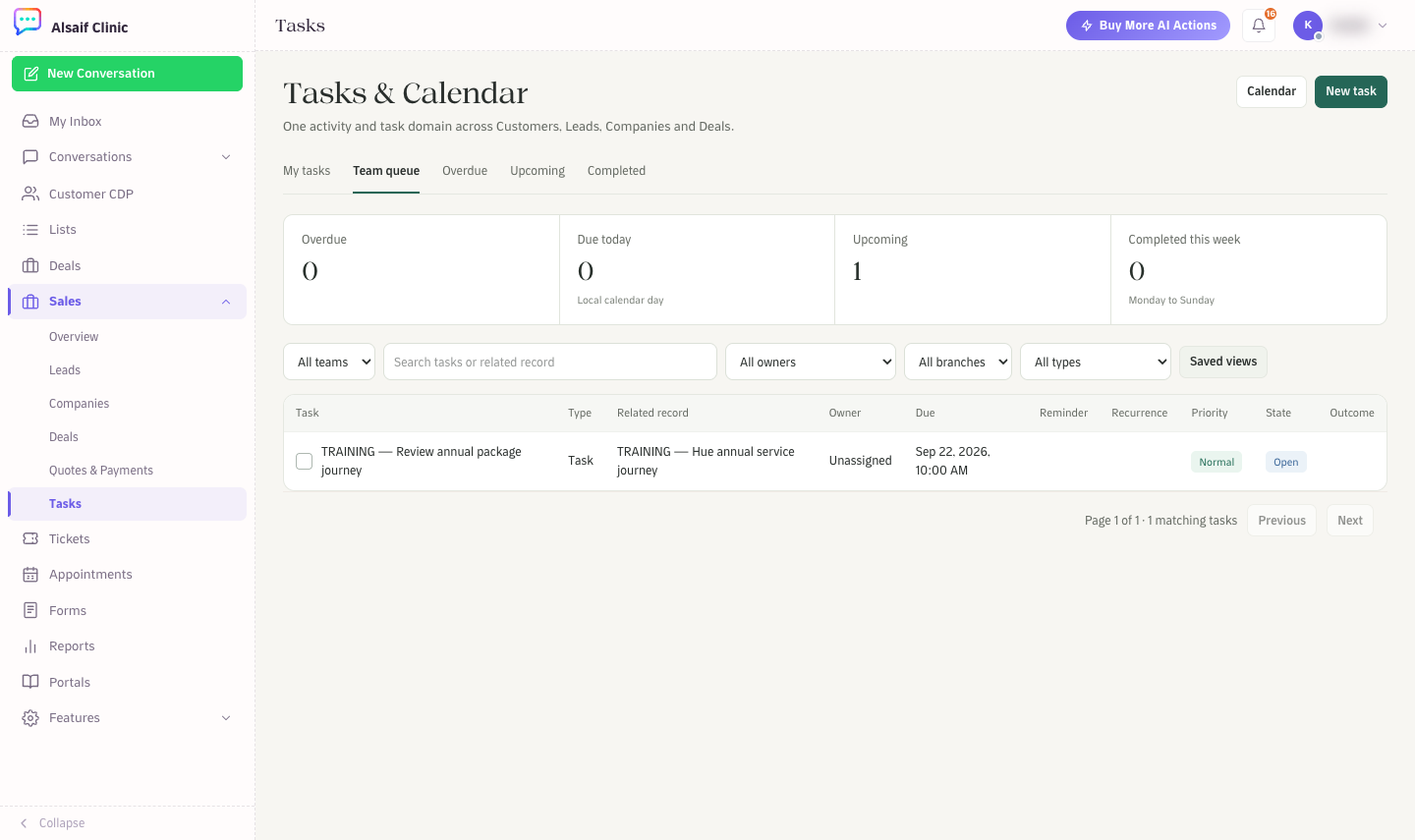
Tasks & Calendar with queues, totals and the team queue
- The tabs are My tasks, Team queue, Overdue, Upcoming and Completed.
- The cards show Overdue, Due today, Upcoming and Completed this week.
- Filter by owner, branch and type, and keep your filters under Saved views.
- Each row shows the task, its type, the related record, owner, due date, reminder, repeat, priority, state and outcome.
¶ Create a task
- Choose New task, or Create task on a lead, deal or customer.
- Choose the type: Follow up, Callback, Call, Meeting, Qualification, Approval, WhatsApp follow up or Task.
- Set the priority, the Due date and an optional reminder.
- Assign a team, an owner, or both. A task assigned to a team appears in that team's queue.
- Optionally repeat the task daily, weekly or monthly.
- Link it to a customer, lead, company or deal, and save.
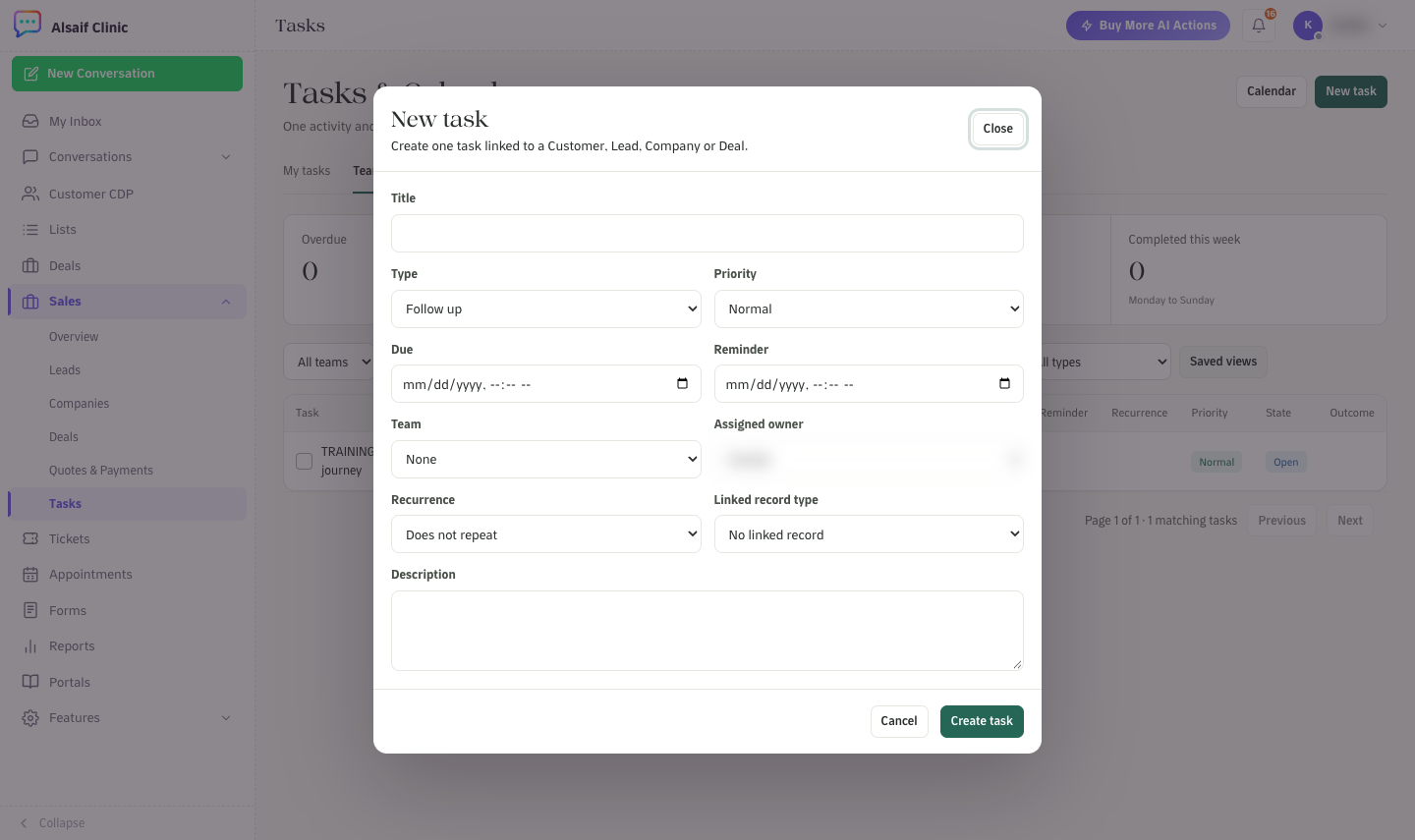
The New task form
Tick the checkbox next to a task when it is done, and record the outcome.
¶ The shared calendar
Choose Calendar to open the shared calendar. It lists tasks and upcoming appointments by day and time for the next 31 days, with the type, owner and linked record. Close it to return to the task list.
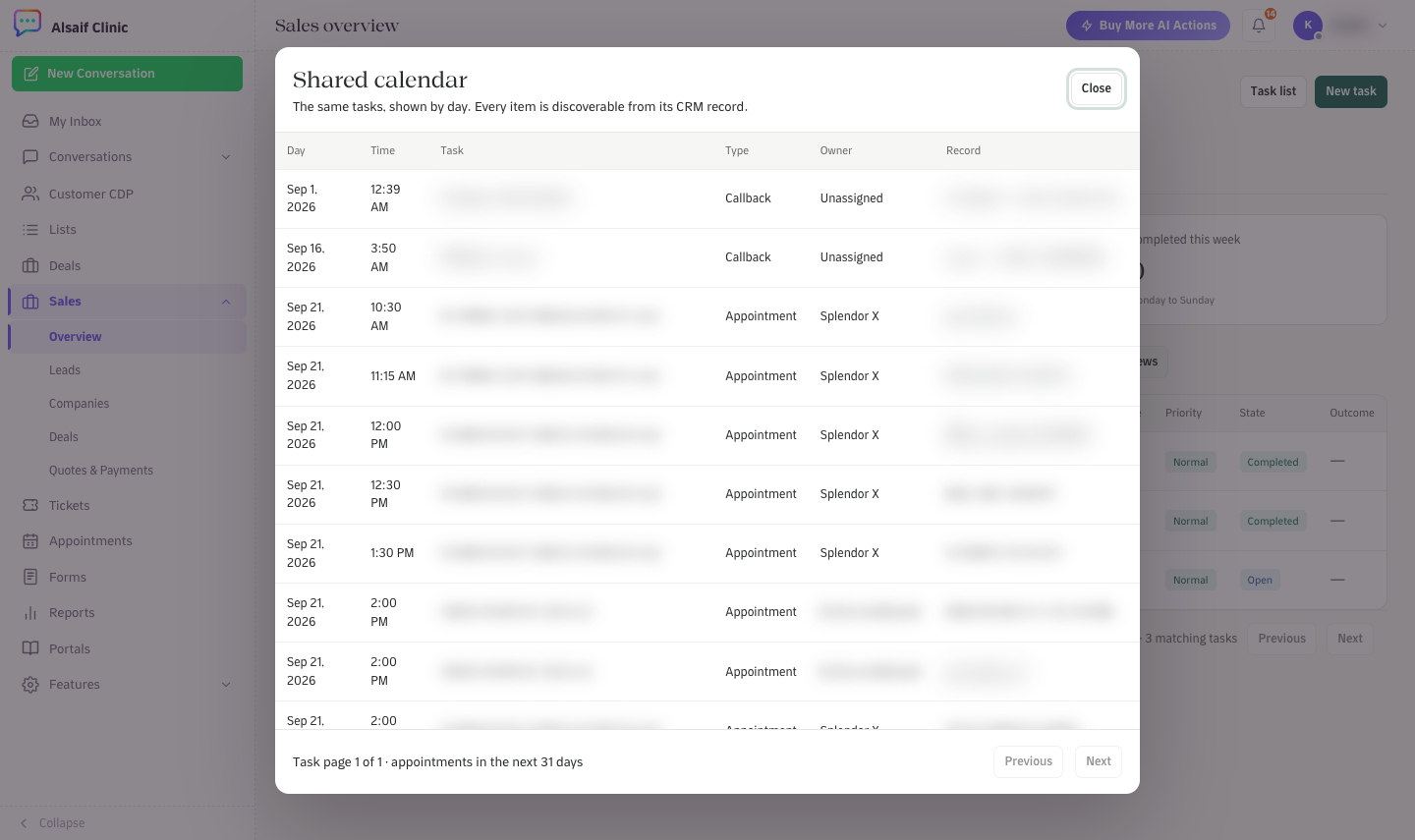
The shared calendar lists tasks and appointments by day
¶ Tips
- Give every open lead and deal a next action. The Overview shows leads without one under Action is waiting.
- Use Team queue for work that anyone on the team can pick up.
- CRM automation recipes can create tasks for you, for example when a deal goes stale.