A lead is someone you are still qualifying. This article shows you how leads arrive, how to work them in List, Kanban and Split views, and how to convert a qualified lead into a deal.
¶ Where leads come from
- Conversations. When Sales Settings uses a Lead mode, a new WhatsApp, Instagram, Messenger or website conversation creates or attaches a lead. Only conversations that start after the mode is turned on are included.
- Ads. Lead forms connected in Features → Ad Beta arrive with the source Ad.
- Manual entry and import. Create a lead by hand or import a CSV file.
Each lead belongs to one person in the Customer CDP, so a returning customer is not duplicated.
¶ Views and queues
Open Sales → Leads.
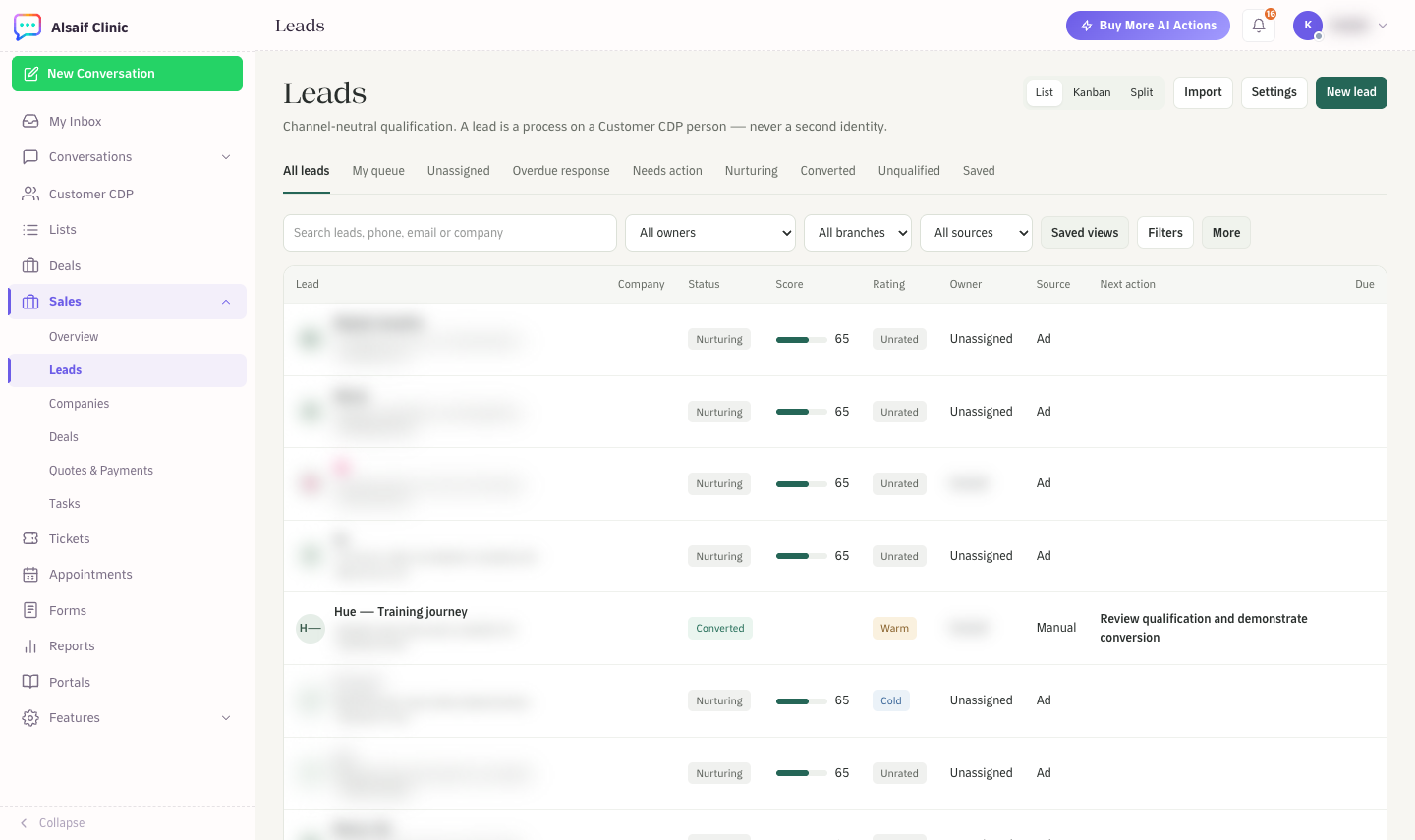
The Leads list with queues, filters, status, score, rating and owner
- List shows a table with Lead, Company, Status, Score, Rating, Owner, Source, Next action and Due. Use More to choose columns, select leads or export a CSV.
- Kanban shows one column per status: New, Contacted, Nurturing, Qualified, Unqualified and Converted. Drag the whole card to another column to change its status. Dropping a card on Converted or Unqualified opens the matching dialog.
- Split shows the list on the left and the selected lead on the right.
- The queues at the top are All leads, My queue, Unassigned, Overdue response, Needs action, Nurturing, Converted, Unqualified and Saved.
- Filter by owner, branch and source, search by name, phone, email or company, and keep a useful combination under Saved views.
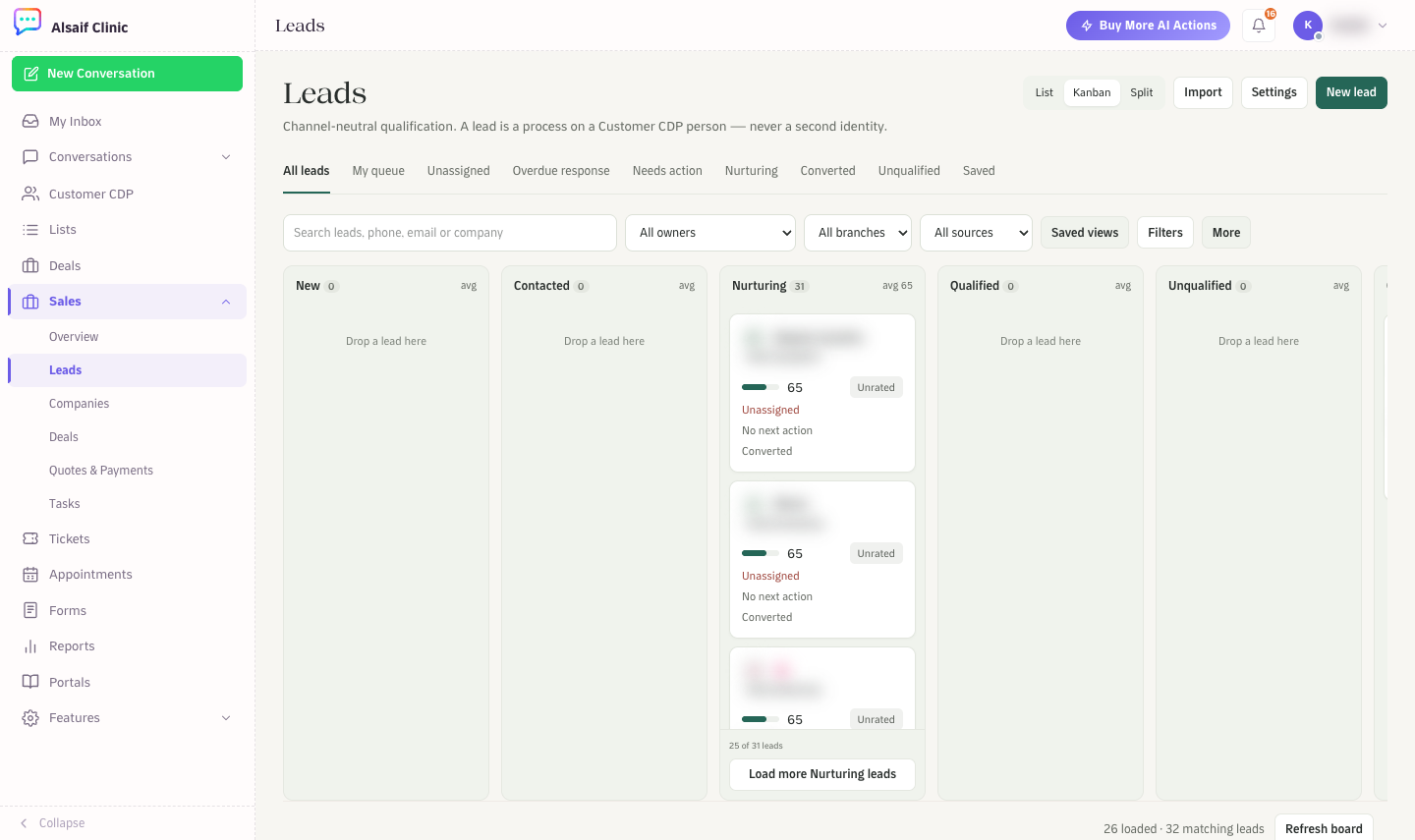
Leads in Kanban view, one column per qualification status
To assign several leads at once, choose More → Select leads, tick the leads and choose Assign owner & queue.
¶ Create a lead
- Choose New lead.
- Pick the Source and a Rating: Hot, Warm or Cold.
- Enter the Name and, if you have them, the phone, email and company.
- Add the product or service interest, the qualification answers and a Next action with a date.
- Choose Create lead.
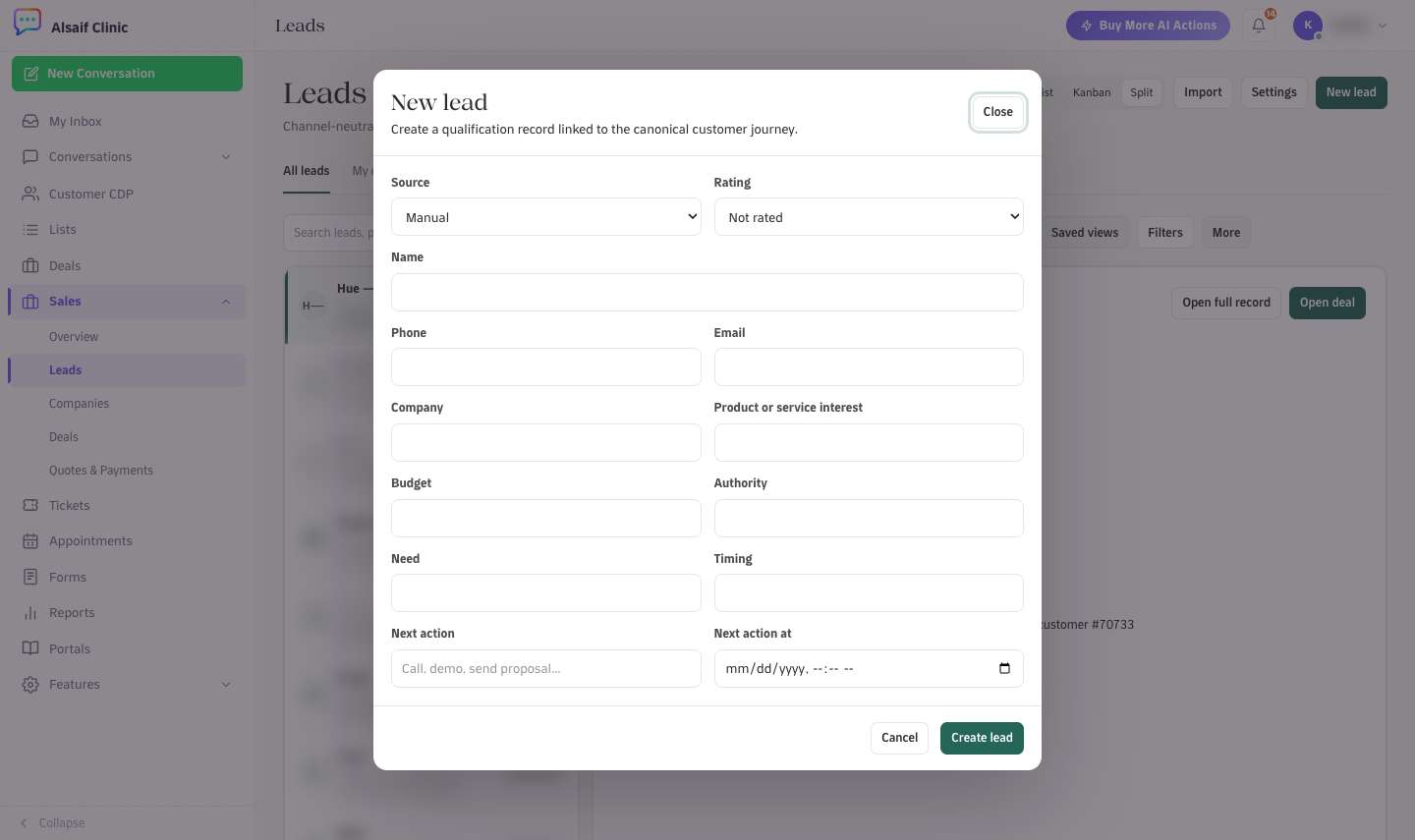
The New lead form
¶ Qualify a lead
Open a lead to see its full record.
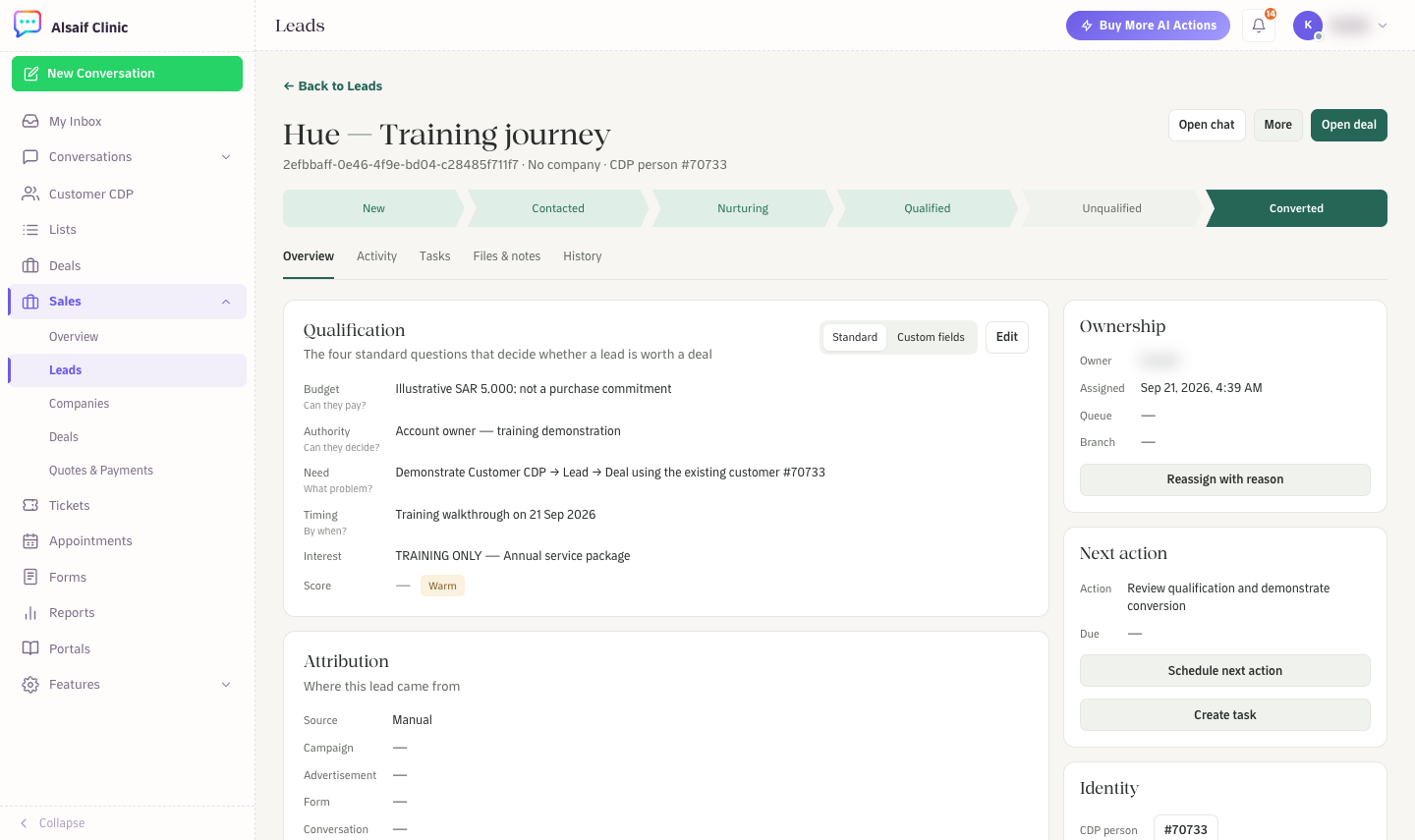
A lead record with the status path, qualification, attribution, ownership and next action
- The status path at the top shows where the lead stands.
- Qualification holds four standard questions: Budget (can they pay?), Authority (can they decide?), Need (what problem?) and Timing (by when?). Choose Edit to fill them in.
- Attribution shows where the lead came from: source, campaign, ad, form and conversation.
- Ownership shows the owner. Use Reassign with reason to hand the lead over. Every change keeps who made it, why and when.
- Next action keeps follow-ups moving. Use Schedule next action or Create task.
- The tabs Activity, Tasks, Files & notes and History keep everything about the lead in one place.
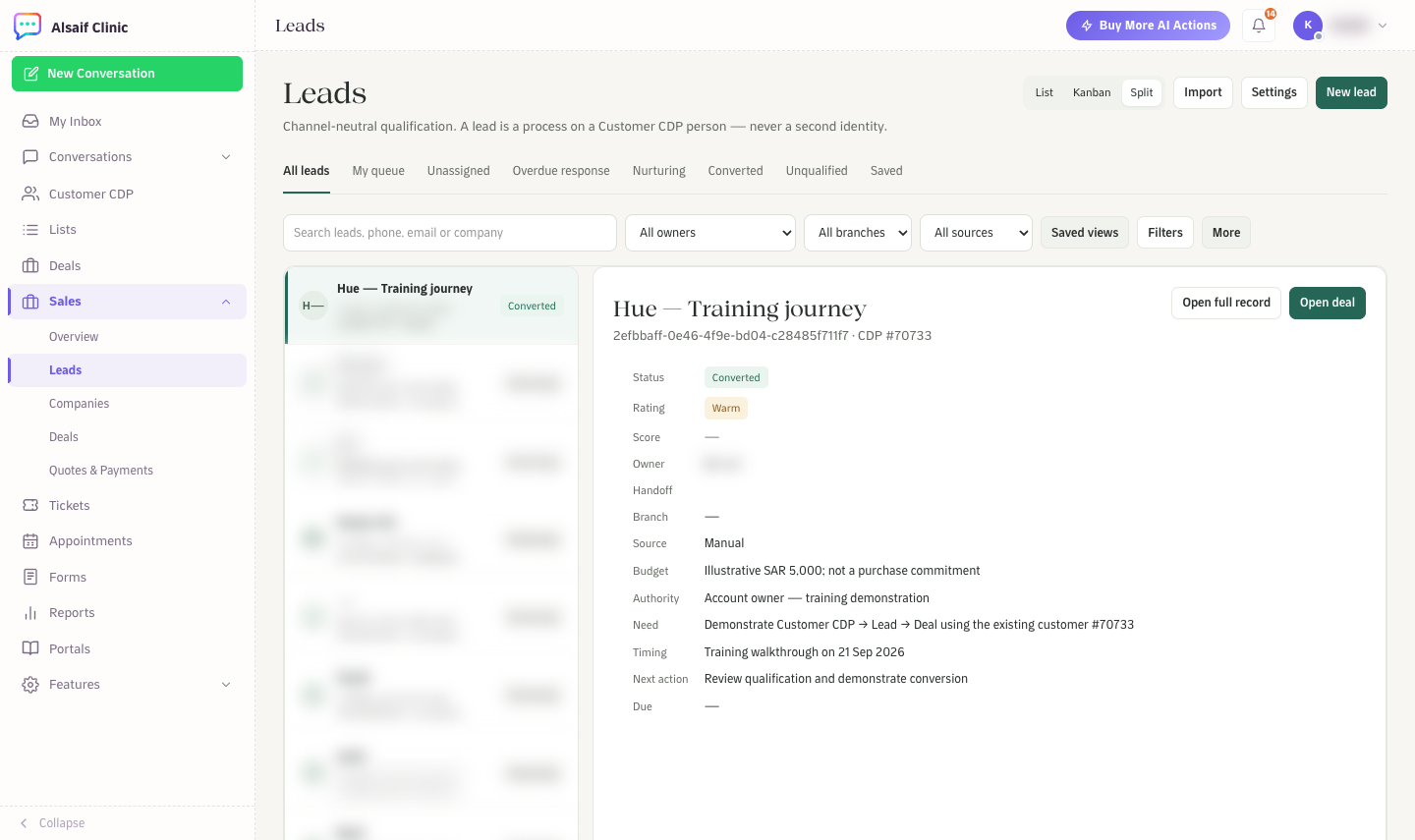
Split view: the lead list and the selected lead side by side
If HueChat finds a possible duplicate, a banner lets you compare the leads or review them in the Customer CDP.
¶ Convert or disqualify
- Convert opens a dialog. Confirm the customer, choose to keep the company as text, link an existing company or create one, then create a new deal, link an existing deal or convert without a deal. A converted lead becomes read-only.
- Disqualify asks for a reason, such as no budget, no need, timing or duplicate. You can set a date to recycle the lead later.
¶ Import leads
- Choose Import, then Download template.
- Fill in
full_name(required),phone,email,company,rating,product_interest,next_actionandnext_action_at. - Choose the CSV file and Import records. Each file can hold up to 1,000 rows and 2 MB. Every row becomes a lead with the source Import.
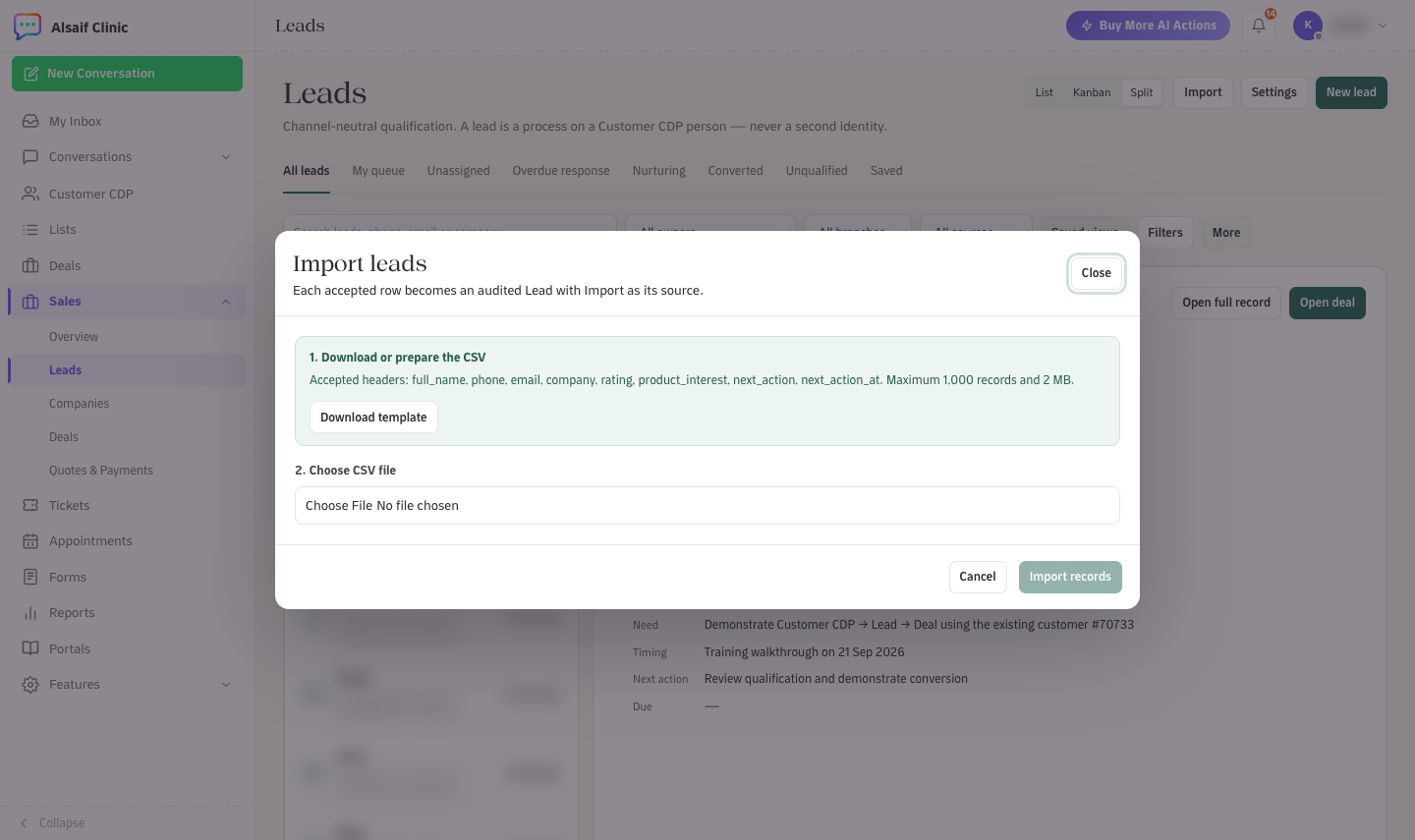
Import leads from a CSV file
Leads are available on plans that include the Leads module.