A quote turns a deal into a clear offer with line items, totals, terms and an expiry date. This article shows you how to create a quote, share it and track what happens next.
¶ Create a quote
- Open a deal and choose Create quote, or open Sales → Quotes & Payments and choose New quote.
- Choose the deal, the Expires on date and the recipients. The currency follows the deal.
- Add line items. Pick a product or write a custom line, then set the quantity, unit price, discount and tax.
- Add your terms.
- Tick Primary quote for the deal and update its value if this quote should set the deal amount.
- Choose Create draft.
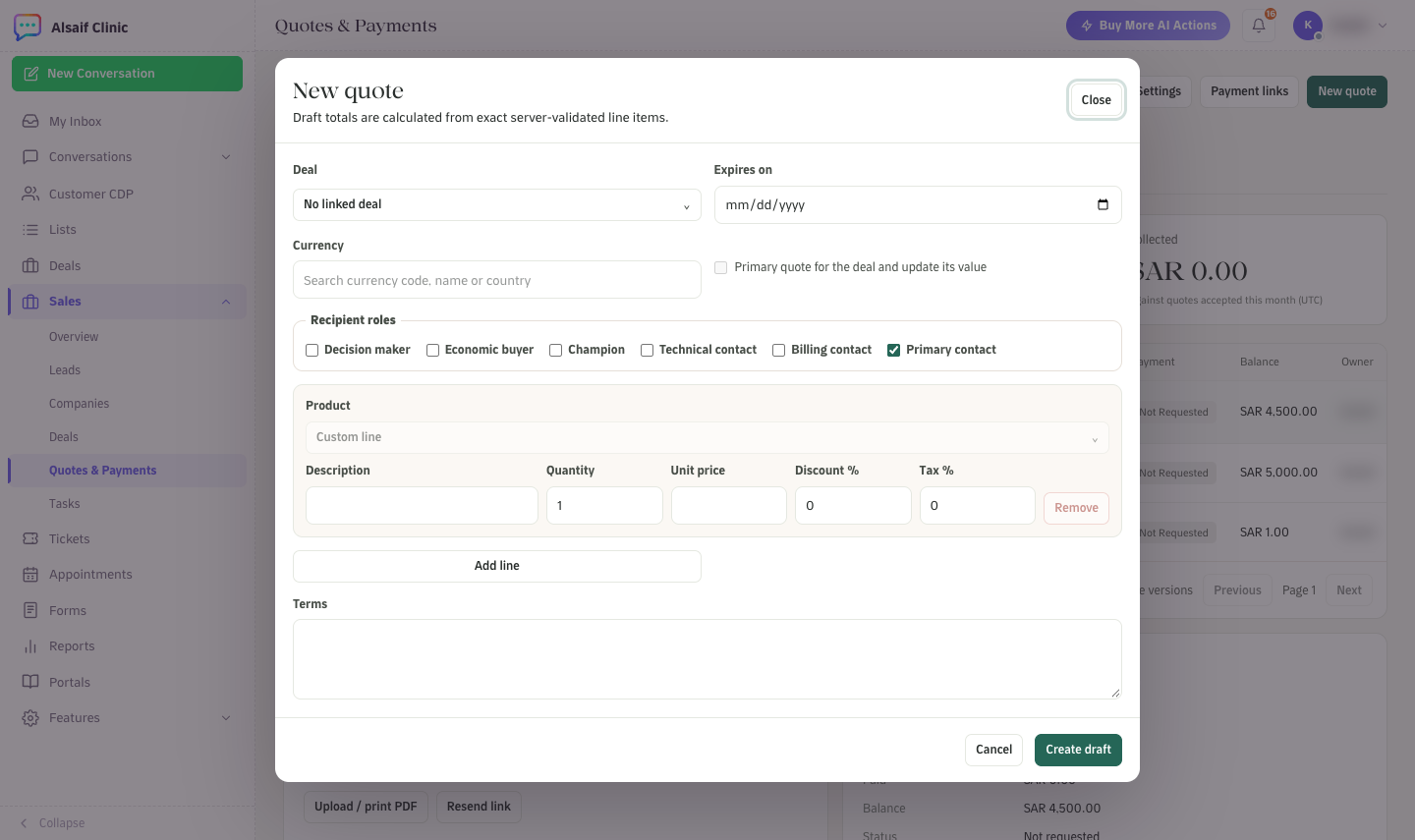
The New quote form with recipient roles, line items and terms
If a discount is above your account's approval threshold, the quote waits in Awaiting approval until an administrator approves or rejects it with a reason.
¶ Follow your quotes
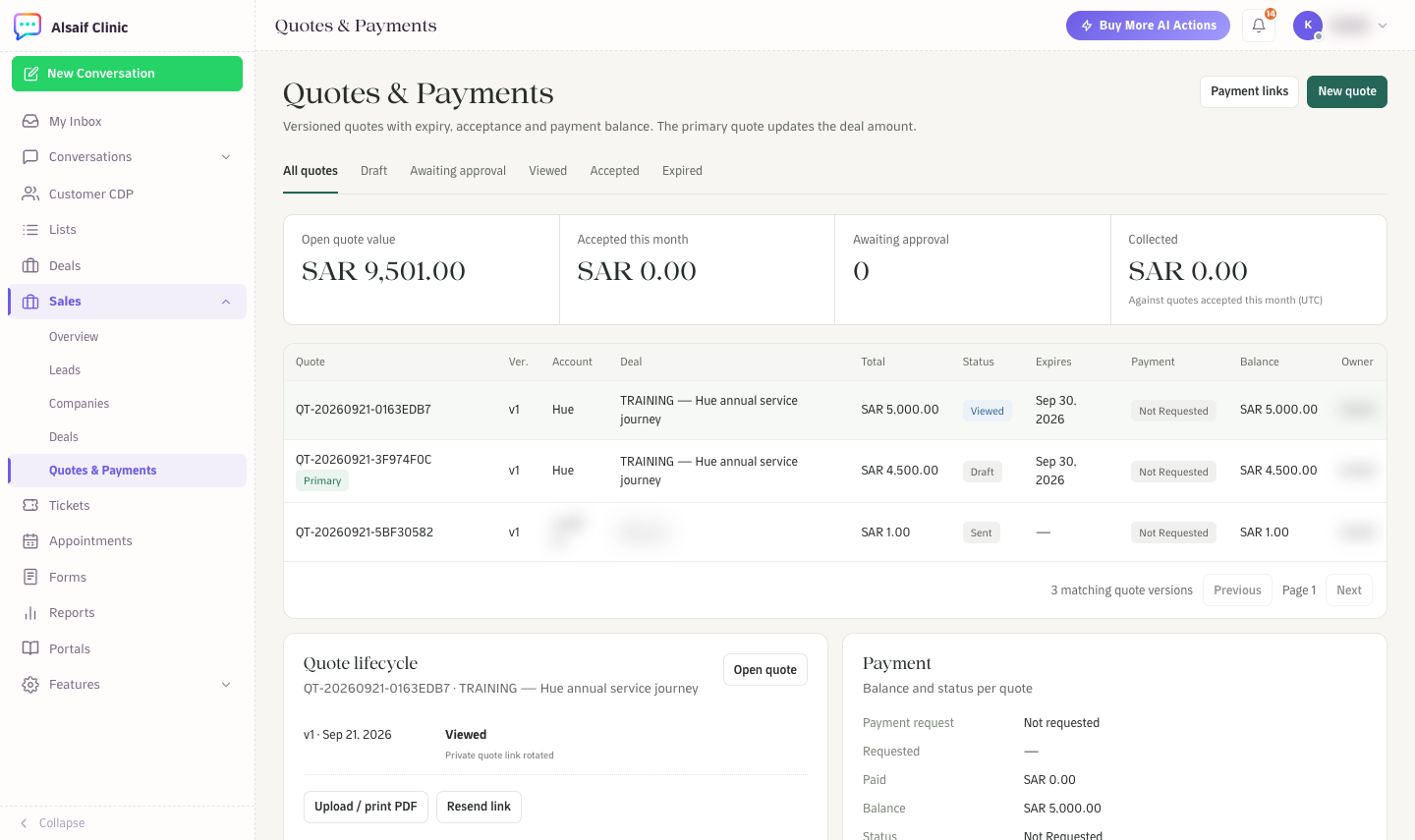
Quotes & Payments with status tabs, totals and the payment panel
- The tabs All quotes, Draft, Awaiting approval, Viewed, Accepted and Expired filter by status.
- The cards show open quote value, accepted this month, quotes awaiting approval and the amount collected.
- Select a quote to see its lifecycle and payment details underneath.
¶ Set up WhatsApp quotes
Before you send quotes on WhatsApp, open Sales → Quotes & Payments and choose Quote Settings. Choose the WhatsApp inbox and an approved Utility template with one dynamic website button. HueChat puts the private quote link in that button, never in the message text. Static text headers and footers are supported. Create and approve the template in your WhatsApp templates first, then choose Refresh templates and Save settings.
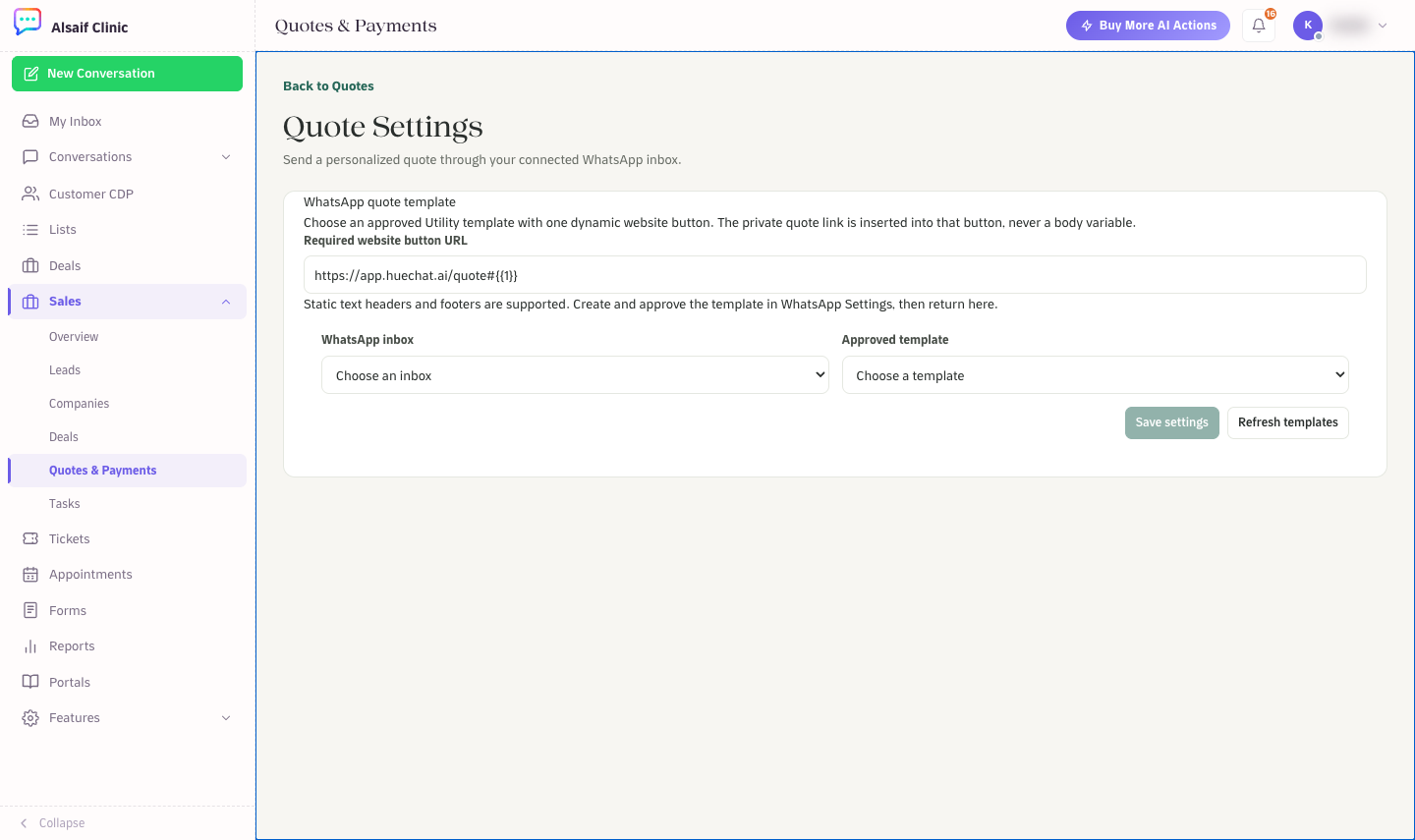
Quote Settings: the WhatsApp inbox and the approved template used to send quotes
¶ Share the quote with the customer
Open the quote.
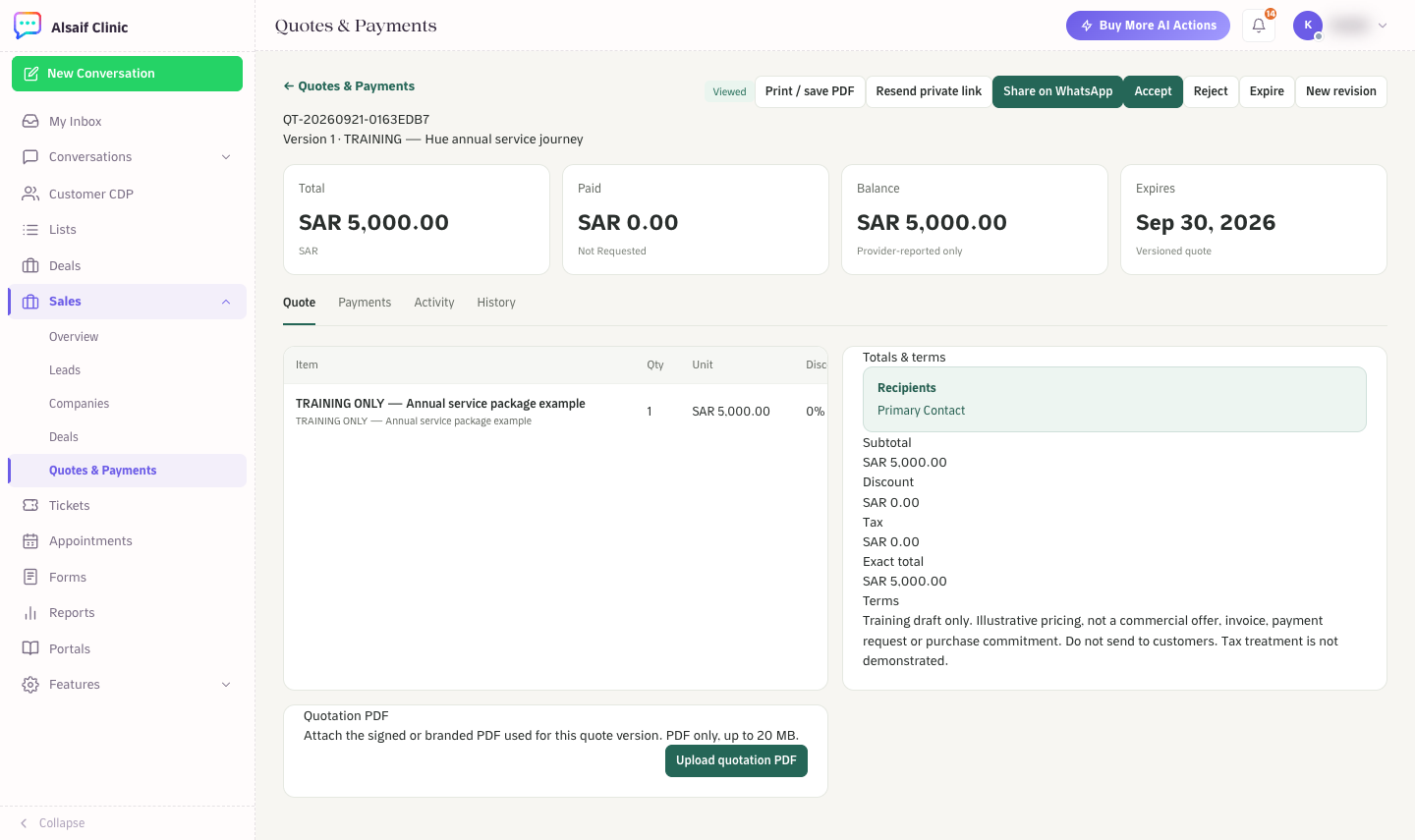
A quote with its sharing, outcome and revision actions
- Choose Share on WhatsApp to send the quote from your WhatsApp inbox with the template chosen in Quote Settings. You can also choose Copy private link and paste the link into the customer's conversation. Sharing a draft marks it as Sent.
- The private link works until the quote expires or for 30 days, whichever comes first. Resend private link gives the customer a fresh link.
- When the customer opens the link, the quote shows as Viewed. The customer can read the quote but does not sign or accept it online.
- Print / save PDF opens a print view of the quote. To use your own branded or signed document, upload it under Quotation PDF (PDF only, up to 20 MB).
¶ Record the outcome
When the customer answers, choose Accept, Reject or Expire. To change the offer, choose New revision. The new version replaces the previous one, which stays in the history as superseded.
¶ Payments
The Payments tab shows the payment request, the amount paid and the balance for each quote. Payment requests become available after the quote is accepted. Under WhatsApp delivery, you see when the provider accepted, delivered and read the quote message; the same receipts appear in the customer's conversation. Request balance records that you asked for payment. It does not create a payment link or collect money, and a recorded request is not proof of payment. The paid amount changes only when a confirmed payment result is recorded.
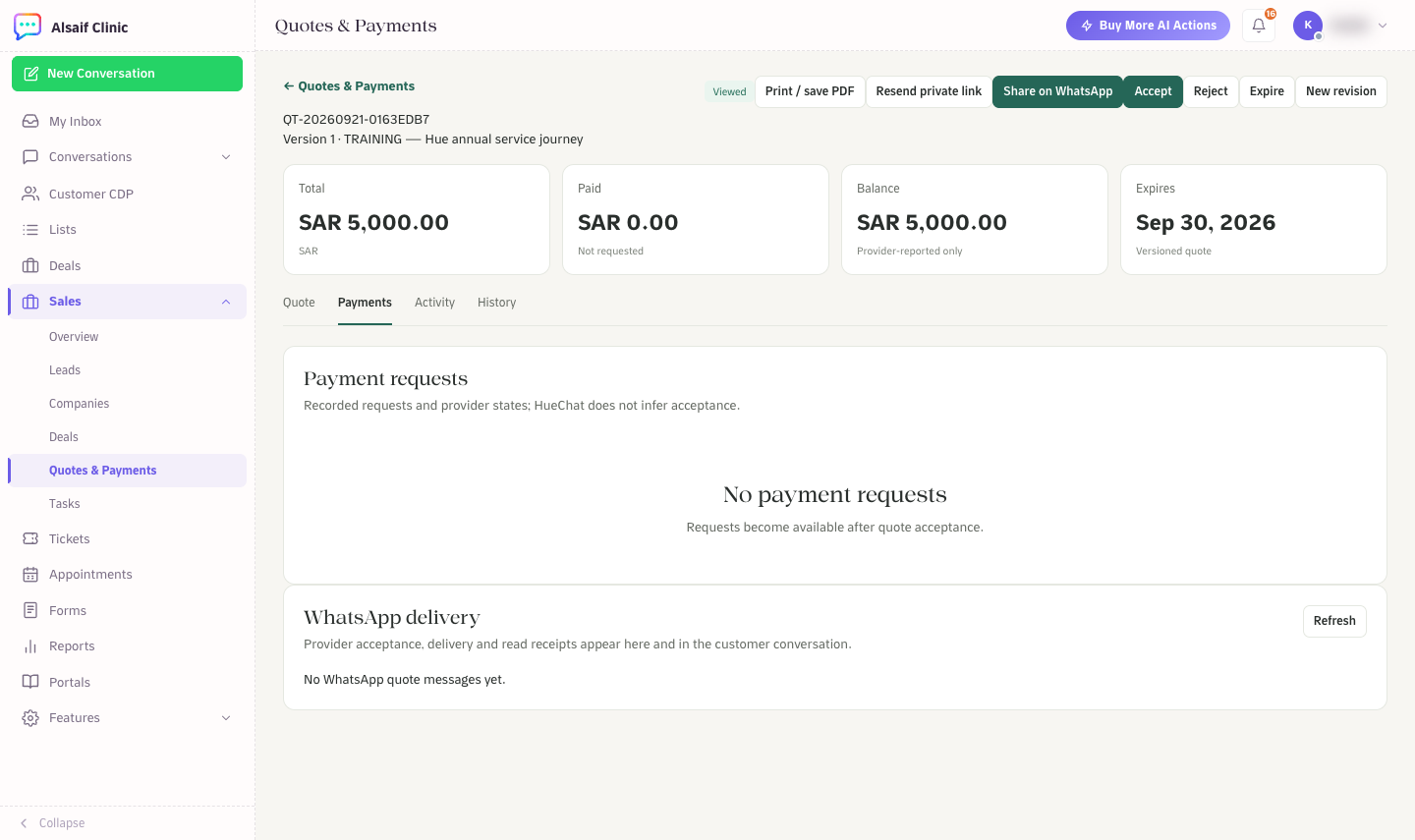
The Payments tab with payment requests and WhatsApp delivery receipts
Quotes are available on plans that include the Products & Quotes module.