This article shows you how to add teammates to your HueChat workspace and which role to give them.
¶ The two roles
HueChat has two standard roles:
- Administrator: full access. Administrators change settings, connect and remove channels, manage billing, invite and remove users, and create API keys. Any change to configuration requires an administrator.
- Agent: works in the Team Inbox. Agents read and reply to conversations, assign, label, add notes and manage the contacts and tickets they work on. They cannot change account settings or channels.
The person who created the workspace is an administrator. Enterprise plans can also define custom roles. Exact options may differ by plan.
¶ How many people can I add?
Each plan includes a number of team agents:
- Free: 1 agent
- Starter: 3 team agents
- Growth: 10 team agents
- Business: 25 team agents
- Enterprise: unlimited agents
If you reach the limit, upgrade your plan before inviting more people.
¶ Invite a teammate
- Sign in to app.huechat.ai as an administrator.
- Open Settings and choose the team or agents section.
- Choose the option to add a new agent.
- Enter the person's name and email address.
- Choose the role: administrator or agent.
- Send the invitation.
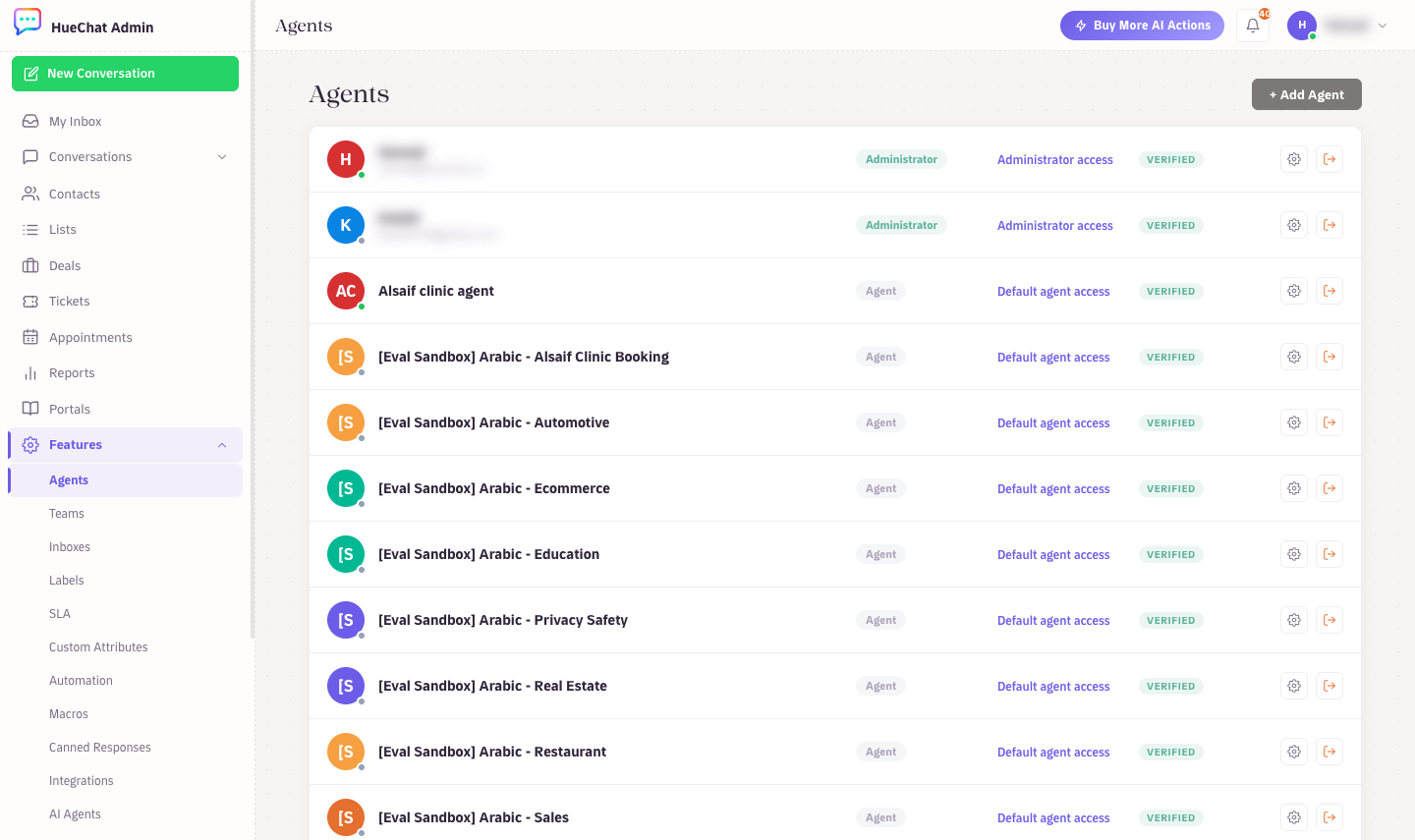
Settings, Agents: invite teammates and set their role
HueChat emails the invitation in the language of your account. The teammate opens the link, sets a password and signs in. Their sessions use the same protections as yours, including a second-factor check on password sign-ins.
¶ Change a role or remove someone
- Open the same team section in Settings.
- Select the teammate.
- Change the role, or remove them from the workspace.
Removing a teammate ends their access straight away. Conversations they worked on stay in your account. You are responsible for removing access when it is no longer needed, so review your team list when someone leaves.
¶ Tips
- Give the administrator role only to people who need to change settings. Most support staff only need the agent role.
- Assign agents to the inboxes they should work in. Agents only see conversations from the inboxes they belong to.
- Use internal notes and mentions in the Team Inbox to loop a teammate into a conversation without changing its assignment.