By the end of this article you will have a HueChat account, a confirmed email address and a workspace ready for your first channel.
¶ Before you start
- Pick the email address you want to use for your business. Confirmation links and security codes go there.
- Decide on a plan. You can start on Free, or begin a 14-day free trial of a paid plan. No credit card is required for the trial.
- Optional: have your mobile phone nearby if you want to verify a WhatsApp number during signup.
¶ Steps
- Go to huechat.ai and choose Start Free Trial, or open the pricing page and pick a plan.
- Under Choose Your Plan, select the plan and billing period you want, then continue.
- Under Account Details, enter your full name, email address and company name. The company name becomes the name of your workspace.
- Enter your phone number if you want to verify it now. This is optional. If you add a number, HueChat sends a 6-digit code over WhatsApp. Type the code to continue, or choose Continue by verifying my email without a phone. You can request a new code after 60 seconds.
- Create a password. It needs at least 8 characters, including a lowercase letter, an uppercase letter and a number. Enter it again to confirm.
- Read the Terms and Conditions and Privacy Policy, then create your account.
- Open the confirmation email and click the link. This finishes signup and takes you to your dashboard at app.huechat.ai.
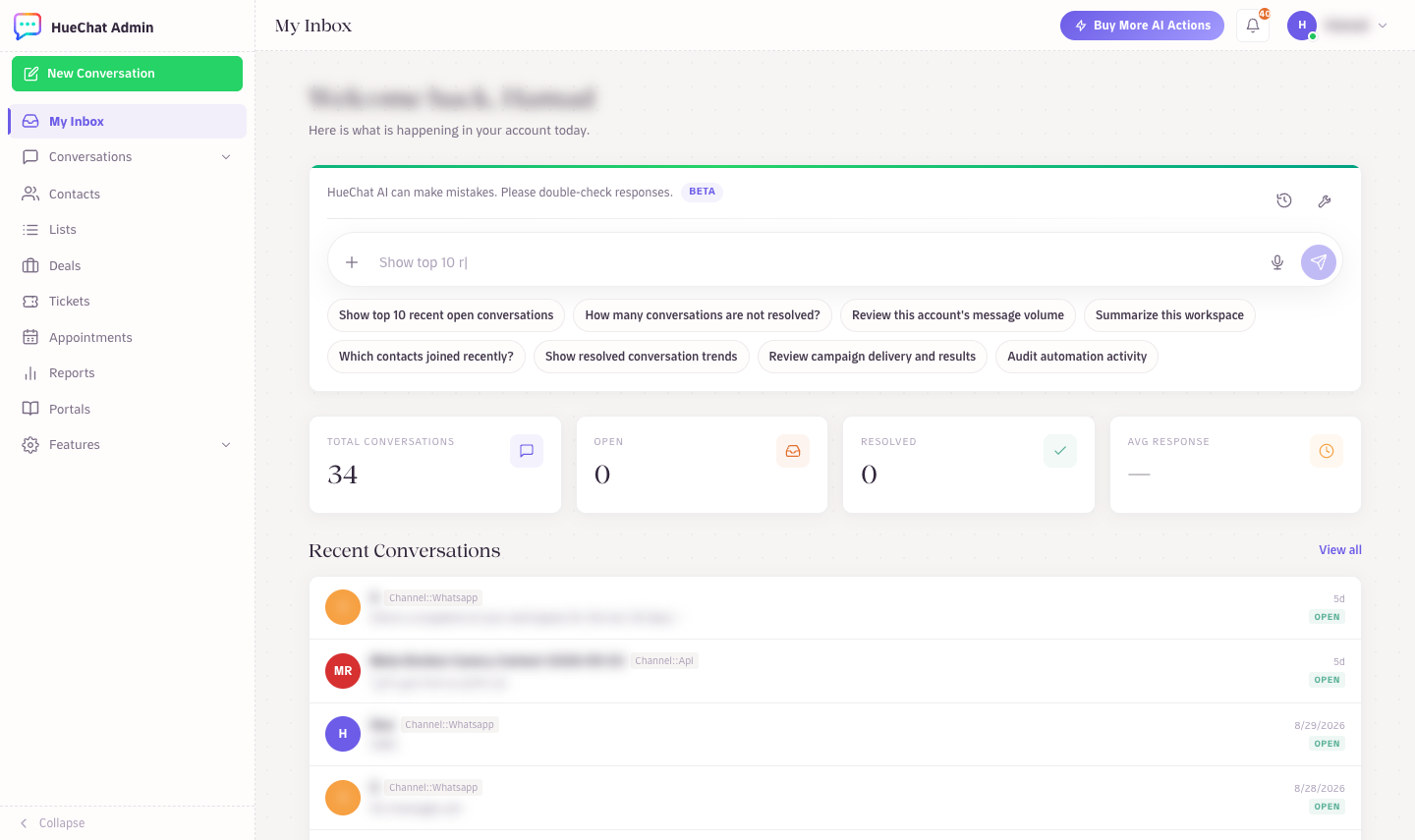
Your new workspace dashboard
If you prefer, choose Continue with Google at the top of the form to sign up with your Google account instead of a password.
¶ What happens next
- Your workspace is created with you as the administrator.
- The language of the signup page you used becomes the language of your account emails. You can change your language later.
- HueChat will ask you to connect a channel. WhatsApp, Instagram, Messenger, Email and Live Chat each have their own article in this Help Center.
¶ Troubleshooting
- No confirmation email: check spam and promotions folders, and make sure the address is typed correctly. Submit the form again to resend.
- "Passwords do not match": both password fields must be identical.
- "Phone verification is unavailable right now": continue without a phone. You can verify a number later.
- Too many code attempts: wait a few minutes, then request a new code.
If you still cannot sign up, email support@huechat.ai with the address you used.