This article explains how HueChat protects your sign-in with a second factor, and how to switch from email codes to an authenticator app.
¶ How it works
Every password sign-in to HueChat asks for a second factor after the password:
- Authenticator app: a six-digit code from an app such as Google Authenticator, Microsoft Authenticator or 1Password. This is the recommended option.
- Email code: if you have not set up an app, HueChat sends a one-time code to your email address instead.
After a successful check you can mark the device as trusted. A trusted device skips repeat challenges for a while, so you are not asked on every sign-in from the same browser. Signing in with Google uses your Google account for the password step; the second-factor check still applies according to your account settings.
Authenticator secrets are stored encrypted, and repeated wrong codes lock the challenge for a short time.
¶ Set up an authenticator app
- Install an authenticator app on your phone.
- Sign in to app.huechat.ai.
- Open your profile or account security settings and find the two-factor section.
- Choose to set up an authenticator app. HueChat shows a QR code.
- In the app, add an account by scanning the QR code. If you cannot scan, enter the text key shown under the code.
- Type the six-digit code the app now shows to confirm.
- HueChat shows ten recovery codes. Save them somewhere safe, such as a password manager. Each code works once.
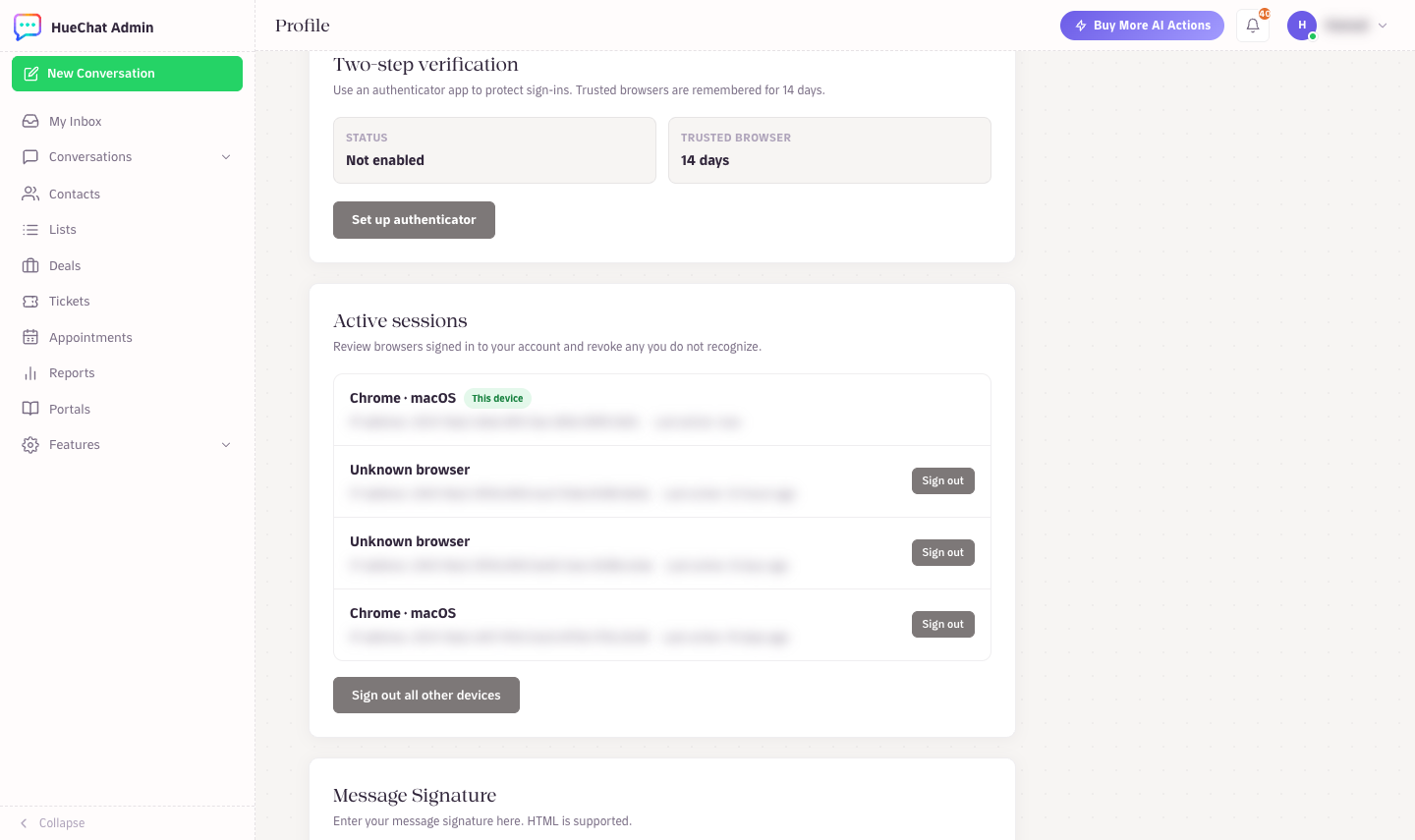
Two-step verification and active sessions on your profile
From now on, sign-ins ask for the app code instead of an email code.
¶ Use recovery codes
If you lose your phone, enter one of your recovery codes at the second-factor step. Then set up the authenticator app again on the new phone and generate new codes. Used codes stop working.
¶ Locked out
- No recovery codes and no phone: email support@huechat.ai from the address on your account. Support verifies your identity before making any change. An administrator on your workspace may also be able to help by confirming who you are.
- Codes rejected: check the phone's clock is set automatically. Authenticator codes depend on accurate time.
- Email code not arriving: check spam, and make sure you can still receive email at your account address.
¶ Recommendations for administrators
- Ask every teammate to use an authenticator app. Email codes work, but an app is faster and does not depend on the mailbox.
- Remove teammates who leave, so their second factor is no longer relevant.
- Changing your password signs out every other session, which is useful if you suspect a leaked password.
Exact options may differ by plan.