After this article, messages sent to your Facebook Page through Messenger will appear in HueChat, and your team can answer from the Team Inbox.
¶ What you need
- A Facebook Page for your business.
- A Facebook account with admin access to that Page.
- A HueChat plan that includes all channels (Starter and above).
¶ Connect the Page
- Sign in to app.huechat.ai as an administrator.
- Open Settings, choose Channels and add a new Messenger inbox.
- Choose to continue with Facebook. A Meta window opens. Sign in with the Facebook account that manages the Page.
- Select the Page you want to connect. If you manage several Pages, pick only the ones you want in HueChat.
- Allow the permissions requested. They cover reading and sending messages, handling comments and reading basic Page details. Declining one turns off that feature.
- Finish the Meta window. In HueChat, name the inbox and choose the agents who work in it.
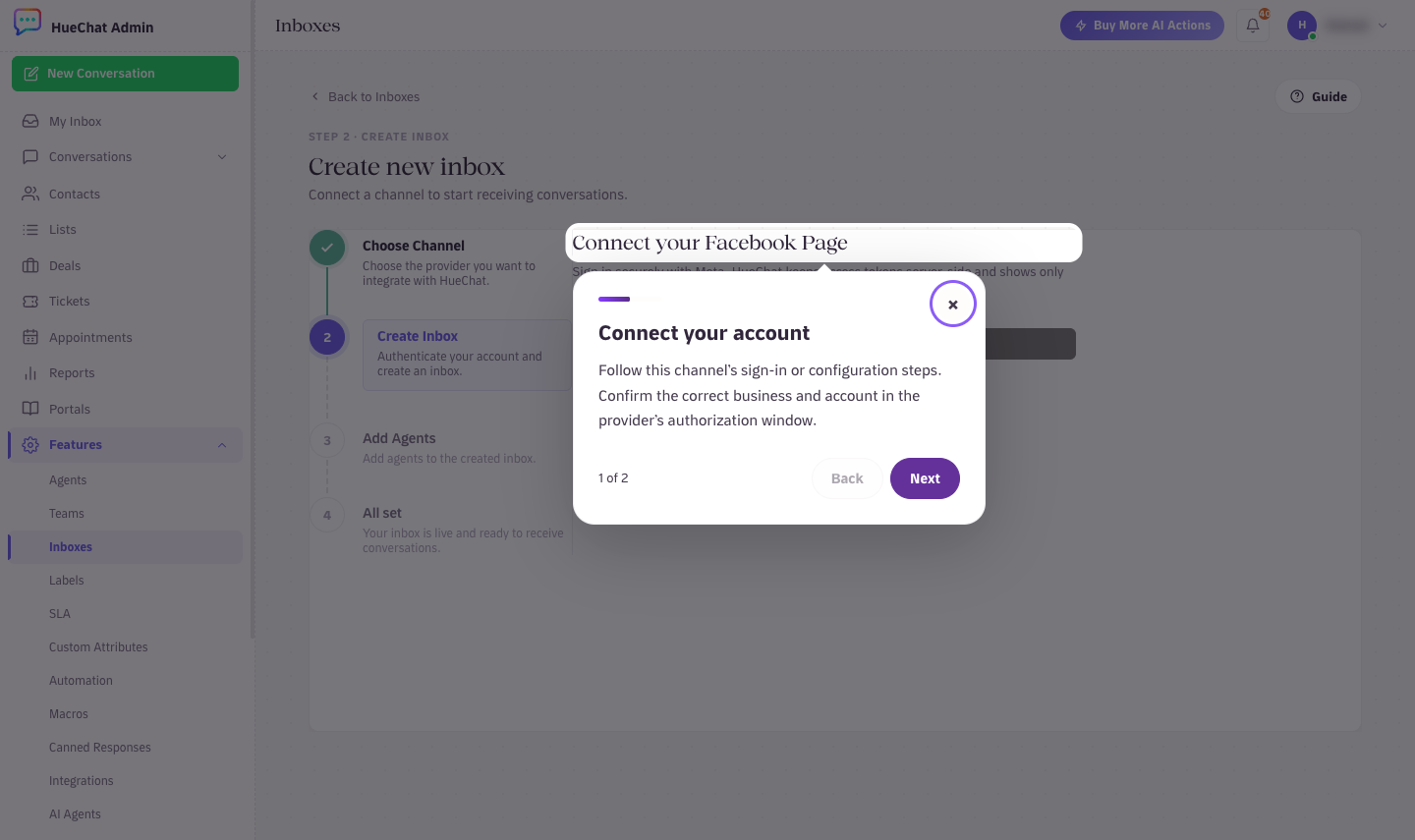
Connect your Facebook Page with Meta
If the same Page is linked to an Instagram professional account, you can connect Instagram in the same flow and see both in one view.
¶ What arrives in the inbox
- Messenger conversations from facebook.com, the Messenger app and the Messenger plugin on your website.
- Images, videos, files and quick replies from customers.
- Messages started from ads that click to Messenger.
- Comments on posts and ads, if you enable the automation that replies to comments with a private message.
¶ Reply rules
Messenger allows a business to reply within 24 hours of the customer's last message. Outside that window you can only send messages that meet Meta's rules, and ordinary replies are blocked until the customer writes again. AI Agents follow the same rule, and a handoff to a human keeps the whole conversation history.
¶ Keep the connection healthy
- Do not remove HueChat from your Facebook business integrations. Doing so stops messages until you reconnect.
- If the Page admin who connected the inbox leaves your business, reconnect the inbox with another admin's Facebook account so the connection does not expire with them.
- Changing the Facebook password of the connecting account invalidates the token. Reconnect the inbox afterwards.
¶ Common problems
- Page not listed: the Facebook account is not an admin of the Page, or the Page is in a Business Portfolio you did not select. Check Page roles, then retry.
- Messages stop arriving: reconnect the inbox from Settings to refresh the permissions.
- Duplicate inbox: connecting the same Page twice creates two inboxes. Remove the extra one.
Email support@huechat.ai with the Page name if you need help.