After this article, visitors on your website will see a chat button that opens a conversation in your HueChat Team Inbox.
¶ What Live Chat includes
Live Chat is included on every plan, including Free. The widget lets you:
- Match your brand colors, position and style so it feels native to your site.
- Show a pre-chat form that collects name, email and context before the conversation starts, which helps routing.
- Trigger proactive messages based on the page, time on site or scroll depth.
- See which pages a visitor browsed, how they found you and their location before they say hello.
- Let AI Agents answer first and hand over to a human when needed.
¶ Create the Live Chat inbox
- Sign in to app.huechat.ai as an administrator.
- Open Settings, choose Channels and add a new Live Chat inbox.
- Enter a name for the inbox and the website domain where the widget will run.
- Choose the widget color, position and welcome text. Add Arabic and English text if your site is bilingual.
- Turn on the pre-chat form if you want to collect details before the first message.
- Save. HueChat shows an installation snippet.
- Choose the agents who work in this inbox.
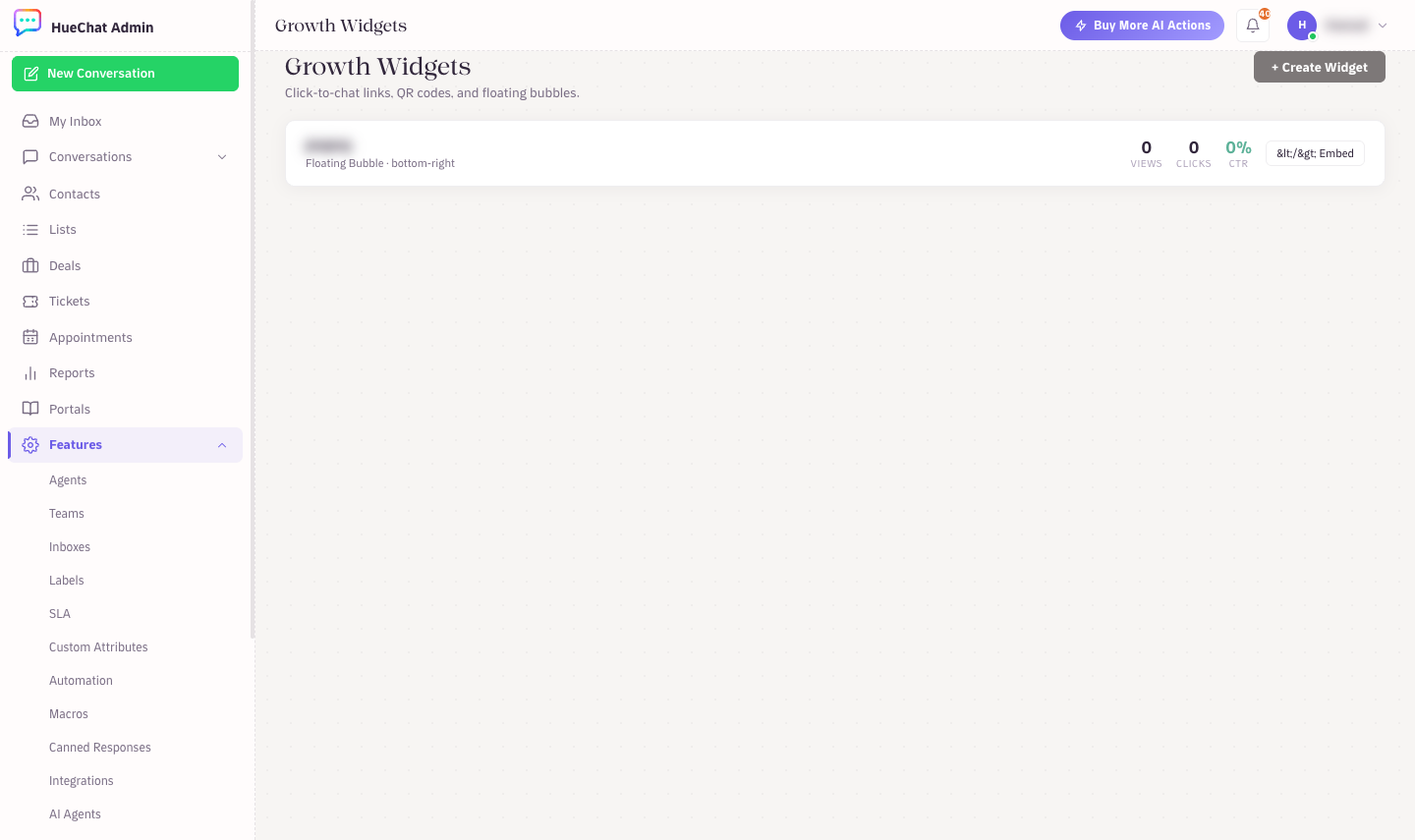
Growth Widgets: chat links, QR codes and the floating bubble
¶ Install the snippet
- Copy the snippet shown after you save the inbox.
- Paste it just before the closing body tag of every page where you want the widget. On most site builders this is a site-wide "custom code" or "footer scripts" setting.
- Publish the site and open it in a private browser window. The chat button should appear in the position you chose.
- Send a test message. It appears in the new inbox within seconds.
If you use a tag manager, add the snippet as a custom HTML tag that fires on all pages.
¶ Tips
- Set business hours in Settings so the widget can show an off-hours message and still collect the conversation for later.
- Add automation rules to send a welcome message or route by page. For example, chats from the pricing page can go to sales.
- Keep the widget domain setting accurate. The widget only loads on the domain you entered.
- Check the widget on mobile screens. It resizes automatically, but long welcome texts look better when kept short.
¶ Common problems
- Widget does not appear: the snippet is missing from the page, blocked by a content security policy, or the domain does not match. Check the browser console for a blocked script.
- Two widgets appear: the snippet was added twice, for example in both a theme and a plugin. Remove one.
- Messages not received: no agent is assigned to the inbox, or the inbox was deleted. Check the inbox in Settings.
Email support@huechat.ai with your website address if you need help.