After this article, emails sent to your support address will arrive in HueChat as threaded conversations, and replies will go out from that address.
¶ How the Email channel works
HueChat connects to your mailbox with IMAP for receiving and SMTP for sending. It works with Gmail, Outlook, custom domains and most other providers. Related emails are grouped into one thread, so a long back-and-forth stays in a single conversation. Signatures, reusable templates and attachments of any type are supported.
¶ What you need
- The email address you want to use, such as support@yourcompany.com.
- IMAP and SMTP server details from your email provider (host, port and whether it uses SSL or TLS).
- A password for the mailbox. For Gmail and many Outlook accounts, this must be an app password created in your provider's security settings, not your normal sign-in password.
- A HueChat plan that includes all channels (Starter and above).
¶ Connect the mailbox
- Sign in to app.huechat.ai as an administrator.
- Open Settings, choose Channels and add a new Email inbox.
- Enter the email address and the name customers should see as the sender.
- Enter the IMAP details: host, port, encryption, username and password.
- Enter the SMTP details in the same way.
- Save. HueChat tests the connection and reports any error.
- Name the inbox and choose the agents who work in it.
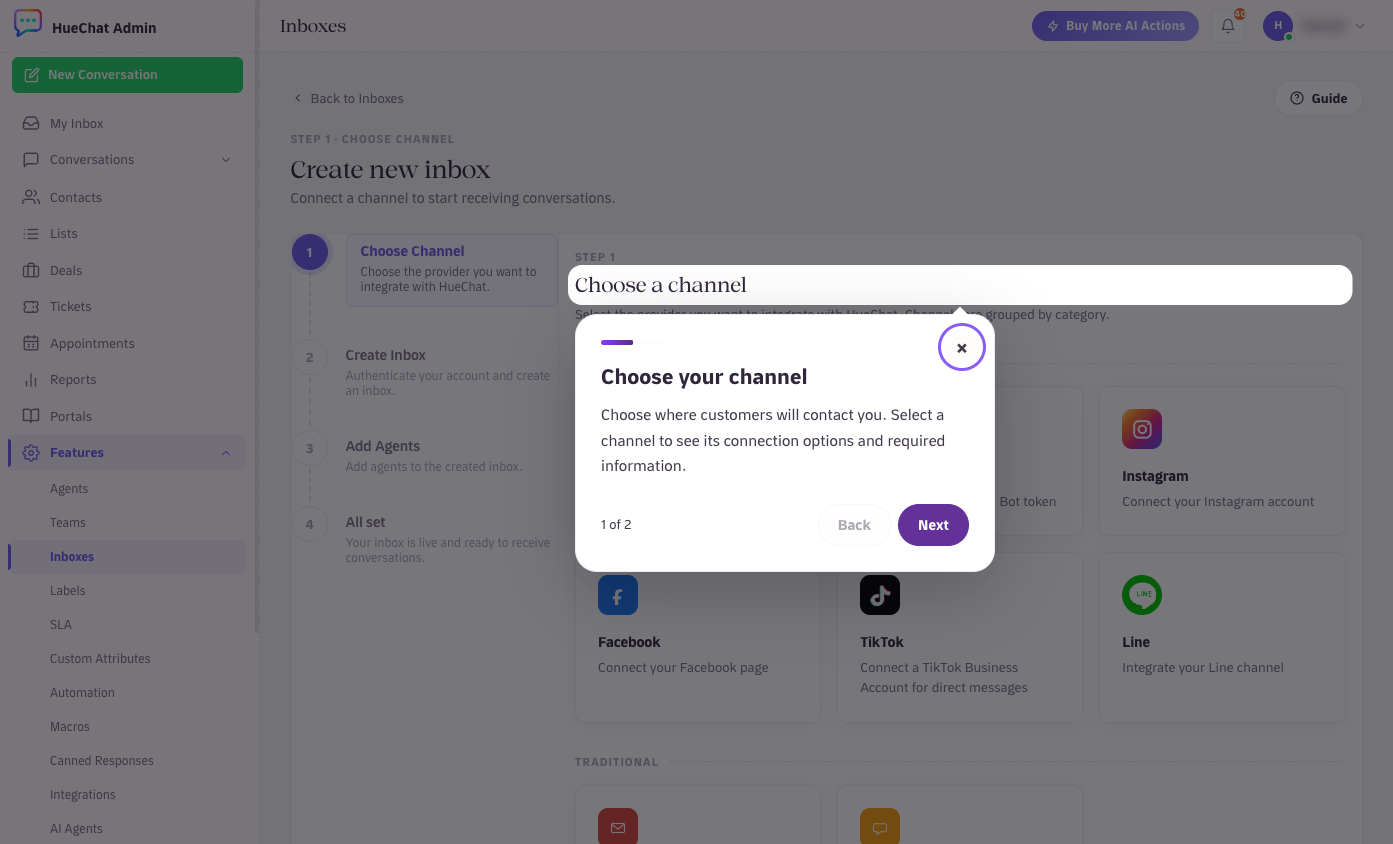
Settings, Inboxes, Add: choose Email
Gmail and Outlook details are usually available in the provider's help pages. Exact fields may differ by provider.
¶ Working with email in the Team Inbox
- New emails open as conversations. Replies are sent from the connected address and keep the subject and thread.
- Use canned responses and your signature the same way you do on chat channels.
- Assign, label and add internal notes as usual. Email conversations appear in Analytics alongside chats.
- AI Agents can reply to emails using your knowledge sources, with the same handoff to a human when needed.
¶ Common problems
- Authentication failed: use an app password. Check that IMAP is turned on in your provider's settings.
- Emails receive but do not send: SMTP port or encryption is wrong, or the provider blocks sending from third-party tools. Check the SMTP settings and any sending limits.
- Missing old emails: HueChat imports new mail from the time you connect. Older messages stay in your mailbox.
- Spam folder: emails your provider marks as spam are not imported. Check the mailbox directly.
If the test fails and you cannot find the cause, email support@huechat.ai with the provider name and the error text.