A broadcast sends one approved WhatsApp template to many contacts at once. This article walks through the wizard from a new broadcast to a sent one.
¶ Before you start
- An active WhatsApp Business API (Meta Cloud API) inbox connected in HueChat.
- At least one approved template. Marketing messages must use a template approved by Meta; create and submit templates from the Templates page.
- Contacts with a label, or a CSV file with phone numbers.
- Consent. Only broadcast to people who opted in to hear from you.
Broadcast limits depend on your plan. Exact options may differ by plan.
¶ Create the broadcast
- Open Broadcasts and choose New Broadcast.
- Broadcast Details: enter a Campaign Name (for example "March Promotion") and choose the WhatsApp sender. If no sender is listed, connect a WhatsApp Cloud inbox first.
- Select Template: search this sender's approved templates and pick one. Templates that are not approved cannot be used.
- Personalize: fill in every variable, the header text or media, and any button value. WhatsApp rejects the whole send if a variable is empty. See "How do I use templates with variables and media in a broadcast?".
- Choose Audience: pick By Labels or CSV upload. HueChat shows Reachable recipients after removing opted-out, blocked and recently messaged contacts.
- Schedule: keep Send immediately, or choose a date and time.
- Review & Send: check the summary and choose Send Now (or Schedule Broadcast for a scheduled one). You can also Save Draft and come back later.
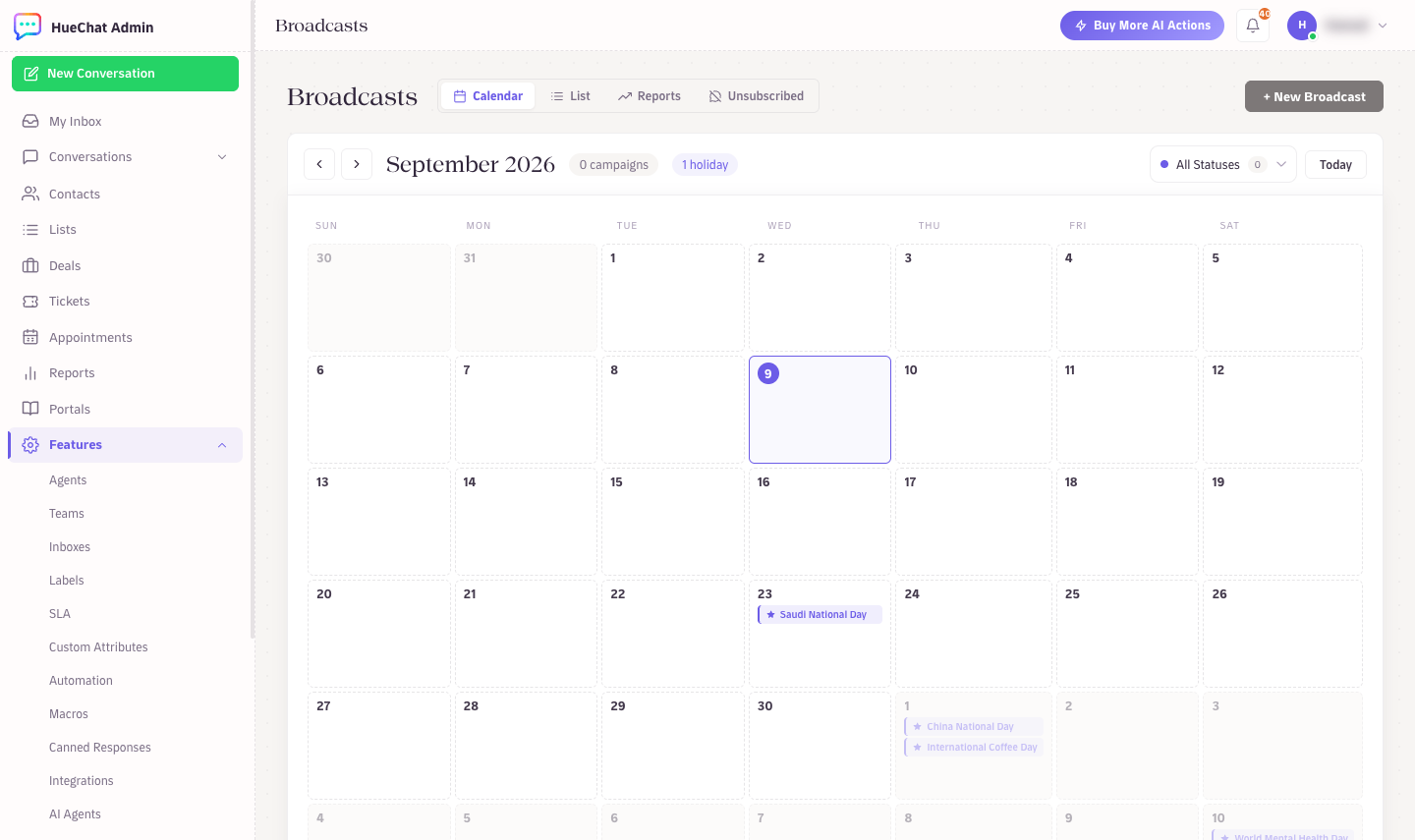
Broadcasts: calendar, list, reports and unsubscribed
¶ What happens when you send
- HueChat sends in batches at a safe rate per phone number, so Meta does not throttle you.
- Before sending, HueChat compares your audience with the number's Current 24-hour tier (Meta's messaging limit). If the audience is larger than what is available in the current window, HueChat asks you to confirm and sends the rest automatically when capacity returns. The list shows Next batch and the remaining audience.
- Each recipient is checked again right before their message goes out, so a contact who opted out a minute ago is skipped.
¶ Pause, resume, stop and delete
From the broadcast list or the calendar:
- Pause holds the remaining sends; Resume continues with recipients not yet messaged. Nobody is messaged twice.
- Stop cancels the remaining sends. Messages already delivered cannot be recalled.
- Delete is only available once a broadcast is stopped or finished.
Broadcasts: calendar, list, reports and unsubscribed
¶ After sending
Open Reports or the campaign's Outcomes to see Sent, Delivered, Read, Failed and replies. Replies from recipients land in the Team Inbox as normal conversations, so your team or AI agent can continue the chat.