Meta Lead Ads (instant forms) collect a name, phone and email inside Facebook or Instagram. Once connected, every form submission becomes a contact, a deal and a conversation in HueChat within seconds.
¶ Before you start
- You need admin access to the Meta Business that owns the ad account and the Facebook Page.
- Your HueChat role must allow managing integrations.
- Publish at least one active instant form on the Page.
¶ Connect Meta
- Open the Ads workspace in HueChat and stay on the Overview tab.
- On the Meta Ads card choose Connect. A Meta window opens.
- Sign in and grant the requested permissions for the ad account, the Page and lead access. If Meta returns several businesses, choose the Business that owns your Page and your WhatsApp or Instagram assets.
- Back in HueChat the card shows Connected. If it shows "Access needed" or lists missing permissions, choose Reauthorize Meta and approve everything that is requested.
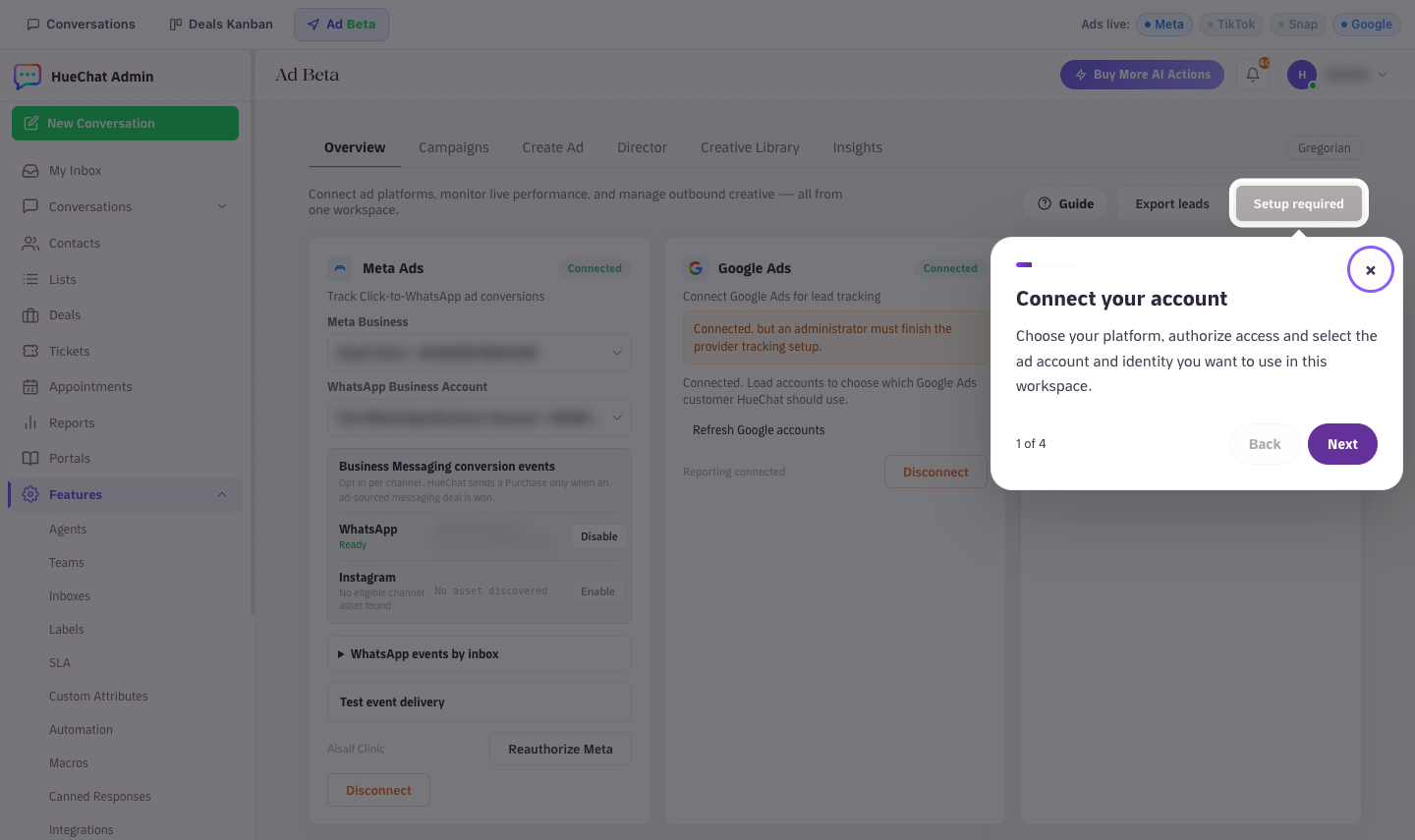
Connect Meta Ads and choose the Meta Business
¶ Route each form
After the connection, HueChat syncs the Page's lead forms into the Meta Lead Form Routing card.
- Find the form by its name and Meta page.
- Choose a Team and, if you want, an Agent. Leads from this form are assigned to them automatically.
- Enter Tags such as
sales, vip. They are added as labels on the conversation. - Changes save when you leave the field. A "Lead form routing saved" message confirms it.
If the card says "No Meta lead forms synced yet", confirm the form is active and the connection has Page and leads access, then refresh.
Connect Meta Ads and choose the Meta Business
¶ What happens when someone submits the form
- Meta sends the lead to HueChat.
- HueChat finds an existing contact by email or phone, or creates a new one.
- A Deal is created in your inbound stage and linked to the contact.
- A conversation opens in your inbox (HueChat prefers a Messenger, Instagram or WhatsApp inbox) with a summary message such as "New meta lead: name · email · phone".
- The routing rules assign the agent and apply the labels.
- The lead appears in the Ads workspace under Recent ad leads and in the ROI Dashboard.
Each lead is processed once, even if Meta delivers it more than once.
¶ Creating ads with forms from HueChat
The Create tab of the Ads workspace can publish Meta campaigns. When you pick the Instant form destination, choose an active form from the selected Page. Exact options may differ by plan.