A lead is only valuable if someone replies fast. This article explains what HueChat does the moment a lead arrives and how to let an AI Agent handle the first reply.
¶ What happens automatically
For every lead from Meta, Google, TikTok, Snapchat or a Click-to-WhatsApp chat, HueChat:
- Creates or matches the contact by phone or email.
- Creates a Deal in your inbound stage. With Sales, leads from lead forms also appear in Sales → Leads with the source Ad, ready to qualify and convert.
- Opens a conversation in your inbox with a summary of the lead. HueChat prefers a Messenger, Instagram or WhatsApp inbox and otherwise uses any inbox in the account.
- Applies routing. For Meta forms, that is the Team, Agent and Tags you set in Meta Lead Form Routing. For other sources, the inbox's own assignment rules apply.
- Scores the lead. Each lead gets a short summary, an intent score and a suggested next action such as "Reply on WhatsApp", "Send email follow-up" or "Review lead", based on what the lead provided (phone, email, company, answered questions). When AI lead enrichment is enabled on your account, an AI model adds more context.
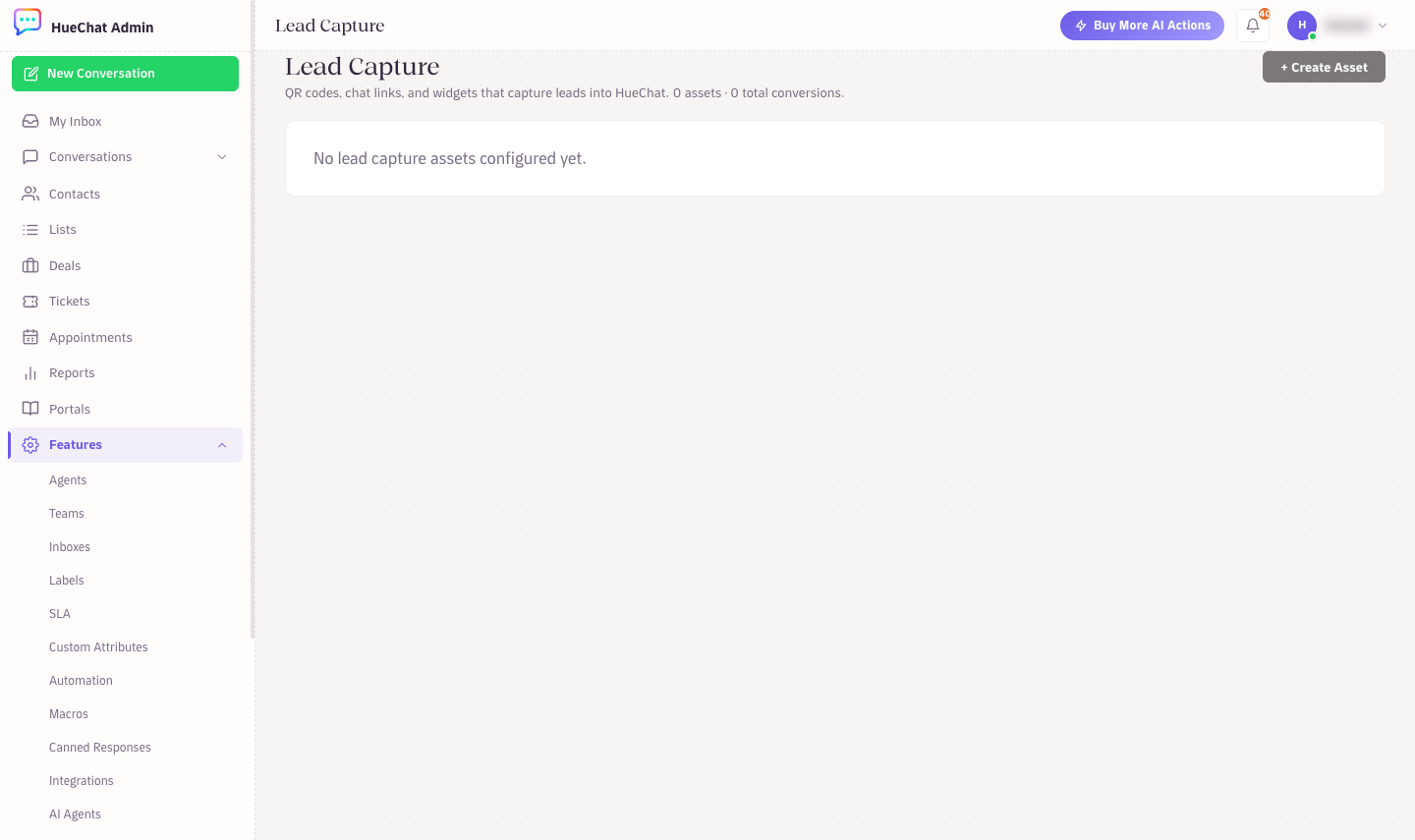
Lead Capture: QR codes, chat links and widgets
¶ Route leads to the right people
- Meta forms: set Team, Agent and Tags per form in the Ads workspace.
- Other sources: set the inbox's assignment rules, and use labels or automations in Settings to move conversations to a team.
- With Sales: in Sales Settings → Automatic assignment, routing rules choose the owner by branch, inbox, source, campaign, language or product interest, with working hours and a fallback owner. See How do I set up Sales settings, routing and CRM automation?
- Conversations from ads carry the ad source, so you can label them (for example
sales) and follow them in Label Reports.
¶ Let an AI Agent reply first
- Open AI Agents and create or edit an agent. Some templates include lead qualification, contact field collection and handoff rules.
- Attach the agent to the inbox where lead conversations open.
- When the lead writes back, the AI Agent answers, asks the qualifying questions you configured, updates the contact fields and hands off to a human when a handoff rule triggers. The contact panel shows AI Active or Handed Off, and an agent can take over at any time.
For leads that came from a form and have not messaged you yet, the first outbound WhatsApp message must be an approved template. Send it from the conversation, or add the lead's list to a Broadcast.
¶ Follow-up tasks
The Follow-up Tasks card on the Ads overview lets you schedule callbacks and owner follow-up work for captured leads and shows how many are open. Use it when a lead needs a call rather than a chat.
¶ Close the loop
Mark the Deal as won or lost when you know the outcome. The Conversion Feedback card sends the outcome back to the ad platform so its optimisation is based on real revenue, and the ROI Dashboard uses it to compute lead-to-deal and win rates.
Exact options may differ by plan.