This guide walks through connecting any supported store platform to HueChat. The screens are the same for every store; only the credential fields differ.
¶ Before you start
- You need a HueChat role that can manage integrations.
- You need admin access to the store to create an app, API token or private access token.
- Decide which inbox and team will receive store conversations, and which WhatsApp templates you will use for order updates. Templates must be approved by Meta first.
¶ Step 1: open the store card
- Open Settings and choose Integrations.
- Find your store in its region group (GCC, Global, Europe, Latin America, Asia or Enterprise) and choose Connect. Cards marked Soon cannot be connected yet.
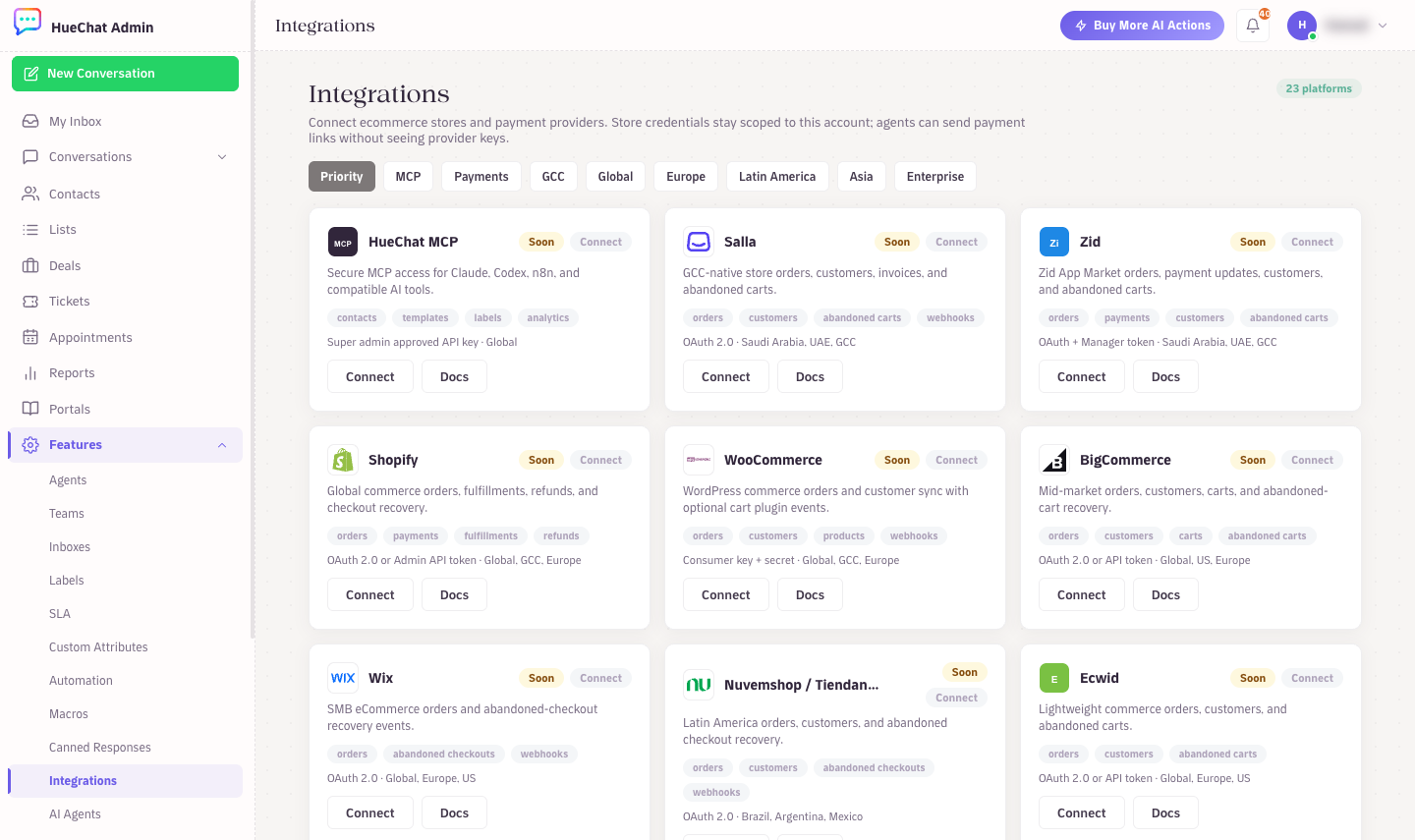
Click Connect on a store card
¶ Step 2: fill in the connection
- Enter a Store label such as "Main store" so you can tell stores apart.
- Fill the credential fields shown for your platform. Common fields are Store URL, a store or merchant ID, an Access token and sometimes a Refresh token or Manager token. The card shows the authentication type (for example OAuth 2.0) and a link to the platform's official docs that explain where to generate the token.
- Grant only what the store asks for. HueChat needs to read orders, customers and carts and to receive webhooks. It does not need to edit products or take payments.
¶ Step 3: choose the automation
Under Automation:
- Enable integration turns the sync on.
- Create/update HueChat contacts and Attach order context to contact control what is stored on contacts.
- Require WhatsApp opt-in limits template messages to customers who opted in.
- New order, Paid order, Shipped / fulfilled order and Cancelled / refunded order each get an action: Do nothing, Sync customer/order only, Open conversation, Send WhatsApp template or Create deal + send template.
Under Abandoned cart recovery, pick the Abandoned cart action, Delay minutes, and what to do on Recovered cart and Expired/no purchase.
Under WhatsApp template mapping, enter the template names for Order confirmation, Payment confirmation, Shipping update, Abandoned cart, Cart discount and Review request.
Under Routing and deals, set the Inbox ID, Team ID, Deal pipeline ID, Deal stage ID and Minimum order value. All are optional.
Click Connect on a store card
¶ Step 4: save and test
- Choose Connect. The card shows Connected.
- Place a test order in your store. Within a few minutes a contact should appear in Contacts and, depending on the action you chose, a conversation or deal.
- If nothing arrives, confirm that the store's webhook points to HueChat and that the token has not expired. Write to support@huechat.ai with the store name and the order number if you need help.
¶ Permissions and data
HueChat stores the token you enter for your account only. Order and customer data received from the store are processed under your privacy policy; HueChat acts as your processor. See the Trust Center (trust.huechat.ai). Exact options may differ by plan and by store.