You can add many contacts at once by uploading a CSV or Excel (XLSX) file. HueChat checks the file, normalises phone numbers and skips contacts that already exist in your account.
¶ Prepare your file
- Open Customer CDP in the sidebar and choose Import.
- In the Import Contacts window, choose Download CSV to get the template.
- Fill one contact per row. Accepted columns:
name(optional)phone_number(also accepted:mobile,phone,tel)email(also accepted:email_address)companylocationlabels(separate several labels with|, for examplecustomer|vip)notes
- Include at least one identity column: name, phone or email. Rows where all identity fields are empty are skipped.
Tips:
- Use full international numbers when you have them, for example
+966501234567. - Save Excel files as
.xlsx. HueChat reads the first worksheet that has data. - Keep the header row. Column names are not case sensitive.
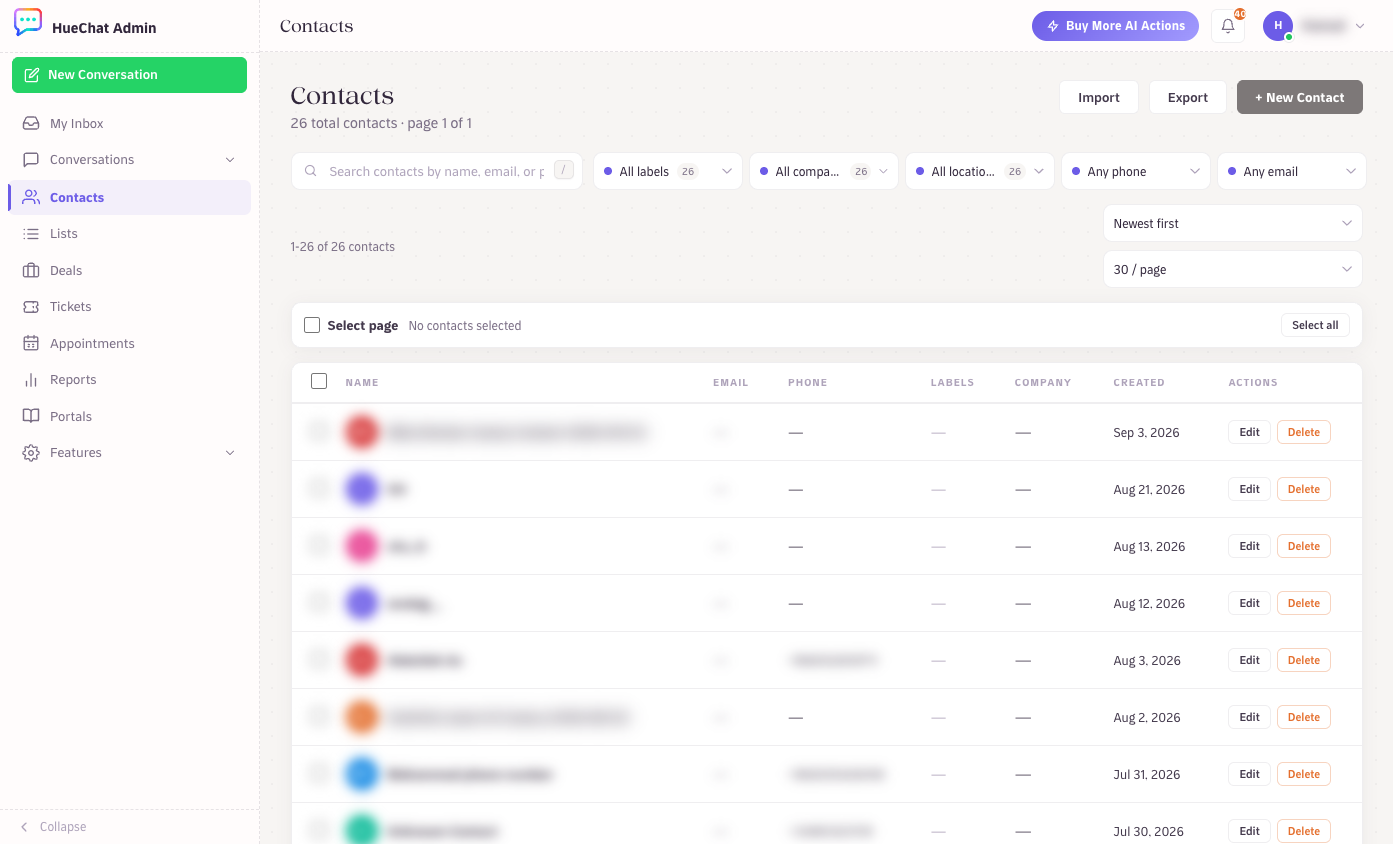
Contacts: Import, Export and New Contact
¶ Upload and review
- Click or drag your CSV or XLSX file into the upload area.
- For CSV files, HueChat shows a preview of the first rows and marks which column it treats as Name, Phone or Email. Excel files are checked by the server before any contact is saved.
- Choose the country code for local numbers. A local number such as
0533337458becomes+966533337458when Saudi Arabia is selected. Numbers that already start with a country code are kept as they are. - Choose Import (or Start import for Excel files).
Contacts: Import, Export and New Contact
¶ Track the import
Large files run in the background. The window shows how many rows have been processed and a Cancel job button if you need to stop. When it finishes you see four numbers:
- Created: new contacts added.
- Duplicates: rows that matched an existing contact by phone or email, or repeated another row in the same file.
- Skipped: rows that were not imported, including duplicates and rows without a name, phone or email.
- Total: rows in the file.
Existing contacts are skipped. They are not updated and not duplicated. If you need to change data on existing contacts, edit them from the contact page.
¶ Common problems
- "Add at least one identity column": the header row has no name, phone or email column. Rename your columns to match the accepted names.
- "CSV file appears empty or invalid": the file has a header but no rows, or it is not a plain CSV. Export again from your spreadsheet tool as CSV (UTF-8).
- Wrong country on numbers: cancel the job, then import again with the right country code selected. Contacts created with a wrong number can be edited or deleted from Contacts.
Contact limits depend on your plan. Exact options may differ by plan.