Export contacts when you need a backup, want to analyse them in a spreadsheet or move them to another system.
¶ Export all contacts
- Open Customer CDP in the sidebar.
- Choose More actions, then Export.
- Your browser downloads a CSV file named
contacts_account_<your account id>.csv.
The export includes every contact in the account, newest first, regardless of any filters or search you have applied on the page.
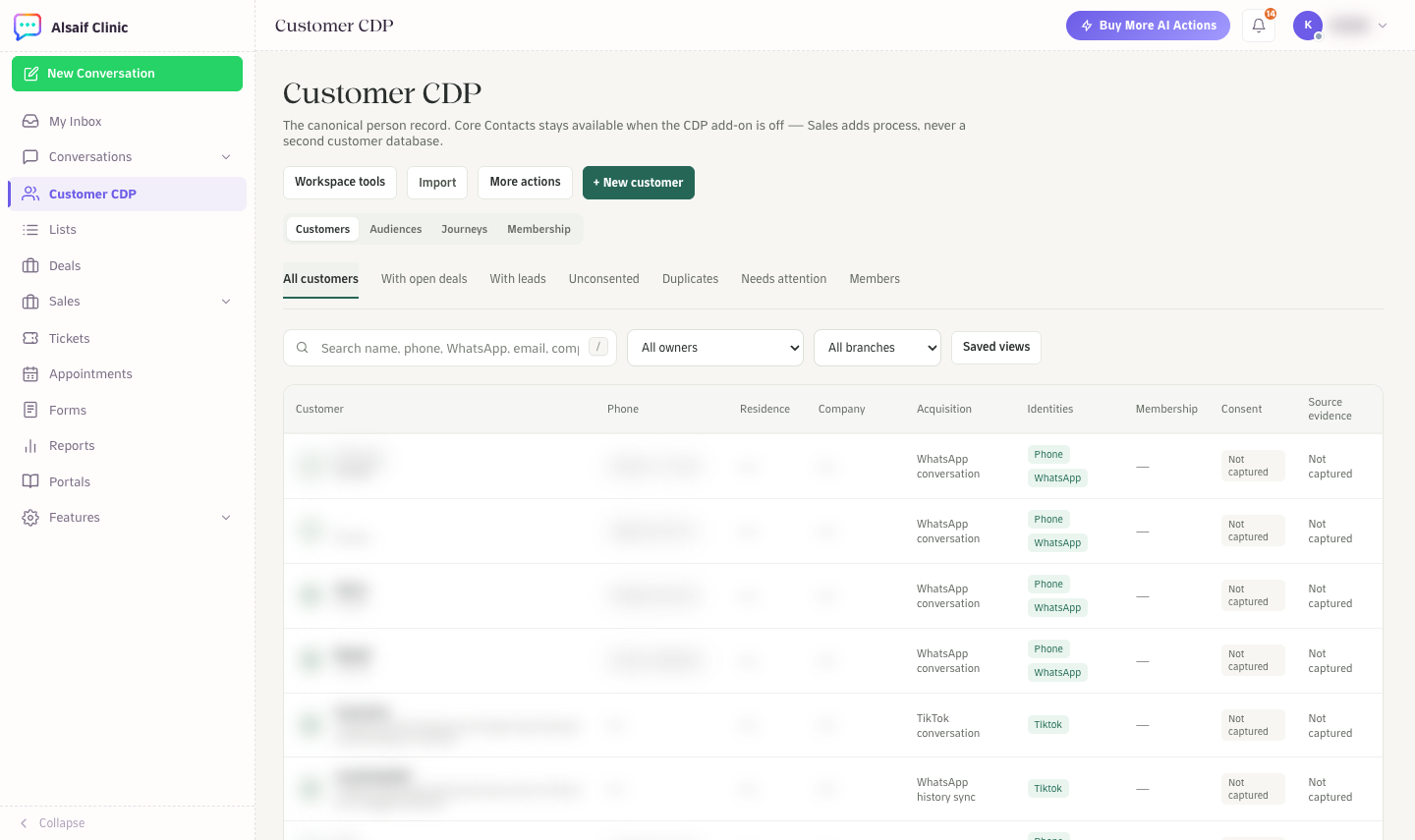
The Customer CDP directory. Export is under More actions.
¶ What the file contains
Columns, in this order:
- name
- phone_number
- company
- location
The file is UTF-8 with a byte-order mark, so Arabic names open correctly in Excel. Phone numbers are exported as stored on the contact, usually in international format with a plus sign.
Labels, notes, custom attributes and conversation history are not part of this export. If you need those, open the contact in HueChat, or use the contact endpoints described in the Developer Hub (developers.huechat.ai).
¶ Re-importing an export
The export uses the same column names as the import template, so you can edit the file and import it back. Existing contacts are skipped during import, not updated. To update many contacts at once, edit them in HueChat or use the API.
¶ Exporting ad leads
Leads captured from ad platforms are exported separately. In the Ads workspace choose Export leads to download a CSV with platform, name, phone, email, company, job title, campaign, ad set, ad, lead form, status, referral source, source URL and timestamps.
¶ Who can export and how to handle the file
Exports are available to users who can manage contacts. Contact data belongs to your business: store exports according to your privacy policy and delete files you no longer need. See the Trust Center (trust.huechat.ai) for how HueChat protects data in the platform. Exact options may differ by plan.