The Agent Reports page shows, for each agent, how many conversations they handled, how quickly they replied and how customers rated them. Combine it with Team and SLA reports to balance workload.
¶ Open the report
- Open Analytics and choose Agents.
- Pick a period: Today, 7 Days, 30 Days, 3 Months, 6 Months, 12 Months or Custom.
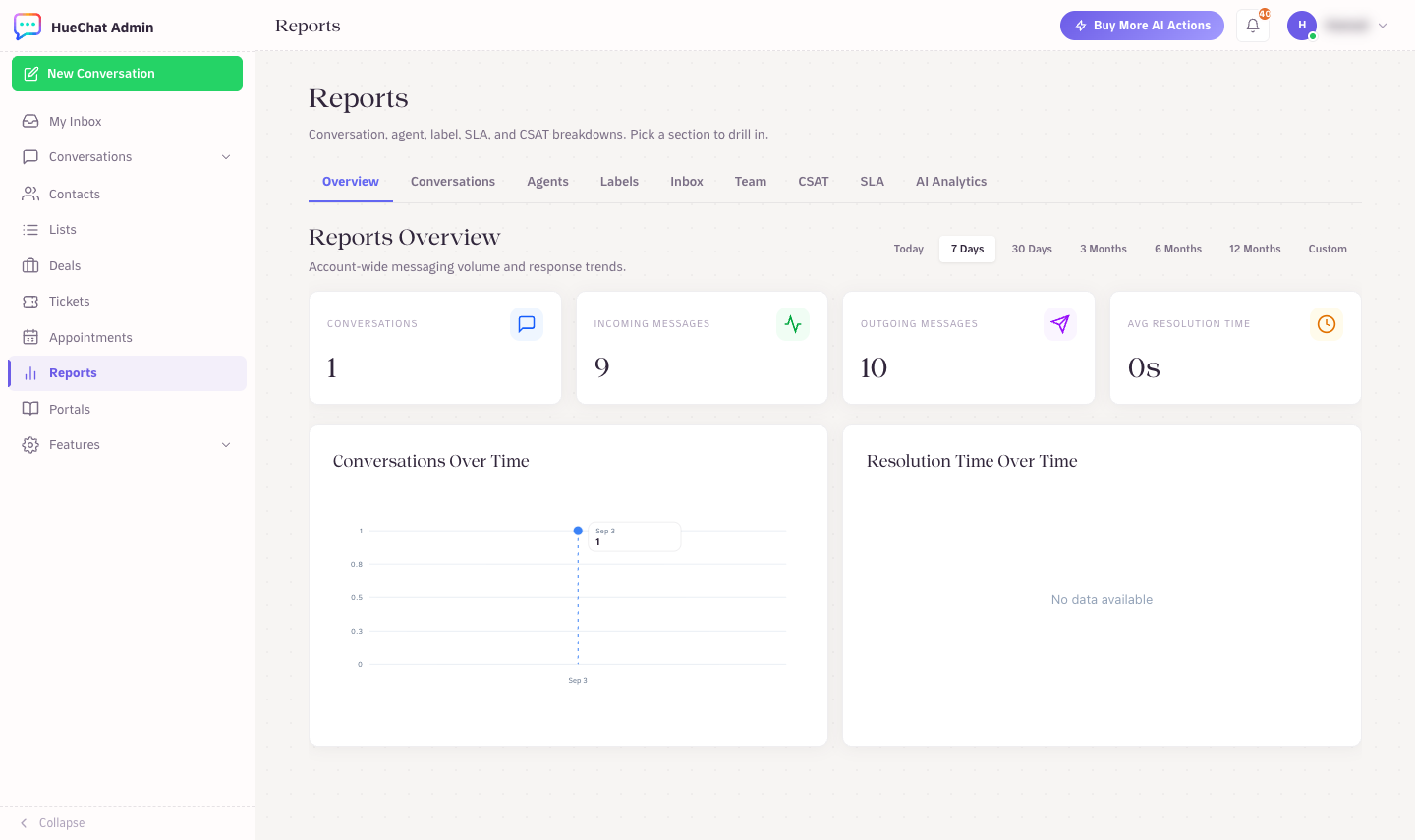
Switch to the Agents section of Reports
¶ The columns
- Agent: the team member's name.
- Conversations: conversations assigned to the agent in the period. This is the workload number.
- Avg First Response: average time between a customer's first message and the agent's first reply.
- Avg Resolution: average time between the conversation opening and the agent resolving it.
- CSAT: the average customer rating on conversations the agent handled.
The Conversations by Agent chart shows the same volume as bars so uneven workload stands out.
¶ Reading the numbers
- A high Conversations count with a rising Avg First Response usually means the agent has more than they can handle. Move some conversations or change the assignment rules for the inbox.
- A low Avg First Response but a long Avg Resolution often means the agent replies fast but waits on other departments. Check labels and Tickets for the blocking topics.
- CSAT with very few conversations is not reliable. Compare over 30 days or more.
- AI Agents handle conversations before a human sees them. Look at AI Analytics for the AI Resolution Rate and at the handoff count to understand how much reaches your team.
¶ Balance workload with teams
- Open Analytics and choose Team to compare the same metrics per team.
- If one team is slower, check its inbox assignment settings and the number of agents in Settings, Teams.
- Use Settings, Automations to route by label or inbox so specialised questions reach the right team directly.
¶ Set targets with SLA
- Open Settings and choose SLA Policies to define targets for first response, next reply and resolution.
- Apply the policy to the inboxes or teams it covers.
- Open Analytics, SLA to see Total SLA Hits, SLA Breaches, Breach Rate and the SLA Breach Events log with the breach type, conversation and time.
The breach log is the fastest way to find the exact conversations that missed a target and the agent who owned them.
¶ Tips
- Compare the same period week over week rather than single days.
- Keep the Contact panel's Assigned Agent field accurate; unassigned conversations are not counted for any agent.
- Exact options may differ by plan.