Connect Grok to your HueChat workspace through a custom MCP connector. You control what Grok can read or change.
¶ Before you start
- Use an active HueChat Enterprise workspace and an owner or administrator account.
- Sign in to Grok. For Grok Business or Enterprise, your Grok team administrator must provision the connector first.
- You connect yourself; no HueChat staff approval is needed. This OAuth setup requires no API key.
For a Grok team, the admin opens console.x.ai, selects the team, then Grok Business → Connectors → + Add Connector → Other. Enter the URL below and complete authentication. Members then connect their own accounts.
¶ 1. Copy the HueChat server URL
Open Settings → Integrations → MCP in HueChat. Confirm AI clients in this workspace is On, then copy the server URL:
https://app.huechat.ai/v2/mcp
Use the URL as shown. No local server or tunnel is needed. Never add credentials to the URL or paste them into a chat.
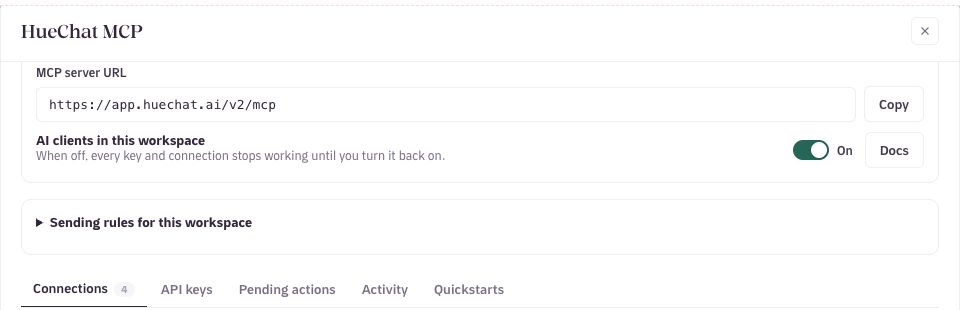
Copy the server URL from HueChat settings.
¶ 2. Add HueChat in Grok
- Open Grok connectors. You can also open Plugins → Connectors in Grok.
- Choose New Connector → Custom.
- Enter HueChat in Name and the URL above in Server URL.
- Choose Add Connector. A HueChat sign-in and permissions window opens.
- Sign in to HueChat, choose your Enterprise workspace and review the permissions below.
- Choose Allow, then return to Grok. HueChat should appear under Connected. Open it to see the discovered tools.
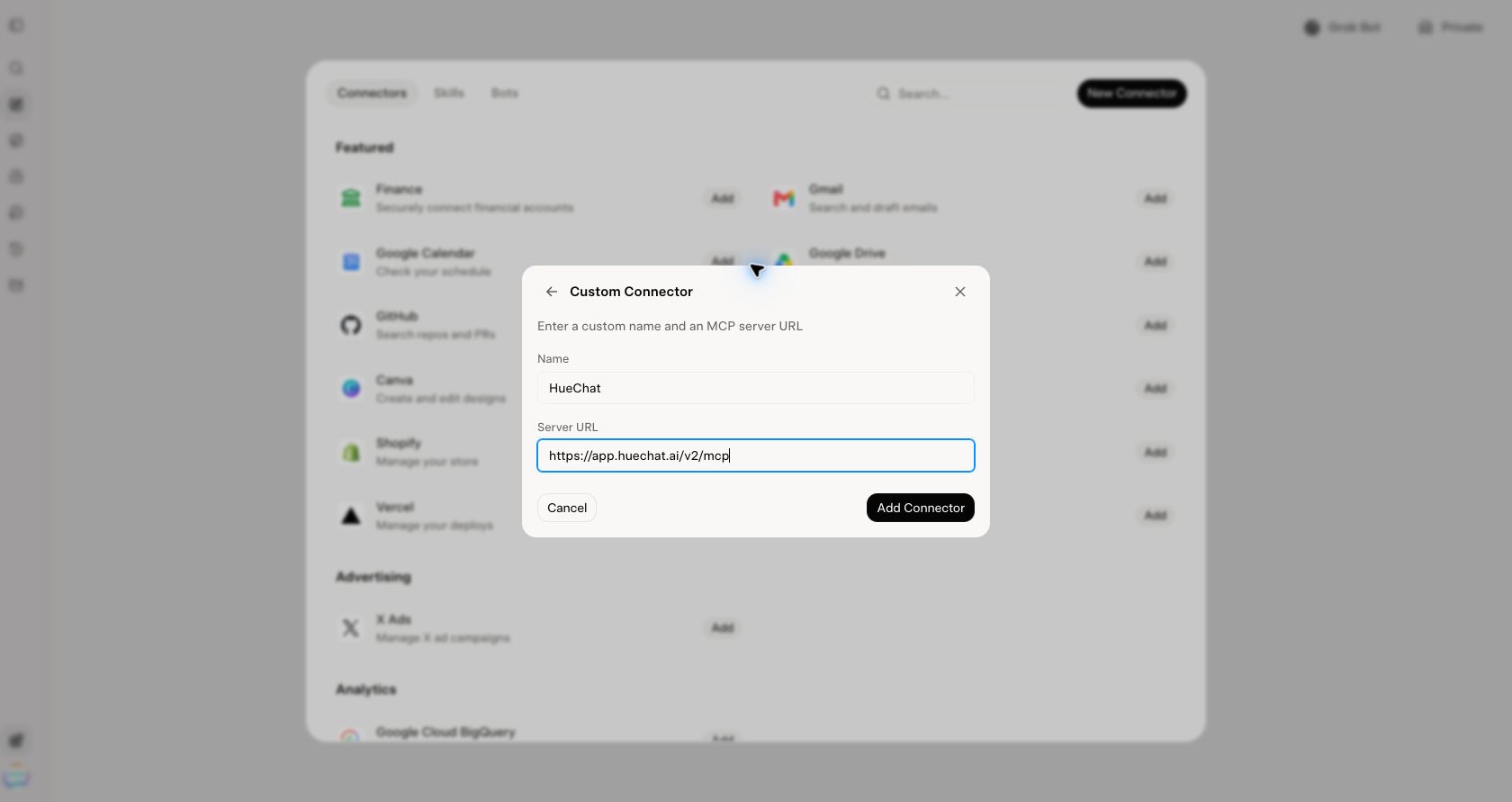
Enter HueChat and its server URL, then choose Add Connector.
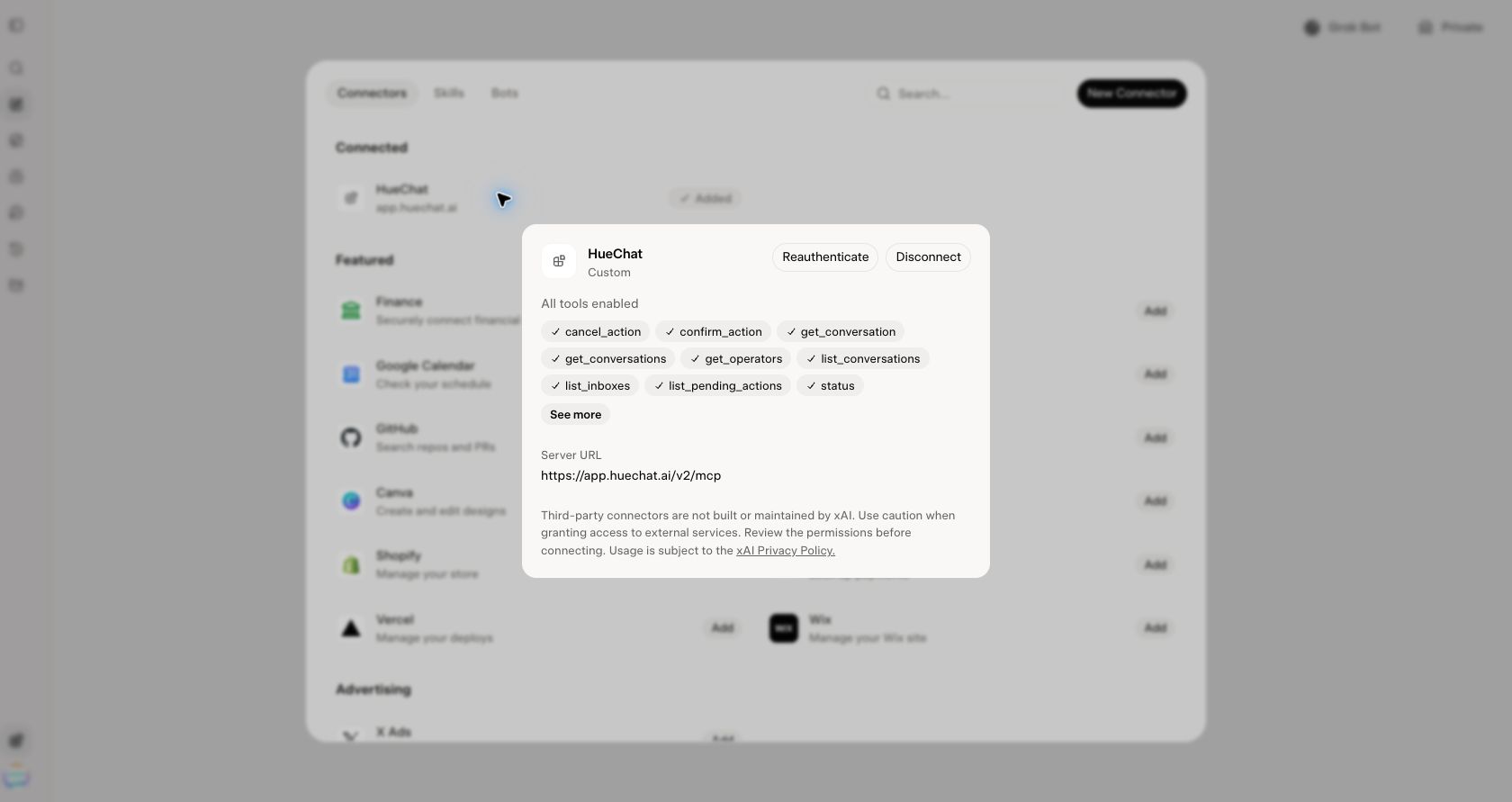
The available tools reflect your approved permissions.
¶ 3. Choose permissions
For a minimal workspace and conversation summary, choose Custom with mcp:use, account:read, inboxes:read, conversations:read and messages:read. Keep Allow sending messages to customers off. Add contacts:read only if you need contact details.
Writing and sending need separate scopes. Replies require messages:send; template delivery requires templates:send; edits need the relevant write permission. Enable sending only when needed and choose Confirm each send or Review in HueChat. Channel rules, Meta messaging windows, approved templates and recipient consent still apply. A read-only connection does not gain sending access automatically.
¶ 4. Test the connection
Ask Grok: “Summarize my HueChat workspace and open conversations. Read only; do not change or send anything.”
Open the response activity and look for Used HueChat Connector. Check the connector results when verifying workspace facts; Grok may also search the web.
¶ Fix connection problems
- No Custom option: check your Grok account and team-admin setup. See Grok's connector guide.
- Popup blocked or authorization expired: allow the HueChat sign-in popup, then retry the connection.
- 401 or missing tools: check your HueChat plan, workspace switch and permissions. Open HueChat's connector in Grok and choose Reauthenticate.
- Grok account or age check: complete it directly in Grok before requesting the summary.
¶ Change or remove access
In HueChat, open Settings → Integrations → MCP → Connections → Grok. Use Edit permissions or Disconnect. Disconnecting stops future access; it does not erase data already retained by Grok. For help, contact support@huechat.ai. Technical details.